Prepare a Workbook for AI Agent Filter Binding
Prepare a workbook for AI Agent filter binding by creating workbook filters, parameters, and parameter bindings that pass workbook filter values to AI Agent filters.
AI Agents and workbook filters operate independently unless you explicitly connect them through parameter binding. To allow an AI Agent to respond according to workbook filter selections, the workbook must contain filters and parameters that correspond to the filters configured on the AI Agent.
When a workbook filter is bound to a parameter, the parameter passes the selected filter values to the AI Agent filter mapping. This configuration enables the AI Assistant to dynamically use the workbook’s current filter context when generating responses. You can also configure exclusion parameters to exclude workbook-selected values from AI-generated responses.
Before performing this task, be sure to create an AI Agent with parameter-bound filters. See Configure an AI Agent to Use Workbook Filter Values.
After you perform this task and have prepared the workbook, you must then attach the AI Agent to the workbook and configure the filter mappings. See Attach an AI Agent and Configure Filter Mapping in a Workbook.
Add Filters to the Workbook
- On your home page, locate and open the workbook you want to prepare for AI agent filter binding.
- Go to the Data pane, locate the column you want to filter by and drag it to the filter bar. The column you select must match the column filter you added to the AI agent you created and will attach to the workbook.

Description of the illustration agent_workbook_bind_filter_bar.jpg - Click Save.
Create a Parameter
- In the workbook, click Parameters and then click Menu and select Add Parameter.
- In Create Parameter, add a name and specify only the following properties. Don't change any of the other default values.
- Data Type - Select Text.
- Allow Multi Select - Set to On.
- Available Values - Select Column.
- Column - Select the filter column.
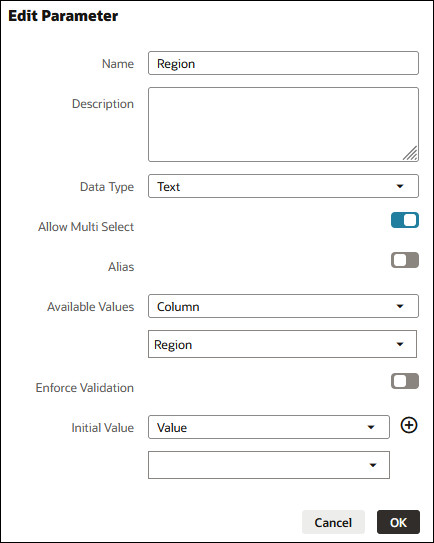
Description of the illustration agent_workbook_bind_param_properties.jpg - Click OK.
- Click Save.
Bind the Parameter to the Filter
- In the workbook, go to the filter bar and click to open the filter that you added and that you want to bind the parameter to.
- Click Bind to Parameter (x) and then select the parameter you created to pass the selected filter values to the AI Agent filter mapping.
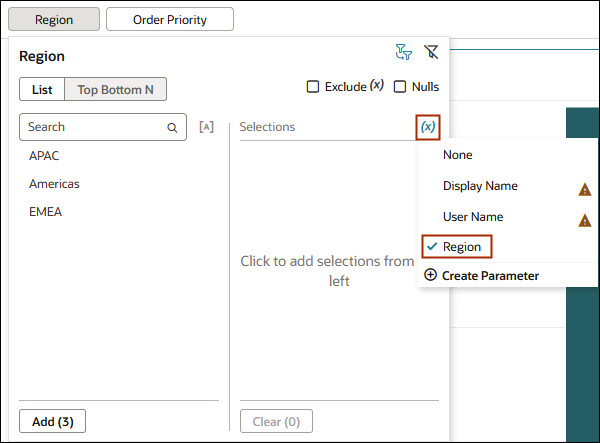
Description of the illustration agent_workbook_bind_param_select.jpg - Click Save.