Create Custom Data Point Tooltips
Design a custom tooltip for the datapoints in a visualization.
For visualizations that use multiple layers, such as Overlay charts and Maps, the Custom Tooltip editor includes a drop-down where you can select the layer that you want to apply the custom tooltip to. This way, you can customize the tooltips differently for each layer.
- Go to the Tooltip field.
- To start customizing a tooltip, click All Data or Tooltip Grammar Only and select Custom.
- To update a custom tooltip, click the pencil icon
 .
.
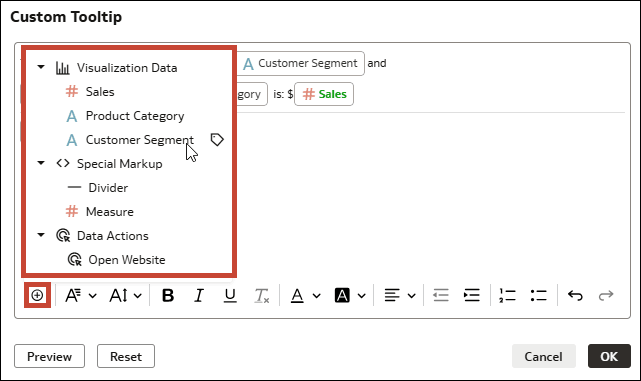
- Place your cursor where you want to add an item, click the add icon
 , and select an option.
- A measure or attribute name under Visualization Data to add the column value
- The label icon
 beside a measure or attribute name to add the column value
- A Divider under Special Markup to add a horizontal line in between items
- A data action under Data Actions, if available
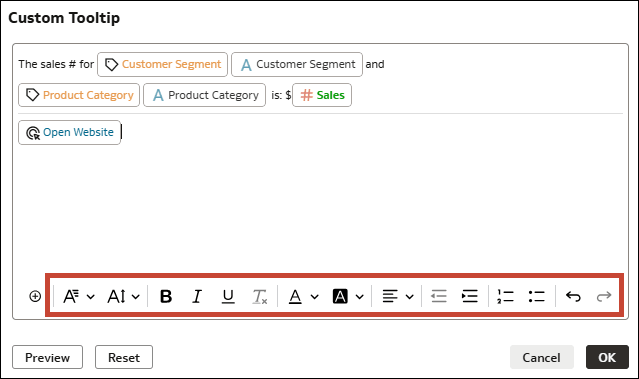
- Select or highlight content in the editor and use the text formatting options to apply formatting.