About Customizing Data Point Tooltips
You can design the tooltips for a visualization's data points to customize the look and feel and curate the information your consumers need.
For example, you might want the tooltip to use specific language or include or exclude certain columns. You might want to format the different items in the tooltip to draw attention to them or to make the tooltip easier to read.
When you select the Custom option for the Tooltip property, you access a Custom Tooltip text editor with text formatting tools to change the appearance of the content displayed in the tooltip. You select content in the text editor, then use the tools to apply formatting.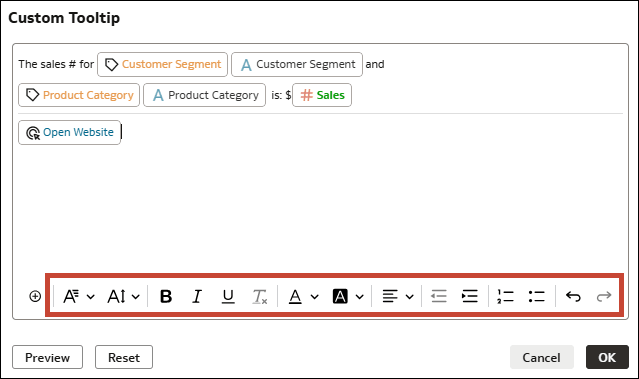
Description of the illustration tooltips_custom_tooltip_editor_format.png
 :
:
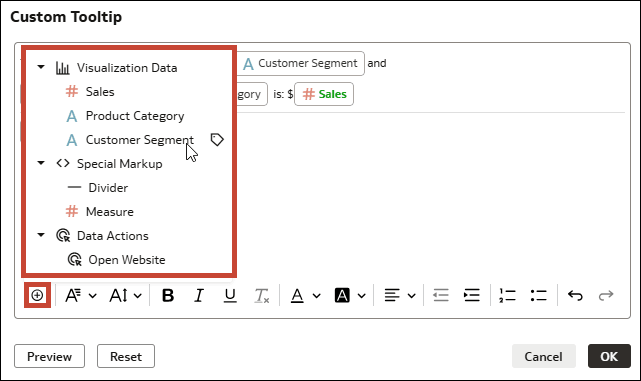
- Column names: Add column names by hovering over a measure or attribute under Visualization Data and clicking the label icon
 . The tooltip displays the column name.
- Column values: Add a column by selecting a measure or attribute under Visualization Data. The tooltip displays the relevant value for the columns used in the editor.
- Divider: Add a horizontal line to clearly separate pieces of information.
- Data actions: If data actions are available in the workbook, add one by selecting it from the list under Data Actions. The data action appears within the tooltip in blue text to indicate to consumers it's a clickable link.
- Parameters: Add parameters by inserting the appropriate parameter syntax in the editor to reference the parameter. See Syntax for Referencing Parameters.
- Custom Text: Place your cursor anywhere in the editor and add your own text.
You can also delete existing items and drag items around to reorder them.
Use the Preview option to see how the tooltip will appear to consumers.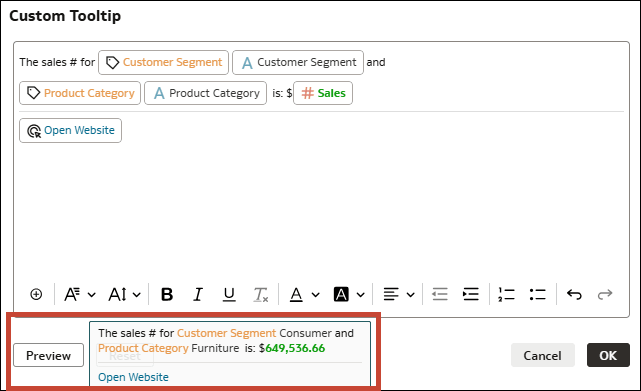
Description of the illustration tooltips_custom_tooltip_editor_preview.png