Create Variable Prompts

A variable prompt enables the user to select a value that is specified in the variable prompt to display on the dashboard.

A variable prompt isn’t dependent upon a column, but can still use a column. You can use variable prompts to enable the user to specify existing data to perform sales projections.

For example, you can create a variable prompt called Sales Projections and specify the variable prompt values as 10, 20, and 30 percent. Then you create an analysis that contains the Region and Dollars columns. Within the Dollars column formula, you select the multiply operator and insert the Sales Projection variable. When users run this analysis, they can select a percentage by which to recalculate the Dollars column.

  1. Open the analysis for editing.
  2. Display the Prompts tab.
  3. On the Definition pane of the Prompts tab, click New then Variable Prompt to display the New Prompt dialog.
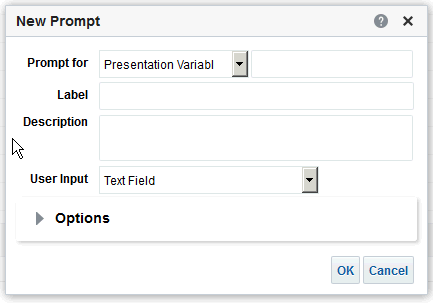
  4. In the Prompt for field, select the variable type that you’re creating and then enter the name of the variable.

    This variable name is the name that you add to the analysis or dashboard where you want the variable prompt's value specified by the user to display. Currently, you can create only presentation variables.

  5. In the Label field, enter a caption for the variable filter prompt. The caption is displayed as the prompt's field label.
  6. In the Description field, enter a short description for the prompt. This description is displayed as tooltip text, which is displayed when the user hovers the mouse pointer over the prompt's label in the dashboard or analysis.
  7. In the User Input field, select how you want the prompt interface to ask the user for input. For example, prompt the user with a radio button to select only one prompt value.
  8. If you selected either the Choice List, Check boxes, Radio buttons, and List box user input type, then you must also specify the prompt's list of values.
  9. Within the Options section, select the prompt options. The prompt options vary depending on the user input type that you selected.

    The prompt options enable you to further specify how you want the user to interact with the prompt. For example, whether user input is required.

  10. In the Default selection field, select the prompt value that users see initially. If you select a specific value, then the Default Value field is displayed in which you can enter a value.
  11. Click OK to display the prompt is displayed in the Definition pane.
  12. Save your changes.