Customize Grand Totals and Subtotals in Tables and Pivots
You can customize the grand totals and subtotals in table and pivot visualizations to make them more impactful.
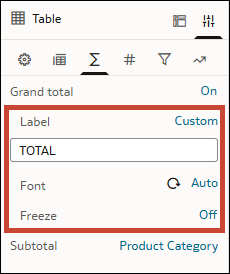
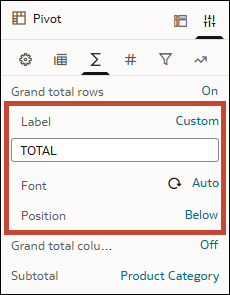
When you turn on the grand totals for your visualization, you can change the label by entering your own text.
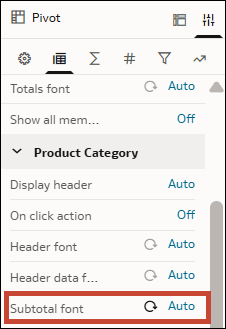
You can also configure the following font properties for grand totals and subtotals independently:
- Font type
- Font size
- Font style
- Font color
- Background color
- Alignment (left, center, right)
For table visualizations, you can use the Freeze property to keep the grand total visible at all times if your table is very large.
For pivot visualizations, you can use the Position property to place the grand totals above or below the rows (or before or after the columns) they're totalling.
To configure the number format for grand totals and subtotals, see Format Numeric Values of Visualizations.
- On your home page, hover over a workbook, click Actions, and select Open.
- Select your table or pivot visualization.
- In the Grammar Panel, click Properties.
- To configure grand totals, click Totals
 and use the Label, Font, Freeze, and Position options.
 - To configure the font for subtotals, click Edge Labels
 and use the Subtotal font option.
 - Click Save.