Define the Start Date for a Gantt Chart
Use the Start On property for a Gantt chart to control the starting point of the visible data in the chart.
This is useful when you want to focus the data that’s immediately visible in the visualization while still allowing consumers to scroll left or right in the Gantt chart to explore earlier or later data as needed.
-
Auto: Determines the starting point based on the data and the current time context. This is the default.
-
First Day of Current Month: Sets the starting point to the first day of the current month based on the user’s time zone settings.
-
First Date in Data: Sets the starting point to the first date present in the data.
-
Custom: Lets you specify a date and time as a starting point. Also lets you bind a parameter to the Start On property to set the date dynamically. For example, you can bind the property to a parameter like Current Date so the Gantt chart always begins on the current date based on the user’s time zone settings.
For example, this Gantt chart shows a project schedule from the beginning of August to the end of September. The Start On property is set to Auto. In this scenario, this means the visible data in the chart starts on the first date in the dataset which is the beginning of August.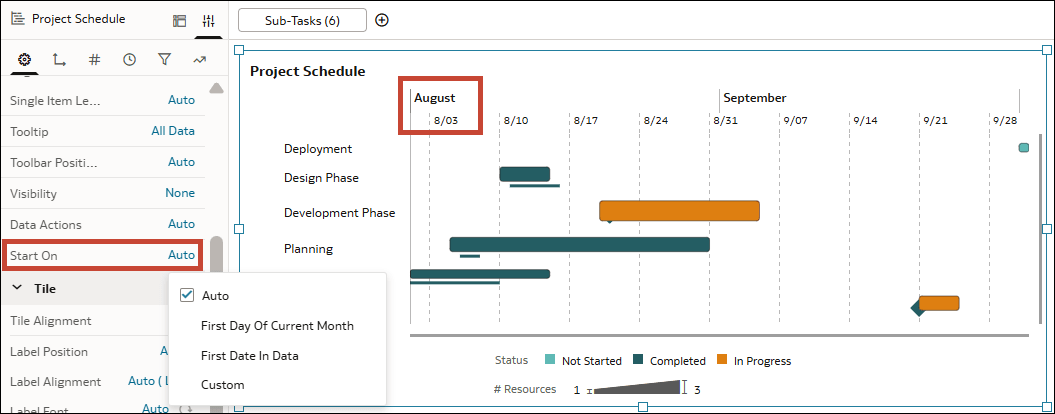
Description of the illustration gantt_chart_start_on_auto.png
If you change the Start On property in this example to Custom and select September 1, 2025 as the starting point, the chart shifts to show the data starting on that date. Consumers can use the scroll bar at the bottom of the visualization to scroll left to see August if required.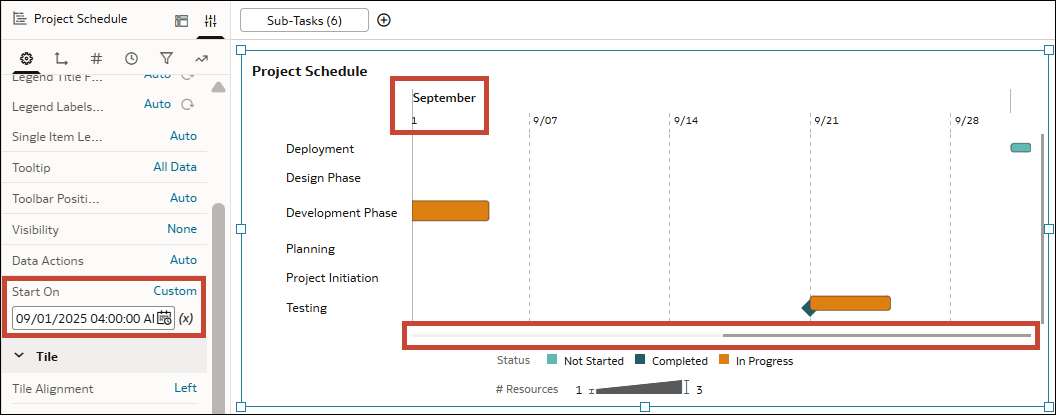
Description of the illustration gantt_chart_start_on_custom.png
- On your home page, hover over a workbook, click Actions, and select Open.
- Click the Gantt visualization to select it.
- In the Grammar pane, click Properties.
- In the Start On row, click Auto and select another option:
- First Day of Current Month
- First Date in Data
- Custom: Click Select Date Time to choose a date.
- Optional: If you selected Custom, click Bind to Parameter (x) and select a date parameter to bind the property to.
- Click Save.