Format Columns

When you create an analysis, you can edit properties for columns to control their appearance and layout. You can also specify formatting to apply only if the contents of the column meet certain conditions.

For example, you can specify that values that exceed $1 million in the Revenue column are displayed with a green background.

  1. In the Selected Columns pane, click Options beside the column name, and then select Column Properties.
  2. In the Column Properties dialog, click the Column Format tab.
  3. To hide the column in the analyses without affecting value aggregation, select the Hide check box.
    For example, you might want to build an analysis that includes only Illinois customers. You can hide the Customers.State column because you only added this column for filtering purposes.
  4. To enter your own values in the Folder Heading and Column Heading fields, select Custom Headings . You can use these fields to reference variables and format the heading values. These values identify the column in the analysis.
  5. If enabled and you have administrator privileges, you can customize headings with HTML markup, including JavaScript. Select Custom Heading, then select Contains HTML Markup, and then enter the HTML markup you want to apply.

    To enable this option, ask an administrator to set Allow HTML/JavaScript/CSS Content option in the Console (under Security in Advanced System Settings).

  6. To affect the display of repeating data values for the column, select one of the Value Suppression options.
    When the same value occurs in multiple consecutive rows, you can specify to show that value only once.
  7. To override the default display of data for the column, click the Data Format tab.
    The options on the tab differ depending on the data type.
  8. To specify if column values are displayed in a certain way based on certain criteria, click the Conditional Format tab. Conditional formats can include colors, fonts, images, and so on, for the data and for the cell that contains the data. You can’t apply conditional formatting to the data cell background or font color in a heat matrix.
  9. Click Add Condition, and then select a column.
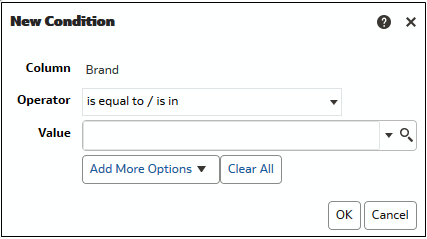
  10. Select an operator such as is equal to / is in or is greater than.
  11. Specify a value for the operator by either entering a value directly (such as 1000000) or by selecting a value from the list.
  12. Optional: Click Add More Options to add a variable to the condition.
  13. Specify the formatting to apply when the condition is true.
  14. Click OK.