Set Properties for Columns
When you build an analysis, you can edit column properties to control the look and feel of the column. For example, you can specify that values in the Revenue column are displayed with two decimal places and a dollar sign.
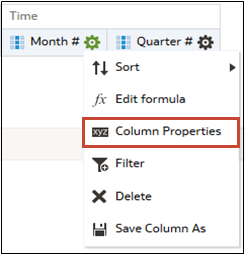
- In the Selected Columns pane, click Options beside the column name, and then select Column Properties.