Share Your Content
In Oracle Analytics, you can share analytics content such as workbooks, connections, datasets and so on with colleagues. You can share with specific user-roles or named users, or a combination of both.
If you're only sharing a small number of items, you can simply save them in the Shared Folders area of the catalog and fine-tune the item permissions if necessary. If you're sharing a lot of content, it's best to create a folder in the Shared Folders area and set permissions on the folder so that items saved there inherit the required permission settings.
You specify access permissions for workbooks using either the Share tab or Access tab on the Inspect dialog. For other types of items, you use the Access tab (they don't have a Share tab). If you create content in \Shared Folders and move it to another folder in \Shared Folders, the access setting on the items being moved are retained. You might need to modify the parent folder access settings if you want the same users and roles to have access. See Catalog Access Inheritance Rules and Workbook Permissions Rules.
Share Individual Items in the Catalog
- Save an item to the Shared Folders area of the catalog.
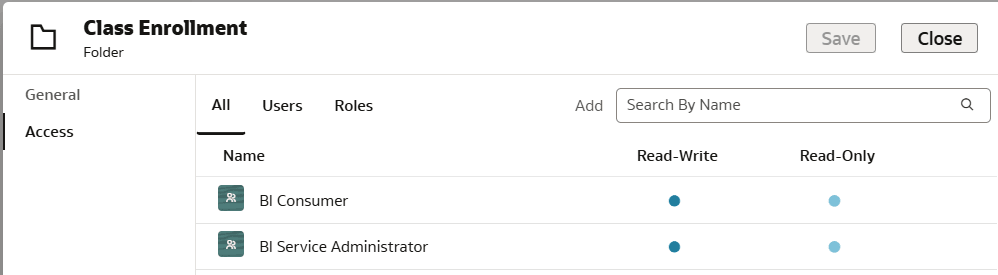
For example, you might save a machine learning model in \Shared Folders\ML_Models. By default, the item has read-access for users with the BI Consumer role, and read-write access for the content author and administrator user-roles.
- Optionally change the default item permissions to fine-tune who can access the item.
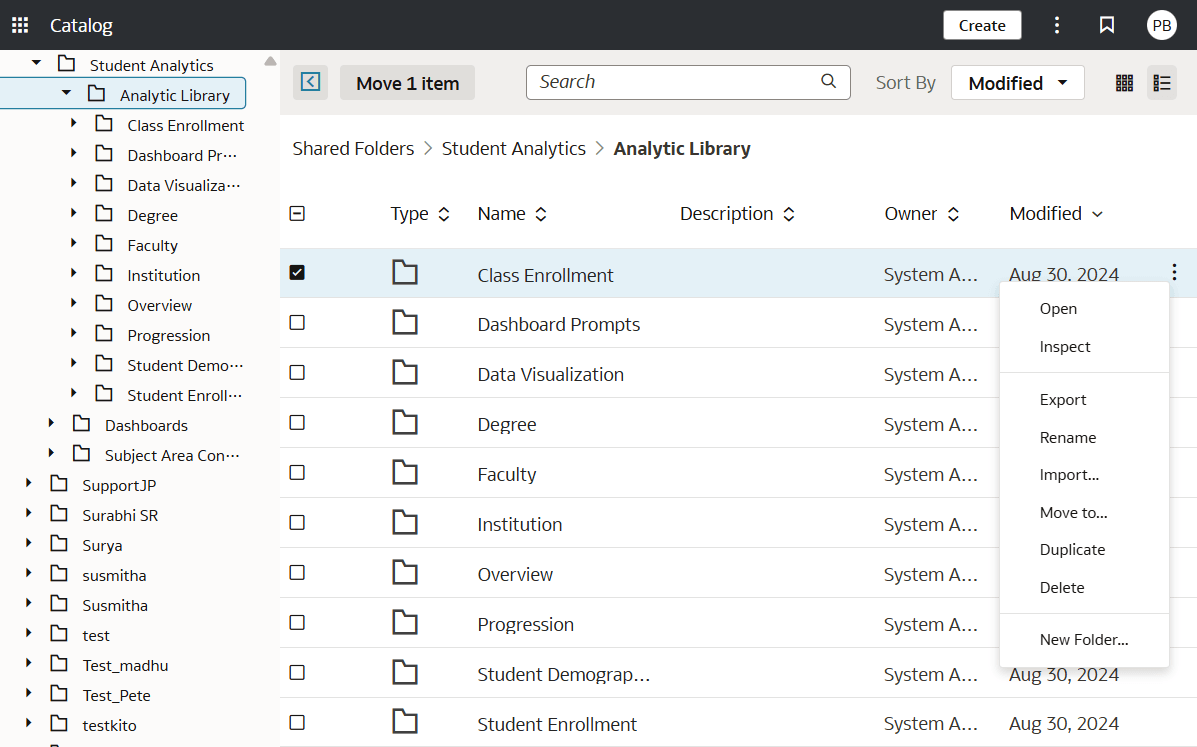
- In Catalog, navigate to the folder where you saved the item.
- Select the item, click Actions
 , then select Inspect.
 - Display the Access tab, and provide read-write or read-only access for users and roles.
Share Multiple Items in the Catalog
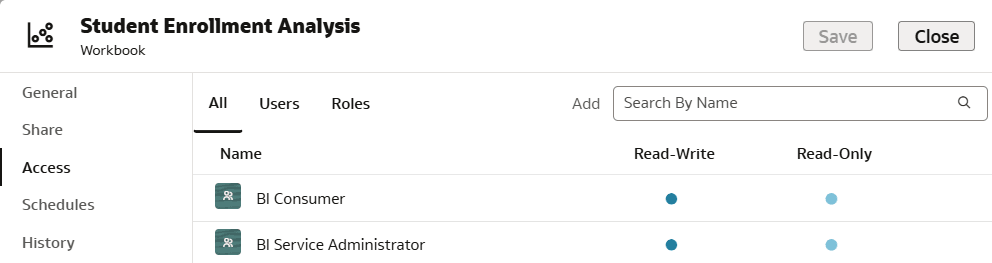
- Configure the access settings for the folder.
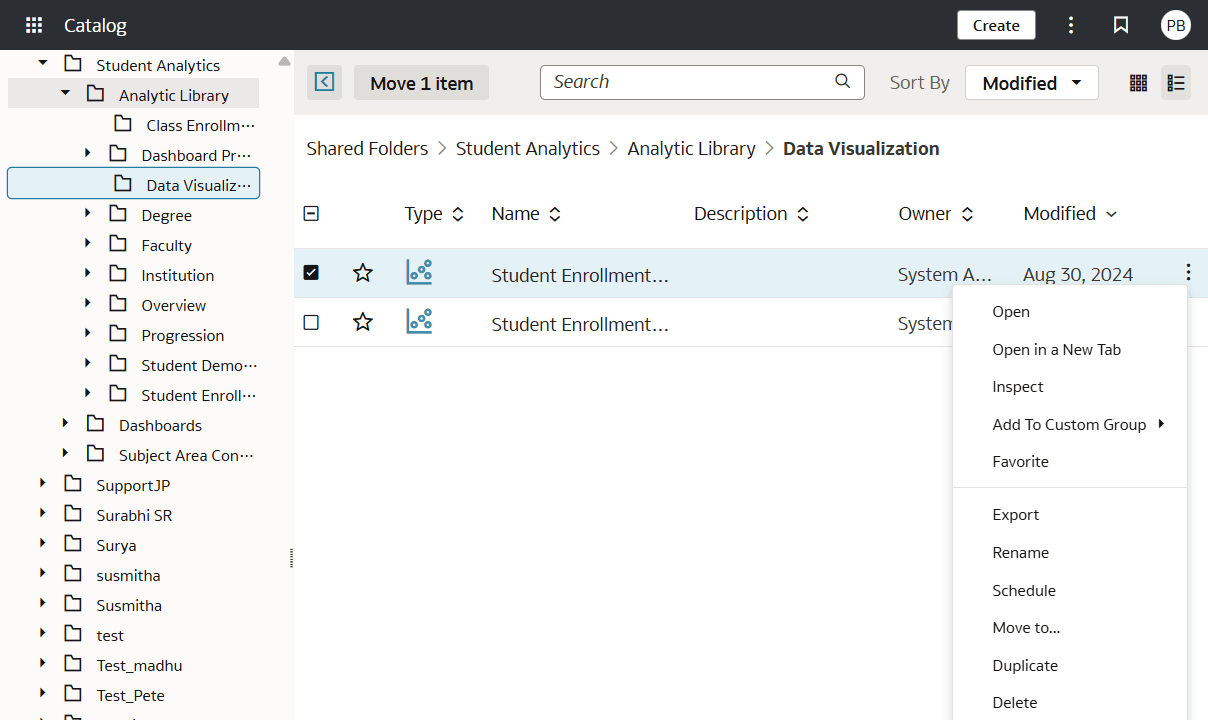
- In Catalog, navigate to the folder in the Shared Folders area.
- Select the folder, click Actions , then select Inspect.
- Display the Access tab, and provide read-write or read-only access for users and roles.