About the Tooltip Property for Visualization Data Points
Use the Tooltip property for a visualization to control which data values display in the tooltips when consumers hover over or select data points.
The options for the Tooltip property are:
-
All Data: Displays the data point's values for all columns used in the visualization, depending on the visualization type. Also displays information about any reference lines, clusters, outliers, or forecasts used in the visualization. This is the default.
This option is useful when you want to provide consumers with as much context as possible for data points without additional clicks.
For example, in a bar graph showing sales for product categories and customer segments, the tooltip for each data point shows the associated Sales, Product Category, and Customer Segment values.
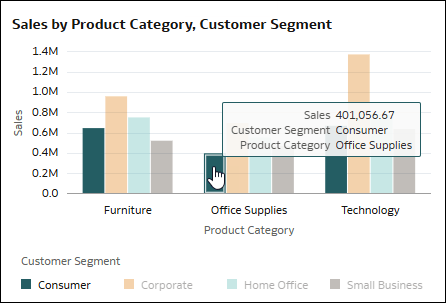
Description of the illustration tooltips_all_data_example.png -
Tooltip Grammar Only: Displays only the data point’s values for the measures you add to the Tooltip section in the Grammar pane.
This option is useful when you want to provide consumers with consistent but minimal information for data points.
For example, using the same bar graph, you might add Quantity Ordered and Sales to the Tooltip section in the Grammar pane. The tooltip for each data point shows only the values for those two columns, and doesn’t include the customer segment or product category attributes.
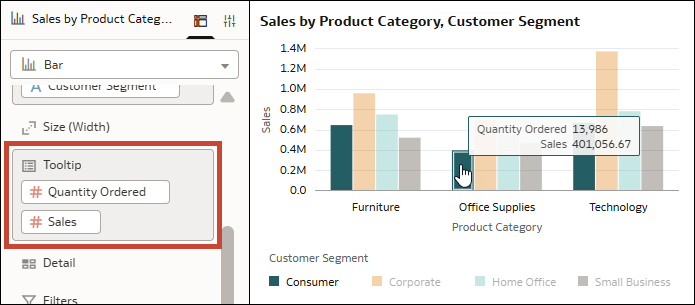
Description of the illustration tooltips_tooltip_grammar_only_example.png -
Custom: Displays the information that you choose in the format that you configure.
This option is useful when you want curate the tooltip information and apply formatting.
For more information, see About Customizing Data Point Tooltips.
You can also use the All Data option and add measures to the Tooltip section of the Grammar pane. In this scenario, the tooltip displays the data point’s values for all columns used in the visualization, as well as any additional measures specified in the Tooltip section of the Grammar pane.
Table and pivot visualizations only display a data point’s values for measures included in the Tooltip section of the Grammar pane. If there aren’t any measures there, no data point tooltip displays for those visualization types.