About Using Heatmap Layers on Maps
In Oracle Analytics, you can use a heatmap as a map layer type on a map visualization to identify the density or high concentration of data points, or to visualize the intensity of metric values associated with the points.
A heatmap layer in a map visualization requires attribute columns containing map-related data such as latitude and longitude columns, or columns for places, like cities or countries.
- Density heatmap: Uses only attribute columns containing map-related data. A density heatmap layer shows the cumulative sum of a point, where each point carries a specific weight. A point has a radius of influence around it, such that other points that fall in the same area also contribute to the total cumulative result of a point.
- Metric heatmap: Uses attribute columns containing map-related data combined with a measure column in the same layer. The measure is aggregated at each data point on the map and the colors reflect the intensity of the measure values. You can choose the type of aggregation to apply.
For example, you can create a map visualization of the United States using the column City for Category (Location) and Heatmap for the layer type. The map shows the density for each city data point using color.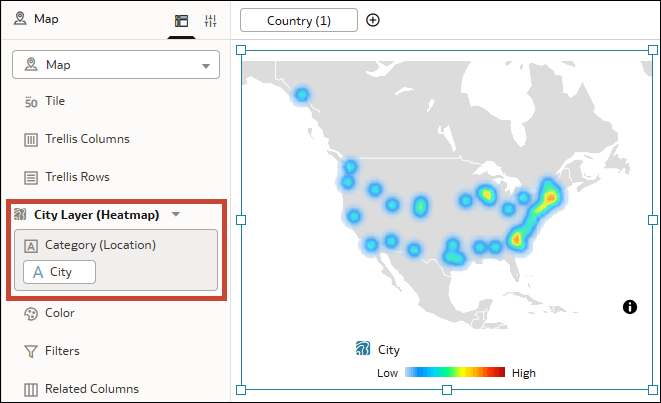
Description of the illustration maps_density_heatmap_example.png
To turn this into a metric heatmap, you can add a measure column such as Sales to Color. The map now shows the sales metric data for each city data point using color intensity.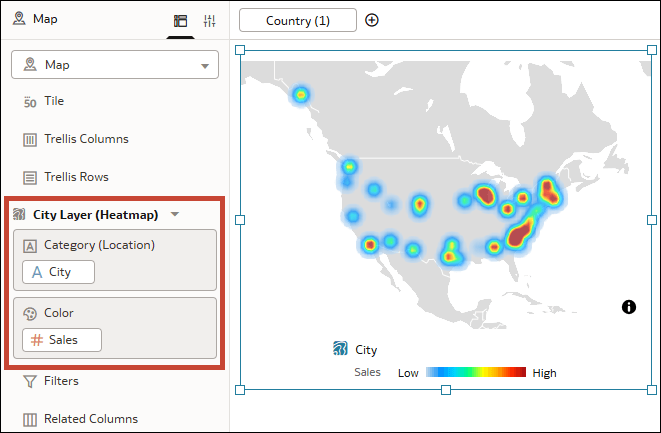
Description of the illustration maps_metric_heatmap_example.png
As another example, this tutorial shows you how to use latitude and longitude coordinates to visualize customer traffic on a supermarket floor plan:  Tutorial
- Radius: Shows the extent of influence of a measure around a point value on a map. You select the radius value in pixels.
- Color: Provides various color schemes to display the point values on the heatmap.
- Intensity: For metric heatmaps, specifies the visual impact of each point. A higher value makes the color in the center of the data points stronger. Not available for density heatmaps.
- Transparency: Specifies the transparency of the colors used for the points on the map.