Customize an EDIFACT, X12 or X12HIPAA Document Definition
You can customize an EDIFACT, X12 or X12 HIPAA document definition.
If you click Customize for EDIFACT, X12, or X12HIPAA, the Clone standard schema dialog is displayed. This option enables you to customize the standard schema to satisfy your business requirements.

- Click Save.
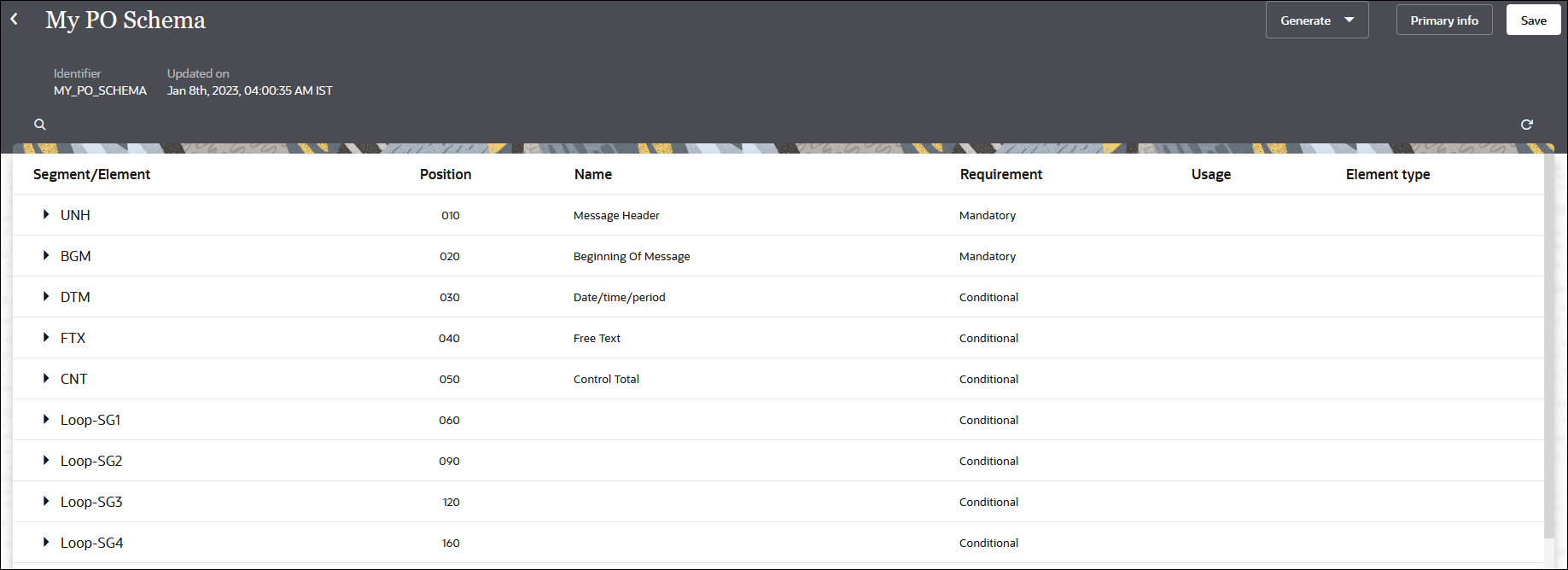
This creates a copy of the standard EDIFACT, X12, or X12HIPAA schema for you to use as a baseline to customize. For this example, the EDIFACT schema is shown.
- On the schema page, find the element you want to customize, and select
 . As an example, select the UNH01 currency code element (part of the UNH segment) to edit it. You can also add new constructs to the schema. See Edit Properties of Segments and Other Schema Constructs.
Description of the illustration clone_standard_schema3.pngThe Properties panel is displayed.
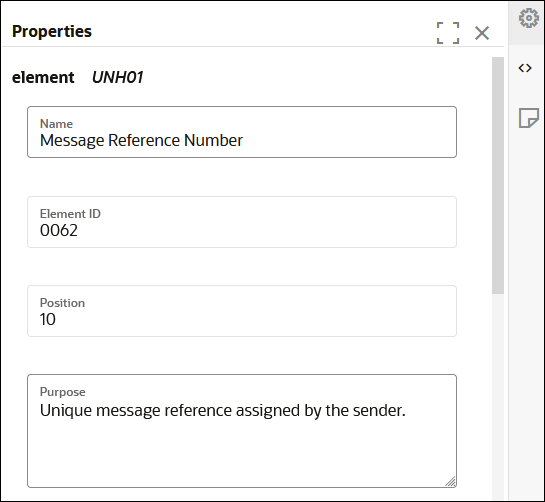
Description of the illustration clone_standard_schema4.pngThe three tabs on the Details pane enable you to perform customizations.Tab Description Properties 
Displayed by default when you initially access the Details pane. You can modify the following standard EDI X12 properties for the selected segment or element: - Purpose of element
- Requirement (mandatory, optional, or conditional)
- Usage (must use, do not use, recommended, or not recommended)
- Minimum and maximum number of characters
- Number of times to repeat the element
Code List 
Click to view the code list for the element. A code list defines an enumeration of allowed values for the element. Notes 
Click to add notes to the element. - Edit the element details as necessary for your business environment. For this example, select Code List to add new code.
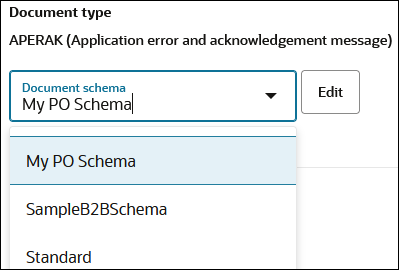
- Note that the customized document definition is now available to use from the Document schema list in the wizard.