Use the Opaque Document Standard

You can create customized document definitions using the Opaque document standard in B2B for Oracle Integration.

Create a new B2B document definition using the Opaque document standard

  1. Create a document.

    Note:

    The Opaque document standard is supported only in B2B trading partner mode within projects. It is not supported in B2B standalone mode.
    1. In the navigation pane, click Projects.
    2. Click the project in which to create the document.
    3. Click B2B B2B icon.
    4. In the Documents section, click Add.
  2. In the Create document pane, enter the following details.
    Element Description
    Name Enter a document name.
    Identifier This field is automatically populated with the document name. You can manually change this value.
    Description Enter an optional description of the customization details for this document.
    Use a shared document

    Select to use a shared document. Selecting this option enables a Shared document list to be displayed for you to select the shared document to use. Shared documents only available in a different project are displayed. Documents created in a standalone environment (that is, outside a project) are not available for selection.

    After creation, an Override label appears below the document name in the Documents section to indicate that it is shared.

    To understand how shared documents work, see What's Supported in Projects for B2B.

    Available to other projects

    Select to make this document available for use in other projects.

    After creation, a Shared label appears below the document name in the Documents section to indicate that it is available for use in other projects.

    Note:

    Before you make the document available to other projects, ensure that the document uses a shared schema. For details on how to create a shared schema, see Create a New B2B Schema.
    Document standard Select Opaque from the drop-down list.
    Document version

    Manually enter a new value or select an existing value from the drop-down list.

    Document type

    Manually enter a new value or select an existing value from the drop-down list.

    Document schema

    This field is automatically populated with the value Default opaque.

    When you create a document with Opaque document standard, a corresponding schema named Default opaque is automatically created.

    Note:

    You cannot create a new schema with the Opaque document standard, so no other schema options are available for selection.
  3. Click Create.

    The document details page for your new B2B document using the Opaque standard is displayed.
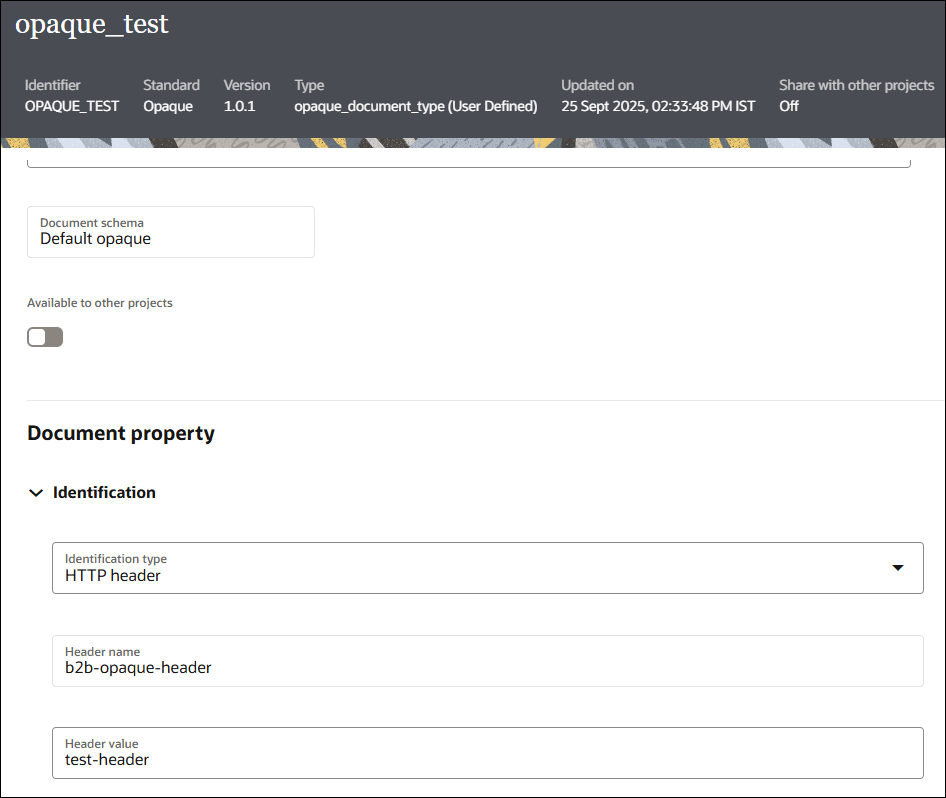

    The Document property section is shown. It includes the Identification section with the following fields: Identification type. Header name and Header value.

  4. In the Document property section, expand Identification and enter the following details.
    1. From the Identification type drop-down list, select one of the options.
      • HTTP header for HTTP based transports like AS2, AS4 and REST.
      • Filename for FTP transport.

      Note:

      Opaque document standard is not supported for RosettaNet transport.
    2. If you selected HTTP header, enter the following:
      1. The Header name field is automatically populated with b2b-opaque-header.
      2. Enter the header value in the Header value field. For example, test-header. This value must exactly match the one passed for b2b-opaque-header at runtime.
    3. If you selected Filename, enter a pattern with wild cards in the Filename pattern field to match the file name during identification (for example, *.pdf).
  5. Click Save.

While defining inbound and outbound agreements in trading partner mode, you can use a document created with the Opaque standard to identify and process inbound and outbound payloads that are of unknown formats or are binary files, such as PDFs or images.

Note the following about using a document created with Opaque standard for outbound agreements:
  • When using AS4 transport for outbound messages, it is recommended to enable the Send payload as attachment configuration. This ensures that any special characters in the payload do not interfere with XML parsing.
  • For HTTP based transports like AS2, AS4 and REST, the value for the HTTP header b2b-opaque-header is taken from the document configuration attached to the corresponding outbound agreement.
  • For FTP transport, the filename is taken from the transport configuration, and not from the document configuration, to ensure consistency across all B2B FTP outbound scenarios.
  • For REST transport, modifications are made in the mapper of the auto-generated Send integration so that the value of the b2b-opaque-header is passed to the underlying REST adapter.

Note:

To use the Opaque document standard with REST transport, delete the B2B Templates Project (if it exists) from your project workspace. This ensures that, when you deploy the new REST transport, it will use the updated REST template integrations needed for this functionality.