Use the JSON Document Standard

You can create customized document definitions using the JSON document standard in B2B for Oracle Integration.

Note:

You must first create a JSON schema before you can create a document definition that uses the JSON standard. See Create a New B2B Schema.
  1. Create a document.

    Note:

    The JSON document standard is supported in both B2B trading partner mode and B2B standalone mode.
    1. To create a document in a project in B2B trading partner mode.
      1. In the navigation pane, click Projects.
      2. Click the project in which to create the document.
      3. Click B2B B2B icon.
      4. In the Documents section, click Add.
    2. To create a document in B2B standalone mode.
      1. In the navigation pane, click B2B, then Documents.
      2. On the Documents page, click Create.
  2. In the Create document pane, enter the following details.
    Element Description
    Name Enter a document name.
    Identifier This field is automatically populated with the document name. You can manually change this value.
    Description Enter an optional description of the customization details for this document.
    Use a shared document

    Select to use a shared document. Selecting this option enables a Shared document list to be displayed for you to select the shared document to use. Shared documents only available in a different project are displayed. Documents created in a standalone environment (that is, outside a project) are not available for selection.

    After creation, an Override label appears below the document name in the Documents section to indicate that it is shared.

    To understand how shared documents work, see What's Supported in Projects for B2B.

    Note:

    This option is only available within projects in B2B trading partner mode. It is not supported in B2B standalone mode.
    Available to other projects

    Select to make this document available for use in other projects.

    After creation, a Shared label appears below the document name in the Documents section to indicate that it is available for use in other projects.

    Note:

    Before you make the document available to other projects, ensure that the document uses a shared schema. For details on how to create a shared schema, see Create a New B2B Schema.

    Note:

    This option is only available within projects in B2B trading partner mode. It is not supported in B2B standalone mode.
    Document standard Select JSON from the drop-down list.
    Document version

    Manually enter a new value or select an existing value from the drop-down list.

    Document type

    Manually enter a new value or select an existing value from the drop-down list.

    Document schema

    Select an existing JSON schema. If a JSON schema does not exist, you cannot create a document definition. See Create a New B2B Schema.

  3. Click Create.

    The document details page for your new B2B document using the JSON standard is displayed.

  4. If you want to use a different document schema, select an existing schema from the Document schema drop-down list or click Edit to upload a new schema file.

    You can also define document properties for the schema.

  5. In the Document property section, define document properties for the schema.
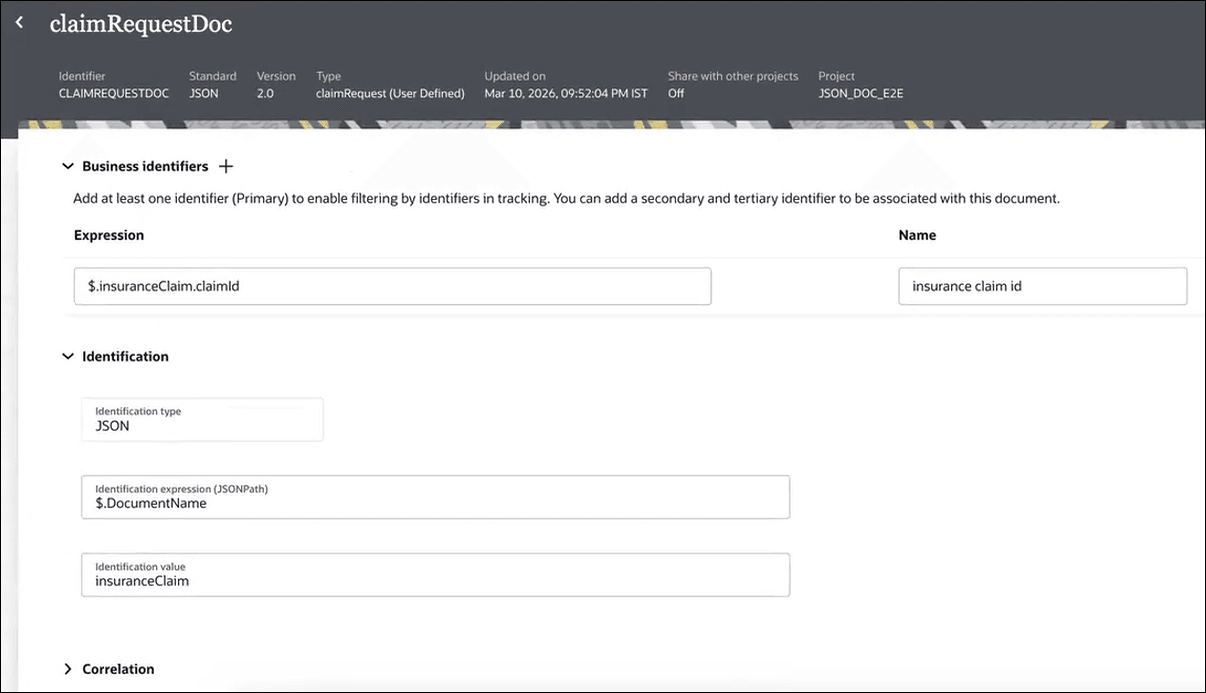
    1. Expand Business identifiers, and add at least one identifier (primary). You can also add a second and third identifier to associate with this document. The business identifier names and expressions enable filtering by the identifiers on the Instances page when this document is sent or received.
    2. In the Expression field, enter a business identifier expression path.

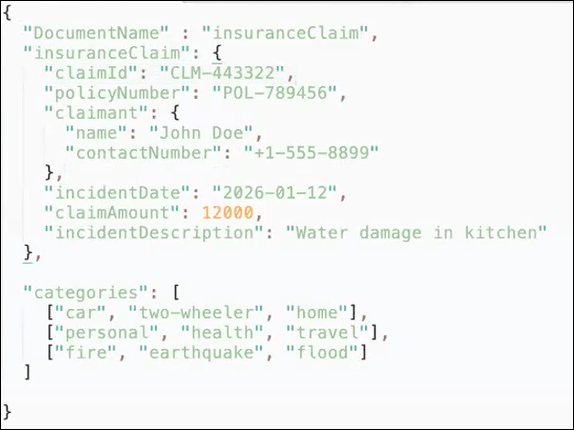
      For example, if you want to send the claimId for the following JSON payload, the expression will be $.insuranceClaim.claimId.


      This is a JSON document describing an insurance claim: claimant John Doe with phone +1-555-8899, claim ID CLM-443322 for policy POL-789456; incident on 2026-01-12, claim amount 12,000, description “Water damage in kitchen.” Includes category tag arrays for car/home, personal/health/travel, and fire/earthquake/flood.

    3. Expand Identification, and note that the Identification type field shows a default value JSON that can't be changed. Specify a JSONPath identification expression and value.

      For this example, in the Identification expression (JSONPath) field, the JSONPath expression is specified as $.DocumentName and in the Identification value field, the value is specified as insuranceClaim.


      This image displays a page titled “claimRequestDoc” showing configuration of business identifiers and identification for a JSON document. A primary identifier expression field contains “insuranceClaim.claimId” with the name“insuranceclaimid”. Under Identification, the type is JSON, the identification expression (JSONPath) is “DocumentName”, and the identification value is “insuranceClaim”. Other sections like Correlation are collapsed. Header shows metadata such as Identifier CLAIMREQUESTDOC, Standard JSON 2.0, Type claimRequest (User Defined), and last updated timestamp.

    4. Expand Correlation, and select either Correlation from or Correlation to from the Correlation type drop-down list. Enter an XPath name, and then enter an XPath expression. These values enable you to correlate related documents in business transactions.

      You can only select one option: Correlation from or Correlation to.

      • The Correlation from XPath retrieves the value from the payload to initiate the correlation.
      • The Correlation to XPath retrieves the value from the payload for correlation.
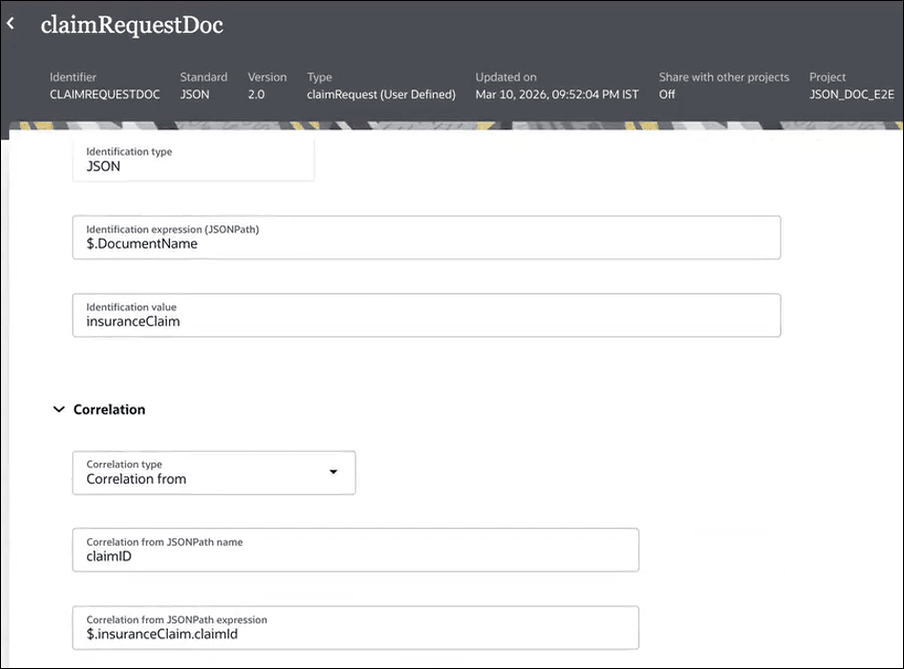

      The image shows a page titled “claimRequestDoc” with configuration fields for a JSON document. Under Identification: Identification type is JSON; Identification expression (JSONPath) is “DocumentName”; Identification value is “insuranceClaim”. The Correlation section is expanded with Correlation type set to “Correlationfrom”, JSONPath name is set to “claimID”, and JSONPath expression is set to “insuranceClaim.claimId”. Header shows metadata: Identifier: CLAIMREQUESTDOC, Standard: JSON 2.0, Type: claimRequest (User Defined), Updated on: Mar 10, 2026, 09:52:04 PM IST, and Project: JSON_DOC_E2E.

  6. Click Save.

While defining inbound and outbound agreements, you can use a document created with the JSON standard to identify and process inbound and outbound JSON payloads.