Use the X12 Document Standard

You can create customized document definitions using the X12 document standard or protocol in B2B for Oracle Integration.

Create a new B2B document definition using the X12 document standard

  1. Create a document.

    Note:

    The X12 document standard is supported in both B2B trading partner mode and B2B standalone mode.
    1. To create a document in a project in B2B trading partner mode.
      1. In the navigation pane, click Projects.
      2. Click the project in which to create the document.
      3. Click B2B B2B icon.
      4. In the Documents section, click Add.
    2. To create a document in B2B standalone mode.
      1. In the navigation pane, click B2B, then Documents.
      2. On the Documents page, click Create.
  2. In the Create document pane, enter the following details.
    Element Description
    Name Enter a document name.
    Identifier This field is automatically populated with the document name. You can manually change this value.
    Description Enter an optional description of the customization details for this document.
    Use a shared document

    Select to use a shared document. Selecting this option enables a Shared document list to be displayed for you to select the shared document to use. Shared documents only available in a different project are displayed. Documents created in a standalone environment (that is, outside a project) are not available for selection.

    After creation, an Override label appears below the document name in the Documents section to indicate that it is shared.

    To understand how shared documents work, see What's Supported in Projects for B2B.

    Note:

    This option is only available within projects in B2B trading partner mode. It is not supported in B2B standalone mode.
    Available to other projects

    Select to make this document available for use in other projects.

    After creation, a Shared label appears below the document name in the Documents section to indicate that it is available for use in other projects.

    Note:

    Before you make the document available to other projects, ensure that the document uses a shared schema. For details on how to create a shared schema, see Create a New B2B Schema.

    Note:

    This option is only available within projects in B2B trading partner mode. It is not supported in B2B standalone mode.
    Document standard Select X12 from the drop-down list.
    Document version

    Specify the document version. The versions shown are based on the document standard you selected.

    Any overridden document versions are also listed. If you select an overridden document version, the corresponding overridden schema will be used.

    Document type

    Specify the document type. The types shown are based on the document version you selected.

    Document schema

    Select an existing schema or select Standard. If you select Standard, you can customize the document schema after creation.

  3. Click Create.

    The document details page for your new B2B document using the X12 standard is displayed.
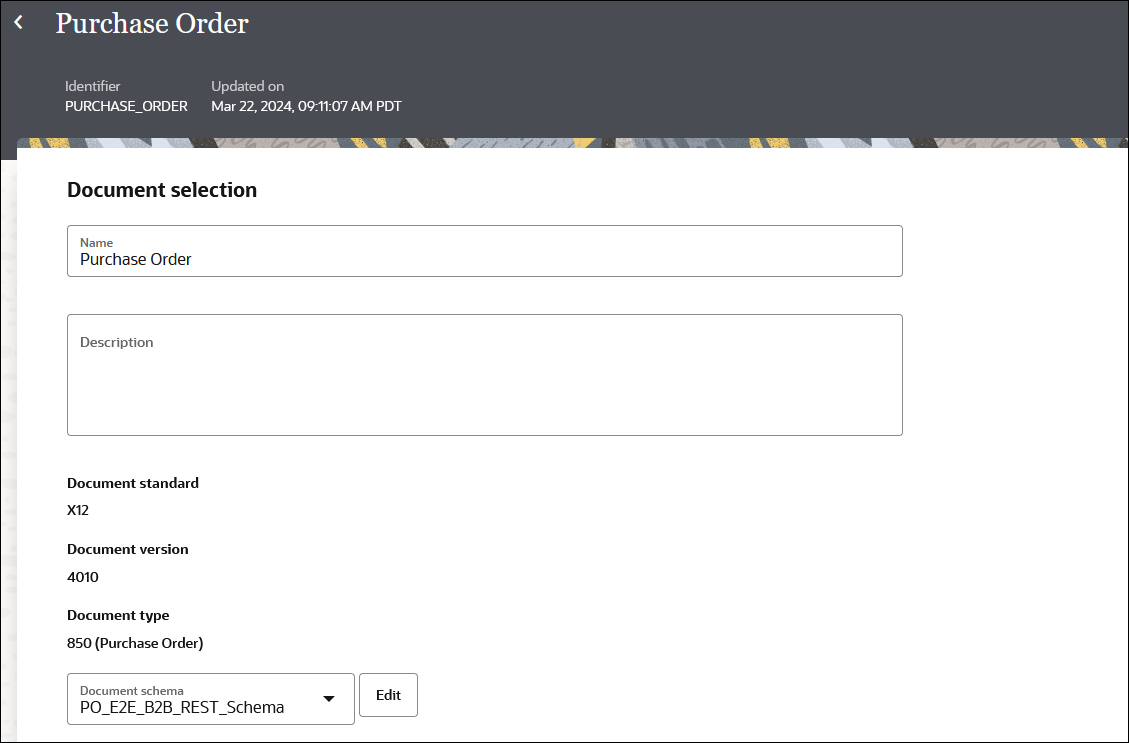

    The page shows the Identifier and Updated by labels at the top. In the Document Selection section are fields for Name and Description. Below this are the values selected for Document standard, Document version, and Document type. Below this is a list for Document schema and the Edit button.

  4. In the Document schema field, if you selected a previously-created schema as the document schema, and want to edit the schema, click Edit to access the schema details page.
    • If you want to change the schema, select a different schema from the Document schema drop-down list. If you had previously created custom schemas, they are also displayed for selection in the drop-down list. If you want, you can select one of those schemas to create further customizations.
    • If you want to customize the standard schema to satisfy your business requirements, click Customize. See Customize an EDIFACT, X12 or X12HIPAA Document Definition.
  5. In the Transactions field, choose one of the following:
    • Select Single if you want to send a single outbound business message.
    • Select Multiple if you want to send a batch of outbound business messages immediately. This option gives you the flexibility to group together a number of outbound business messages and send them instantly as a batch, instead of waiting for a scheduled batch process. When configuring mapping for outbound message processing, you can select and map multiple transaction data elements to include in the batch.

      If you want to configure and send a batch of outbound business messages at a scheduled time, see Configure Batching for Outbound EDIFACT and X12 Documents.

  6. In the Document property section, define document properties for the schema.
    1. Expand Business identifiers, and add at least one identifier (primary). You can also add a second and third identifier to associate with this document. The business identifier names and expressions enable filtering by the identifiers on the Instances page when this document is sent or received.
    2. In the Expression field, click to select a business identifier expression path.
    3. Expand Delimiters, and select the following delimiters to use for outbound X12 documents:
      • Element
      • Subelement
      • Segment
      • Repetition (only for X12 versions 4020 or later)


      The Delimiters section shows fields for Document separator, Document terminator, Subelement separator, and Repetition separator.

      Note the following guidelines:

      • If the delimiter character you want to use is an ASCII printable character, assign a string value such as | to the corresponding attribute.
      • If you want to use a special character as a delimiter, specify it in hexadecimal format. For example, use 0xA, where 0x is a fixed prefix and A is the hexadecimal representation of the ASCII line feed character.
      • If your EDI payload uses a different encoding such as UTF-8, use the hexadecimal format to specify a Unicode character as a delimiter. For example, specify 0x03A60 to use the Unicode character Φ as a delimiter.
      • Prepare the receiving trading partner to receive a UTF-8 EDI payload for this process to work correctly. The delimiter string value you specify must equate to only a single character. Multiple characters are not allowed. The only exception is the segment-terminator, which allows one character plus an optional ASCII carriage return and line feed character at the end. For example, a segment-terminator value of ~0xd0xa uses ~ followed by <CR> and <LF> as a segment-terminator. This value means each EDI segment is output on a separate line, making it more readable.
      You can also define these delimiters for standalone mode outbound X12 documents in the TranslateOutput XML.
      • headers > interchange-ctrl > attribute 'element-separator'
      • headers > interchange-ctrl > attribute 'subelement-separator'
      • headers > interchange-ctrl > attribute 'segment-terminator'
      • headers > interchange-ctrl > attribute 'repetition-separator' (Only applies to X12 versions 4020 or later.)

      See Schema Elements for Outbound EDI.

    4. Expand Correlation, and select Correlation from or Correlation to from the Correlation type drop-down list. Enter an XPath name, and click the field to select an XPath expression. These values enable you to correlate related documents in business transactions.

      You can only select one option: Correlation from or Correlation to.

      • The Correlation from XPath retrieves the value from the payload to initiate the correlation.
      • The Correlation to XPath retrieves the value from the payload for correlation.
  7. Click Save.