Translate Data Between a Native JSON Payload and Flat, Stringified JSON with a Data Translate Action
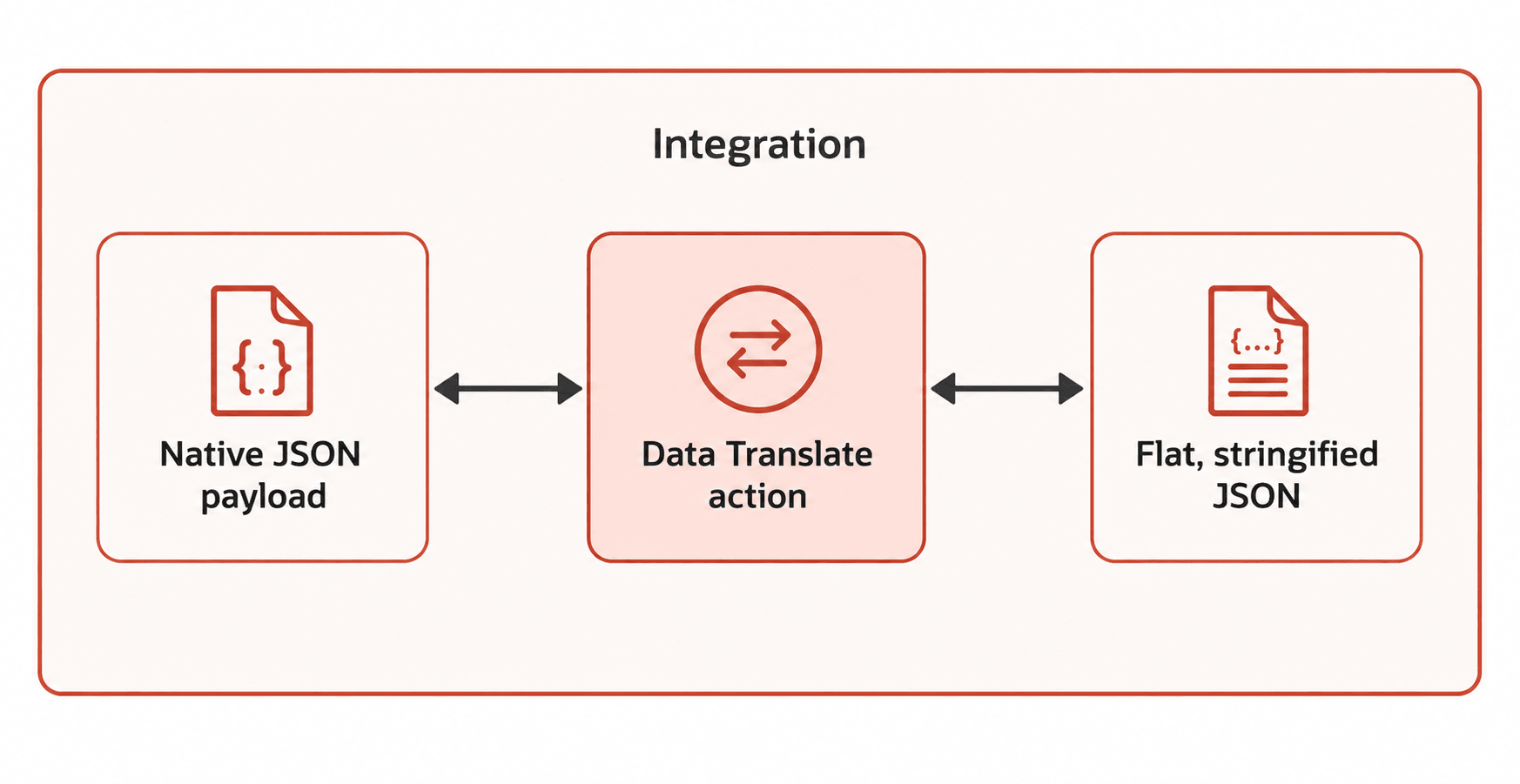
You can directly translate data between a native JSON payload and flat, stringified JSON with the data translate action. Flat, stringified JSON is data that's translated into a single text string, rather than being represented as a native JSON object or array.
Capabilities
- Writes native JSON payloads to flat, stringified JSON
- Reads flat, stringified JSON back to a native JSON payload
- Processes both simple JSON and complex JSON that contains nested objects, outer arrays, inner arrays, and mixed data types
Note:
The size of the JSON payload supported is based on the adapter you are using. See Service Limits in Provisioning and Administering Oracle Integration 3.- A stage file action to write the input JSON payload.
- A stage file action to read the written JSON payload.
- A JavaScript action function to translate the JSON payload into flat, stringified JSON.
- Use of Base64 encoding of the payload in the JavaScript action function.
Configure the Data Translate Action
To create a data translate action:
-
Add a data translate action to an integration in either of the following ways:
- On the side of the canvas, click Actions
 and drag the Data Translate action from the Actions category to the appropriate location.
- Click
 at the location where you want to add the data translate action, then select Data Translate.
The Data Translate action panel is displayed.
- On the side of the canvas, click Actions
- Enter a name and optional description, then click Continue.
- Select the translation direction, then click Continue.
- Write as Stringified JSON: Translates the native JSON payload to flat, stringified JSON.
- Read as Stringified JSON: Translates the flat, stringified JSON to native JSON payload.
- Select the structure of the file contents, then click Continue. Sample JSON document is the only selection currently available and cannot be deselected.
- Drag the sample JSON document to use into the field, select the schema element, and click Continue. This sample defines the structure that Oracle Integration uses for the mapping.
- Review your selections, then click Finish.
An associated map action is also automatically created.
Data Translate Action Use Case
- Translate a native JSON payload to flat/stringified JSON with the Write as a Stringified JSON selection in the data translate action.
- Pass the stringified JSON to a custom JavaScript function.
- Modify the JSON structure in JavaScript, such as changing the schema.
- Translate the modified JSON back to stringified JSON.
- Update the schema using the Read as a Stringified JSON selection in the data translate action so that it matches the modified JSON structure.
- Pass the modified stringified JSON with the Read as a Stringified JSON selection in the data translate action to generate the final native JSON payload.
- Create an application integration and configure and add a REST Adapter connection to trigger the integration.
- Add a data translate action to your integration to translate a native JSON payload to flat, stringified JSON.
- Add a name (for this example,
WriteAsStringJSONFlow) and optional description. - Select Write as Stringified JSON to translate a native JSON payload to flat, stringified JSON.
- Upload the native JSON payload. This sample defines the structure that Oracle Integration uses for the mapping. For this example:
{ "customer" : { "id" : 1001, "name" : "Acme & Co", "active" : true, "balance" : 1250.75, "emails" : [ "ops@acme.com", "billing@acme.com" ], "address" : { "city" : "Bengaluru", "postalCode" : "560001" } } } - Review your selections, and click Finish.
An associated map action is automatically created.
- Add a name (for this example,
- Map the source elements to the target structure in the request mapper.
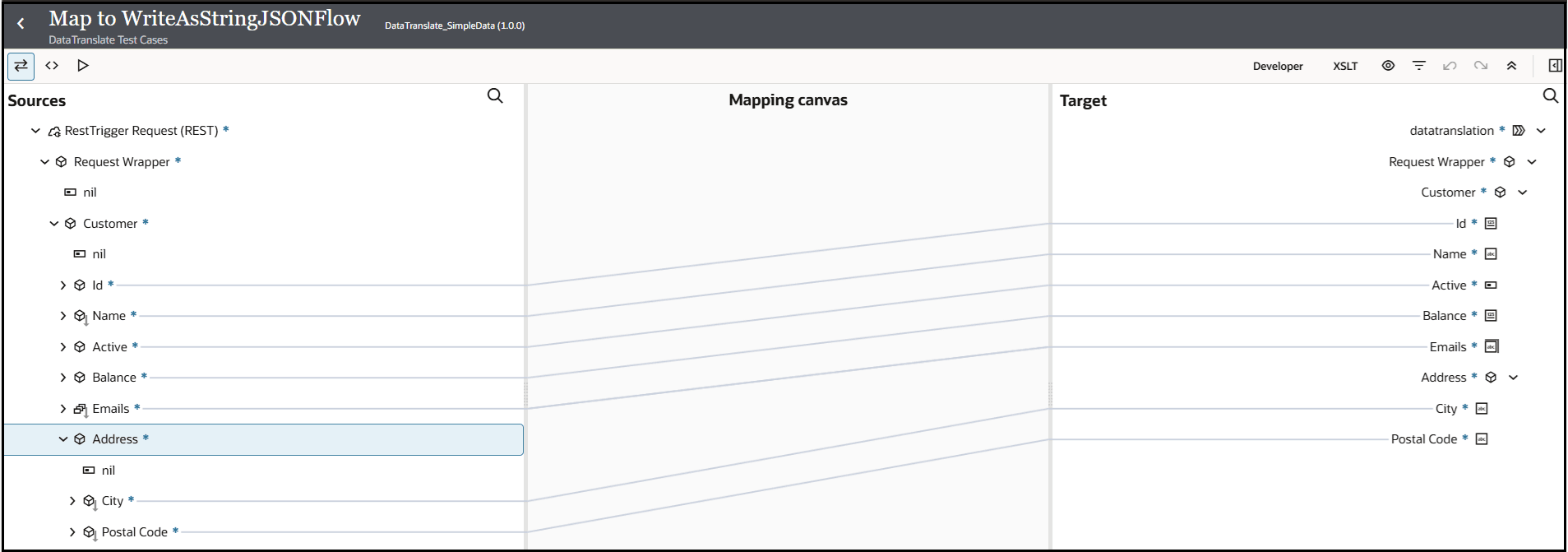
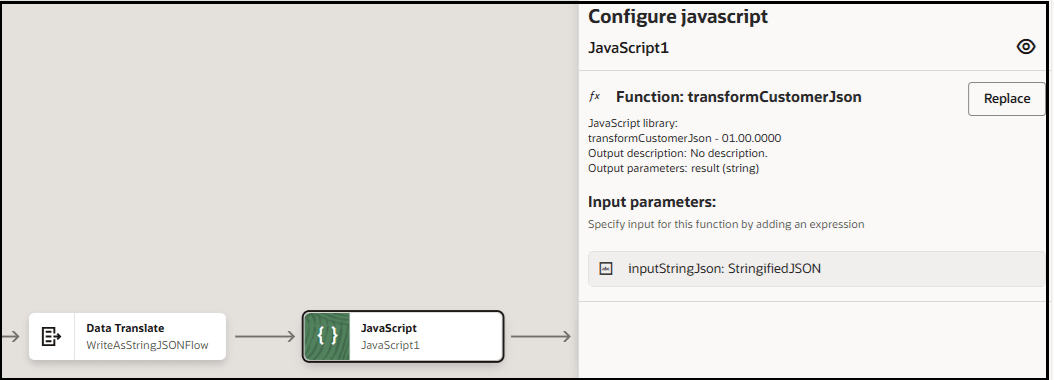
- Add a JavaScript function to modify the structure of the flat JSON.
function transformCustomerJson(inputStringJson) {
  var inputJson = JSON.parse(inputStringJson);
  var customer = inputJson.customer;

  var outputJson = {
    accountId: "CUST-" + customer.id,
    displayName: customer.name,
    status: customer.active ? "ACTIVE" : "INACTIVE",
    amountDue: customer.balance,
    primaryEmail: customer.emails && customer.emails.length > 0 ? customer.emails[0] : null,
    notificationEmails: customer.emails || [],
    location: {
      cityName: customer.address ? customer.address.city : null,
      pinCode: customer.address ? customer.address.postalCode : null
    }
  };

  var result = JSON.stringify(outputJson);
  return result;
}
- Add a second data translate action to your integration to translate the flat, stringified JSON payload back to a native JSON payload.
- Add a name (for this example,
ReadAsStringifiedJSONFlow) and optional description. - Select Read as Stringified JSON to translate the flat, stringified JSON payload back to a native JSON payload.
- Upload the native JSON payload to return the JSON format to its original state after translation.
{
  "accountId": "CUST-1001",
  "displayName": "Acme & Co",
  "status": "ACTIVE",
  "amountDue": 1250.75,
  "primaryEmail": "ops@acme.com",
  "notificationEmails": [
    "ops@acme.com",
    "billing@acme.com"
  ],
  "location": {
    "cityName": "Bengaluru",
    "pinCode": "560001"
  }
}
- Add a name (for this example,
- Map the source elements to the target elements in the response mapper:

The completed integration looks as follows:
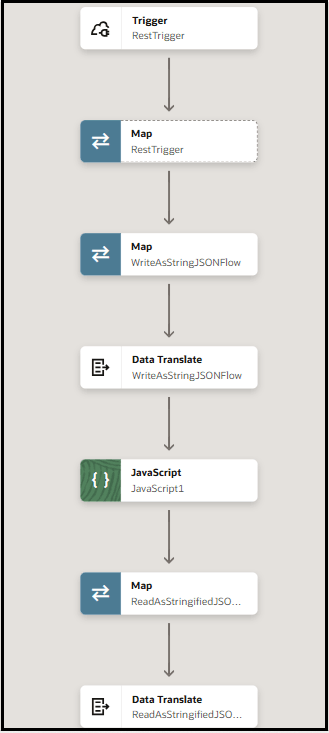
- Activate and run the integration. For this example, the tracing level has been set to debug.
- From the Actions
 menu, click Run.
- Expand Data Translate WriteAsStringJSONFlow in the activity stream.
The output from the data translate action is shown. The
<StringifiedJSON>element indicates that the native JSON payload has been translated to flat, stringified JSON.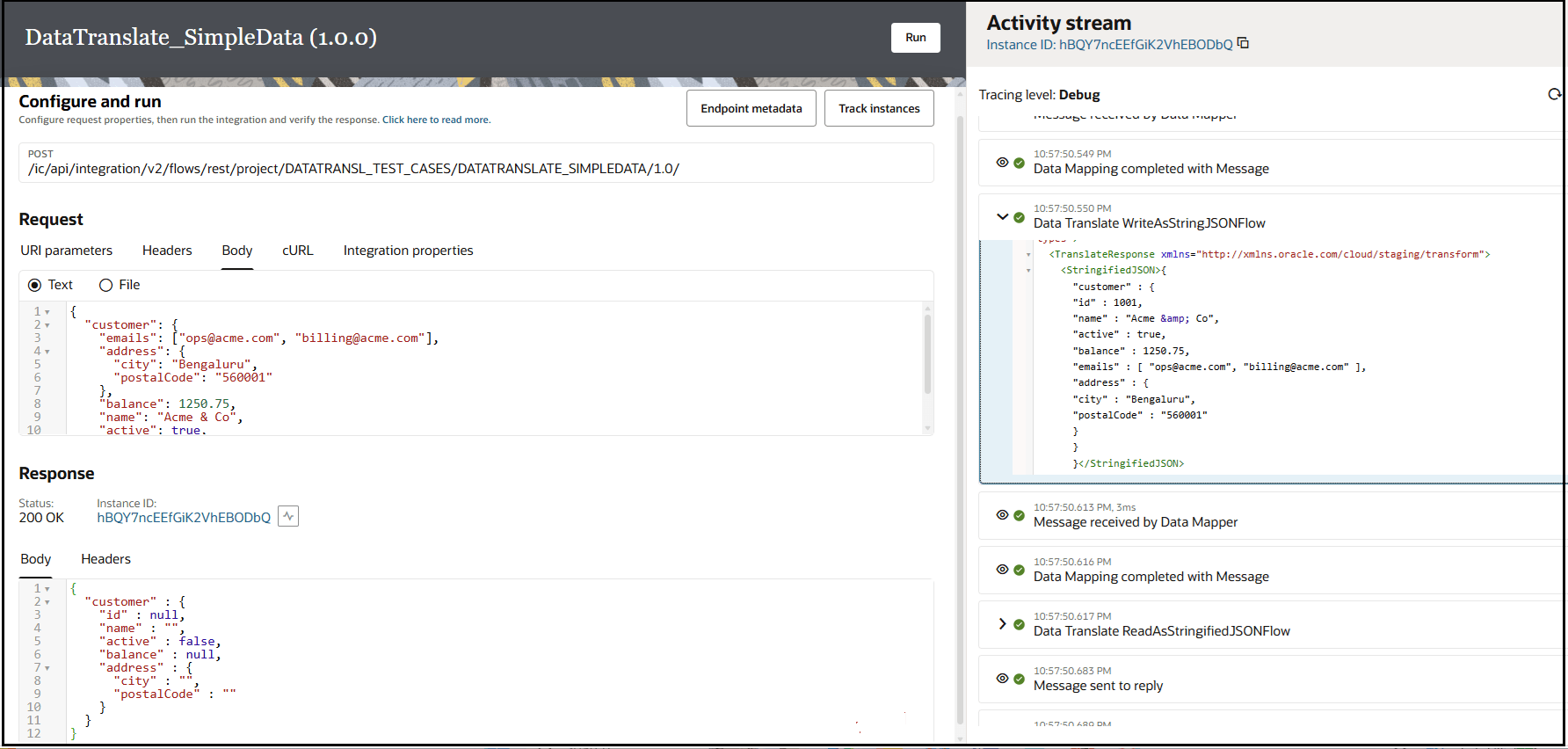
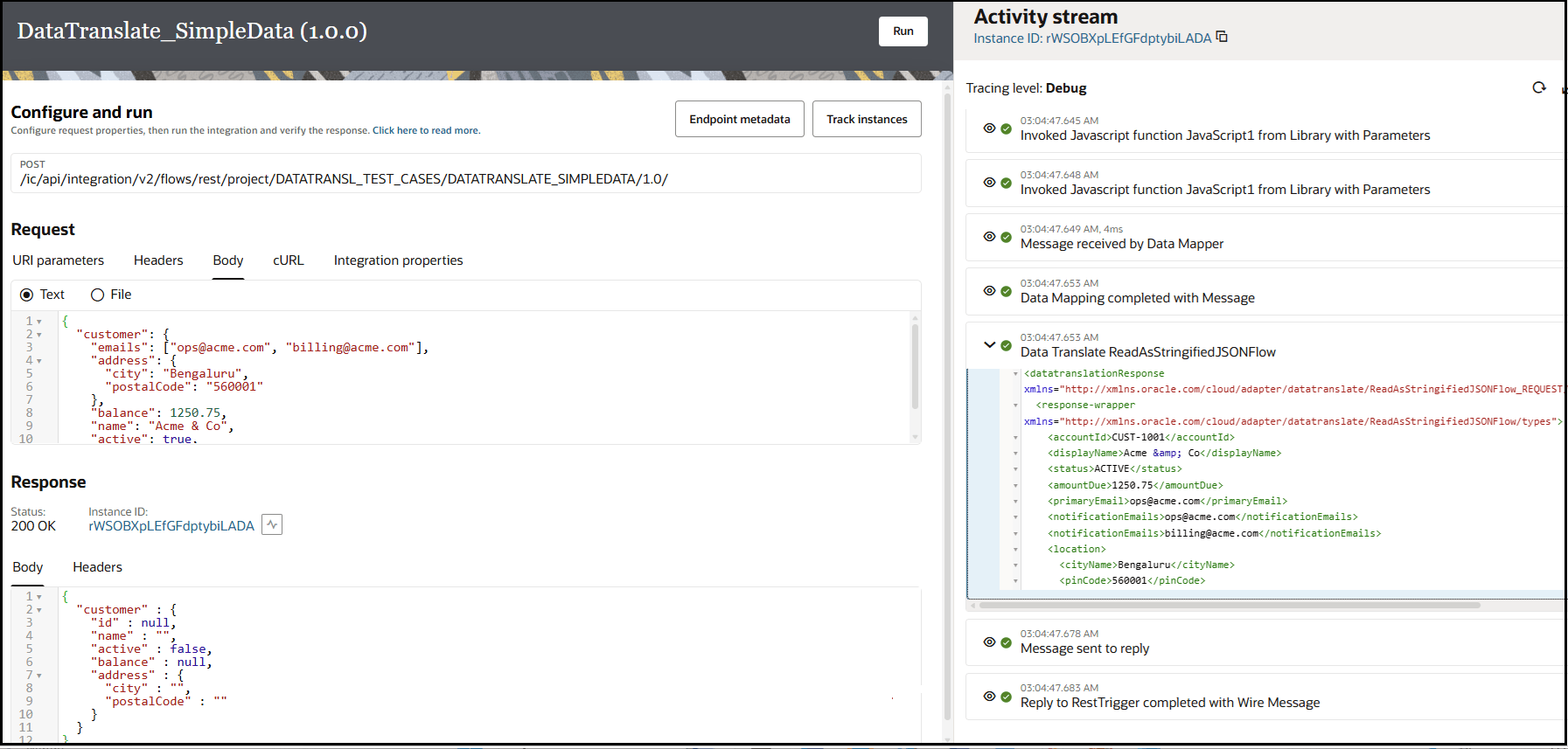
- Scroll down in the activity stream and expand Data Translate ReadAsStringifiedJSONFlow.
The flat, stringified JSON payload has been translated back to a native JSON payload.
- From the Actions