About Cache in Spatial Studio
All vector tiles generated for all datasets are cached to the file system by default.
This cache process automatically begins when the you first load a dataset for map visualization and start panning the map or zoom in and out on the map. Therefore, the next time the same dataset is visualized, all the corresponding map layers load faster as the relevant tiles have been already generated and are ready to be loaded. All these generated vector tiles will be saved under:
<user_home_folder>/.sgtech/cache/CACHE_<cache_id>
The <cache_id> which is part of the folder name is an integer value, calculated based on the dataset id and the geometry column being encoded in the vector tiles. A metadata file will be saved inside each cache folder to provide human-readable information about where the tiles belong to in a tiles.json file. A sample structure of the metadata file is as shown:
{
  "DatasetName" : "DATASET NAME",
  "DatasetId" : "8da55629d3ca71aa37d859422a847257",
  "GeometryColumn" : "GEOM_COL_NAME"
}
Each vector tile will be encoded and saved to a file that follows a name pattern as shown:
<zoom_level>_<x_axis>_<y_axis>.dat
All the variables in the preceding name pattern are replaced by an integer and denote the world position where the tile needs to be loaded when looking at a certain viewport of the world map.
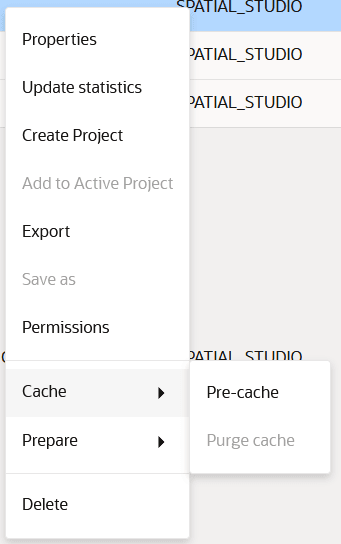
The cache options (Pre-cache and Purge cache) for a dataset can be accessed from the Datasets page as shown:
Description of the illustration cache_options.png
Pre-Cache
You can trigger a pre-caching task to start generating vector tiles even before a map is loaded with the dataset for visualization.
You can access the Pre-cache option as shown in this Figure.
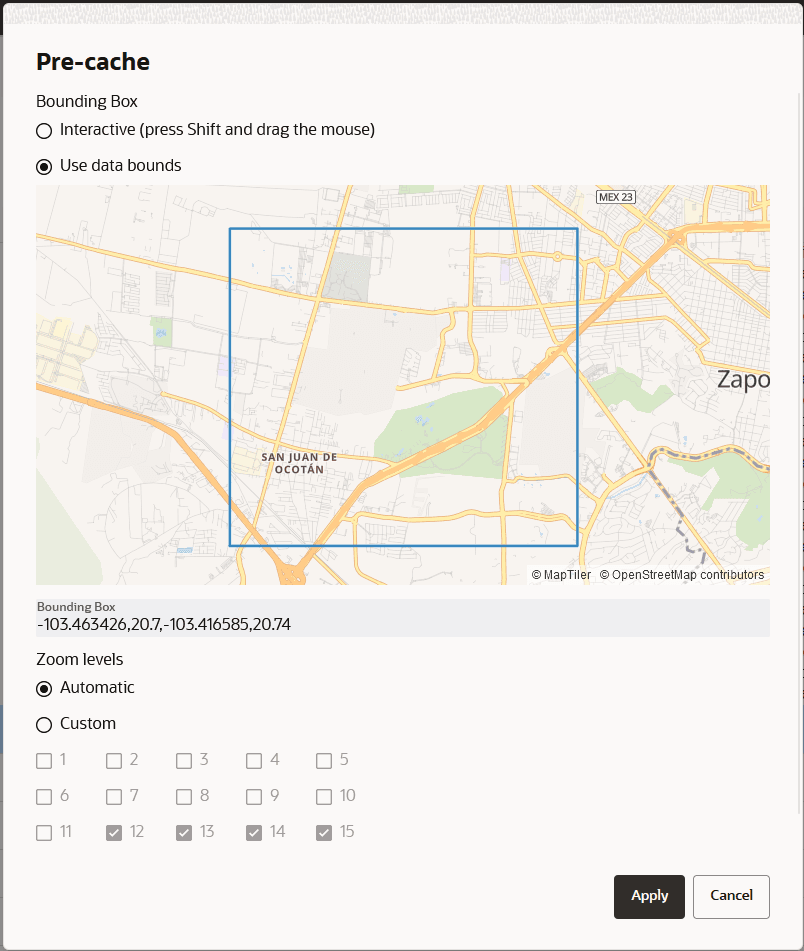
Pre-caching can infer where the data is located and suggest the data bounds for caching. In case if the information is not available, then you can interactively select the part of the world that needs to be included in the pre-caching task. Spatial Studio also suggests the zoom levels that are best suited for the data. However, you can always override this and configure your own choice for the Zoom levels.
Description of the illustration configure_pre_cache.png
Note: Based on the complexity of the data and the number of zoom levels to pre-cache, this task could take from a couple of minutes to several hours. Therefore, be cautious on what you opt to include in this process as the database connections and CPU usage could heavily be impacted by this task.
The pre-cached tiles are saved in the file system, following the name pattern discussed in the earlier section. Extra information about the bounding rectangle and zoom levels that were pre-cached are included in the tiles.json file as shown:
{
  "DatasetName" : "DATASET NAME",
  "DatasetId" : "8da55629d3ca71aa37d859422a847257",
  "GeometryColumn" : "GEOM_COL_NAME",
  "ZoomLevels" : [ 13, 14, 15 ],
  "BoundingBox" : [ -103.455841, 20.708551, -103.421479, 20.73044 ]
}
Purge Cache
You can wipe the cached tiles by calling the Purge cache option.
You can access the Purge cache option as shown in this Figure.
This option is helpful whenever the database data changes causing the already generated vector tiles to become stale.
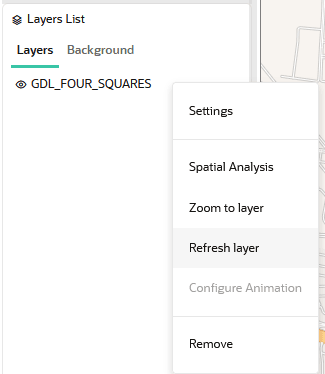
Alternatively, you can also select the Refresh layer option for each dataset layer that is added to the map visualization in the Active Project page as shown:
Description of the illustration refresh_map_layer.png
This indirectly triggers a Purge cache operation, before generating the vector tiles again.
You must perform a cache purge or layer refresh whenever you apply any of the following changes to a dataset:
-
Change the key column of a dataset
-
Enable or disable columns of a dataset
-
Change the contents of your dataset’s source table
Otherwise, you will be viewing stale data on the map and interacting with this data may also result in errors.