Manage Safe Domains
Spatial Studio allows users to define custom basemaps, connect to external WMS services, and import datasets such as GeoJSON or imagery data from external URLs. In all of these scenarios, Spatial Studio must establish HTTP connections to external resources.
Before Spatial Studio can make such connections, an administrator must add the service or dataset domain (or specific URL) to the Safe Domains allowlist and assign the appropriate Content Security Policy (CSP) directives for each entry.
Note: If you make any changes to the safe domains list, then it is important that you refresh or reload the browser page to reload the new Content Security Policy.
-
Navigate to the Console page.
-
Click Safe Domains under Settings.
The list of safe domains that Spatial Studio can access is displayed as shown:
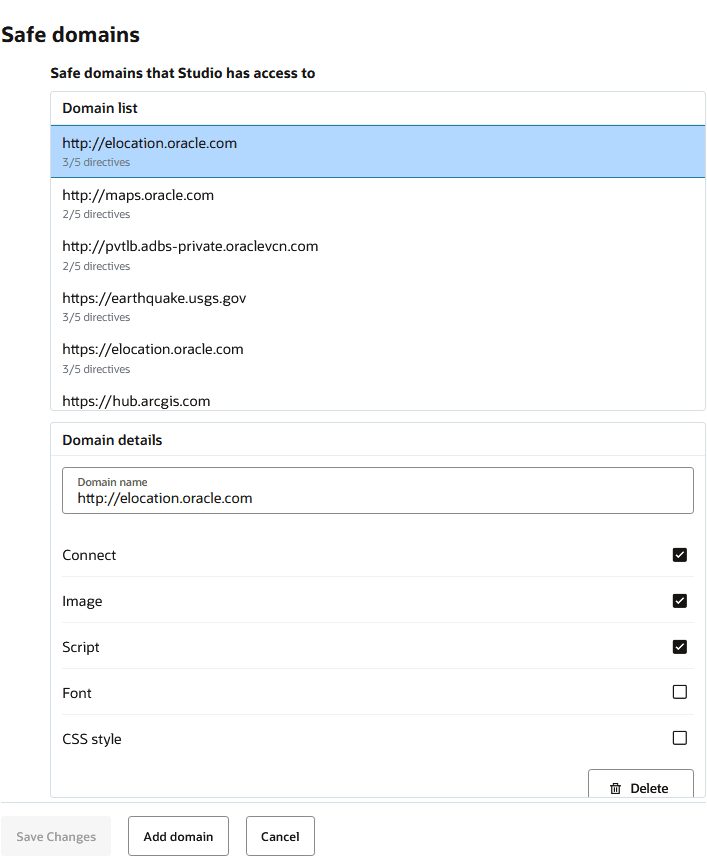
Description of the illustration safe_domains.png
You can view the domain details by clicking on a domain in Domain list.
You can choose to perform one of the following actions:
- Adding a safe domain
-
Click Add domain.
A New domain row gets added at the beginning of the safe Domain list.
-
Enter the Domain name under Domain details.
Ensure that you enter a valid domain or URL from which resources will be fetched. Examples include:
https://wms.mycompany.com:8080https://wms.mycompany.com/wms/version_1.0.3/https://wms.mycompany.com
If the URL includes a path after the domain, such as
/wms/version_1.0.3/, its interpretation depends on whether it ends with a trailing slash:- Trailing slash ( / ) present: The URL is treated as a folder. Studio will allow access to all resources nested under the folder as safe to access.
- No trailing slash: The URL is treated as a single resource. Only requests that exactly match this URL will be considered safe.
Note that the protocol is a part of the domain and should be based on the URL of the remote service. For instance, if you defined a WMS data source or a custom base map in Spatial Studio, and the URL to the WMS server or the custom base map’s tile server starts with
https://, then you must usehttps://. If it starts withhttp://, then usehttp://. In case if both the protocols are used (maybe one is used to fetch some resources while the other is used for a different type of resource), then you need to add the domain twice, one with thehttp://protocol and another with thehttps://protocol. Spatial Studio performs safe domain validation strictly based on the value you added to the list. -
Select the appropriate check boxes for the new domain.
The check boxes represent Content Security Policy fetch directives.
- Connect: This corresponds to the CSP
connect-srcdirective, and indicates whether Spatial Studio is allowed to interact with the domain via script interface (such as AJAX calls). - Image: this corresponds to the CSP
img-srcdirective, and indicates whether Spatial Studio is allowed to fetch images from the domain. - Script: this corresponds to the CSP
script-srcdirective, and indicates whether Spatial Studio is allowed to import or load scripts hosted by the specified domain. - Font: this corresponds to the CSP
font-srcdirective, and indicates whether Spatial Studio is allowed to load font data from the specified domain. - CSS Style: this corresponds to the CSP
style-srcdirective, and indicates whether Spatial Studio is allowed to load stylesheet from the specified domain.
It is important to understand what type of resources you will be fetching from the specific domain. For instance, if you select the check box Script, then it implies that you are enabling your browser to fetch Java Script type resources from the domain.
In case if you are adding a safe domain for a WMS data source, then you likely need to enable the following check boxes:
- Connect: This is required because Spatial Studio needs to interact with a remote WMS data source to check its capabilities using AJAX calls.
- Image: This is needed because eventually Spatial Studio needs to fetch individual WMS map images from the remote WMS server.
Note that when a check box is selected, the domain URL gets added to a list of all the allowed URLs for the corresponding CSP directive. For instance, consider that the domain
https://www.mycompany.comis added as a safe domain with the Connect check box selected. Then, when you reload Spatial Studio, the CSP header loaded by the browser will now includehttps://www.mycompany.comin itsconnect-srcdirective’s list of domain values. - Connect: This corresponds to the CSP
-
Click Save Changes.
-
Refresh or reload the browser page.
-
-
Editing a safe domain
-
Click the safe domain that you want to edit.
The current configuration is displayed under Domain details.
- Modify the required domain settings.
- Click Save Changes.
- Refresh or reload the browser page.
-
-
Deleting a safe domain
-
Click on the safe domain that you wish to edit.
The domain configuration is displayed under Domain details.
- Click Delete and confirm delete by clicking OK.
- Click Save Changes.
- Refresh or reload the browser page.
-
- Adding a safe domain