Manage Target Databases
As your target databases and their environments evolve, you may need to perform various life-cycle management activities.
View Registration Details for a Target Database
You can view registration details for a target database on the Target database information page in the Oracle Data Safe service in Oracle Cloud Infrastructure. Details vary depending on the database type.
-
From the navigation menu in Oracle Cloud Infrastructure, select Oracle AI Database, and then under Data Safe - Database Security, select Target databases.
The Target database page opens.
-
Select the compartment that contains your target database. To list all the target databases in the child compartments too, select the Include child compartments check box, and then select Apply filter.
-
Select the name of your target database.
The details page opens for your target database.
-
On the Details tab, view the registration details for your target database.
Update Connection Details for a Target Database
You can update connection details for your target database from the Target database information page in Oracle Data Safe. Connection details vary depending on the database type; for example, TCP/TLS, database service name, database port number, and so on.
For example, for some target databases you can change the Oracle Data Safe private endpoint or Oracle Data Safe on-premises connector configuration for a target database.
-
On the Target databases page in Oracle Data Safe, select the name of the target database that you want to update.
-
Select Edit connection details.
The Edit connection details panel opens.
-
Modify the connection details as needed, and then select Save changes.
Update a Target Database Name and Description
You can update the name and description for your target database.
Here is a possible use case: If you rename your Autonomous AI Database from the database’s Console in Oracle Cloud Infrastructure, the change is automatically propagated to Oracle Data Safe. Oracle recommends that you update the target database name in Oracle Data Safe to best match your database name. Each target database name must be unique in Oracle Data Safe. By updating your target database name, you can avoid name conflicts in the future.
-
From the navigation menu in Oracle Cloud Infrastructure, select Oracle AI Database, and then under Data Safe - Database Security, select Target Databases.
The Target database page opens.
-
Select the compartment that contains your target database. To list all the target databases in child compartments too, select the Include child compartments check box.
-
Select the name of the target database that you want to update.
The Target database information page opens.
-
To modify the target database name, from the Actions menu, select Edit display name. In the Edit display name panel, modify the name, and then select Update.
-
To modify the target database description, from the Actions menu, select Edit description. In the Edit description panel, modify the description, and then select Update.
Update the Database User
For a non-Autonomous AI Database, you can update the credentials for the Oracle Data Safe service account.
-
From the navigation menu in Oracle Cloud Infrastructure, select Oracle AI Database, and then under Data Safe - Database Security, select Target Databases.
The Target database page opens.
-
Select the compartment that contains your target database. To list all the target databases in child compartments too, select the Include child compartments check box.
-
Select the name of your target database.
The Target database information page opens.
-
From the Actions menu, select Update database user.
The Update database user panel opens.
-
Modify the credentials as needed, and then select Update.
Move a Target Database to a Different Compartment
-
From the navigation menu in Oracle Cloud Infrastructure, select Oracle AI Database, and then under Data Safe - Database Security, select Target Databases.
The Target database page opens.
-
Select the compartment that contains your target database. To list all the target databases in child compartments too, select the Include child compartments check box.
-
Select the name of the target database that you want to move.
The Target database information page opens.
-
From the Actions menu, select Move resource.
A Move resource panel opens.
-
In the drop-down list, select a different compartment, and then select Move resource.
The target database is immediately moved to the compartment.
Deregister a Target Database
When you deregister a target database, the target database is no longer available in Oracle Data Safe. If your target database is connected via an Oracle Data Safe private endpoint, the private endpoint is not automatically deleted during deregistration. You can still view collected audit data in the audit reports for a deregistered target database as long as the audit data retention period is not expired.
-
From the navigation menu in Oracle Cloud Infrastructure, select Oracle AI Database, and then under Data Safe - Database Security, select Target Databases.
The Target database page opens.
-
Select the compartment that contains your target database. To list all the target databases in child compartments too, select the Include child compartments check box.
-
Select the name of the target database that you want to deregister.
The Target database information page opens.
-
From the Actions menu, select Deregister.
The Deregister target database dialog box opens.
-
To confirm, click Deregister.
Your target database is deregistered from Oracle Data Safe.
For non-billed target databases the database will be in a
DELETEDstate for one day. During this time, the metadata about your target database is kept in Oracle Data Safe. After one day, Oracle Data Safe permanently removes all metadata about your target database and your target database is no longer listed in the user interface.For billed target databases the database will be in a
DELETEDstate for 45 days. During this time, the metadata about your target database is kept in Oracle Data Safe. After 45 days, Oracle Data Safe permanently removes all metadata about your target database and your target database is no longer listed in the user interface.
Related Topics
-
Resources That Are Automatically Deleted When a Target Database is De-registered
-
What Resources Can Be Deleted While a Target Database is Active
Resources that are Automatically Deleted When a Target Database is De-registered
When you de-register a target database there are a number of resources that are automatically deleted. However, there are also some resources that can’t be deleted. See the below list to learn what happens to certain resources when a target database is de-registered.
The following table describes resources that are automatically deleted when a target database is de-registered.
| Functional Area | Oracle Data Safe Resource | Oracle Data Safe Resource Name in OCI IAM | Comments |
|---|---|---|---|
| Activity Auditing | Audit profile* | data-safe-audit-profiles |
In a cleanup job once there are no more audit events for the target database |
| Activity Auditing | Audit trail | data-safe-audit-trails |
|
| Activity Auditing | Audit event | data-safe-audit-events |
Once the retention policy is over |
| Activity Auditing | Audit policy* | data-safe-audit-policies |
|
| Activity Auditing/Alerts | Target alert policy associations | data-safe-target-alert-policy-associations |
|
| Activity Auditing/Alerts | Report | data-safe-reports |
Reports that are older than 90 days will be deleted in a routine cleanup job |
| Activity Auditing | Archive retrievals | data-safe-archive-retrievals |
Yes - After the retrieved data has been online for 30 days |
| User Assessment | User assessment | user-assessments |
In a routine cleanup job |
| Security Assessment | Security assessment | security-assessments |
In a routine cleanup job |
| SQL Firewall | Database security config | data-safe-database-security-configs |
In a routine cleanup job |
| SQL Firewall | Security policy | data-safe-security-policies |
In a routine cleanup job |
| SQL Firewall | Security policy deployment | data-safe-security-policy-deployments |
In a routine cleanup job |
| SQL Firewall | Firewall policy | data-safe-sql-firewall-policies |
In a routine cleanup job |
| SQL Firewall | SQL collection | data-safe-sql-collections |
In a routine cleanup job |
| SQL Firewall | Violation logs | data-safe-sql-firewall-violations |
Yes-After the 12 month retention period has passed |
| SQL Firewall | SQL Firewall allowed SQL | data-safe-sql-firewall-allowed-sqls |
In a routine cleanup job |
*When a target database is de-registered, the target database’s audit policies and audit profiles are scheduled for deletion in an automatic cleanup job. Following the first run of the cleanup job, the policies are visible and marked as FAILED. Following the second run of the clean up job, the policies are visible and marked as DELETED. The policies are hard deleted following the third run of the clean up job and then are no longer be visible.
Note: A maximum of 100 policies are cleaned up per day. So, in cases where more than 100 policies need to be cleaned up, the remaining policies are queued up for the next day’s cleanup job.
The routine cleanup job runs frequently and deletes a number of resources whenever it runs. If you have many resources in the queue to be deleted, it may take several runs of the cleanup job to empty the queue.
Resources associated with or used by the target database (for example, sensitive data models, masking policies, and reports) are not deleted when the target database is de-registered. You need to manually delete these items. See What Resources Can Be Deleted While a Target Database is Active for more information.
Manage Network Access Changes for Oracle Autonomous AI Database Serverless
You can change the network access type for Oracle Autonomous AI Database Serverless from Secure access from everywhere to Secure access from allowed IPs and VCNs only, and vice versa. When making a network access change, you may need to perform tasks to maintain the database’s registration with Oracle Data Safe.
Overview
If you plan to switch the network access for your Oracle Autonomous AI Database Serverless from Secure access from everywhere (public endpoint) to Private endpoint access only, prior to making the network access change, you need to create an Oracle Data Safe private endpoint on the same virtual cloud network (VCN) and subnet as your database. If you plan to switch from a private endpoint to a public endpoint, you do not need to do anything other than make the network switch. You do not need to deregister your Autonomous AI Database with Oracle Data Safe beforehand. Your database will have a public IP address after you make the change and you can view that IP address from the database’s console. You may want to delete the Oracle Data Safe private endpoint previously used because it is no longer needed.
Note: If your database is not yet registered with Oracle Data Safe, update the network access settings first, and then proceed with the registration.
When you switch the network access type to Private endpoint access only, the database’s private endpoint communicates with Oracle Data Safe’s private endpoint. The two private endpoints allow Oracle Data Safe to communicate with your database. This scenario is illustrated in the diagram below.
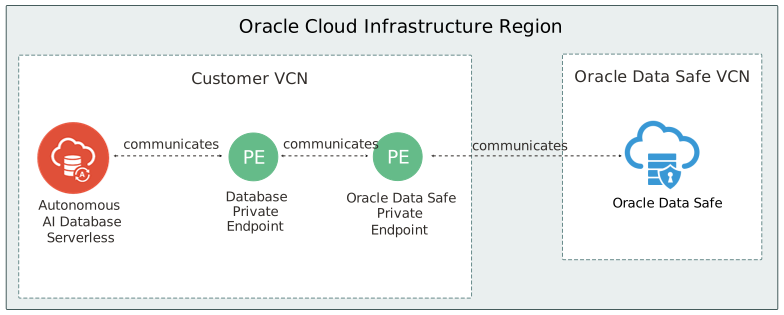
Description of the illustration adb-s-private-vcn.svg
If there is no Oracle Data Safe private endpoint available and you attempt to make the network access change, you will get a message stating that the “Data Safe service may be disrupted if you switch to using a private endpoint without first configuring a Data Safe private endpoint.” In this case, the switch will fail.
Workflow
If your Oracle Autonomous AI Database Serverless is already registered with Oracle Data Safe and you want to switch the database’s network access type from Secure access from everywhere to Private endpoint access only, then follow the general steps listed in the table below.
| Step | Description | Reference |
|---|---|---|
| 1 | Create an Oracle Data Safe private endpoint. | Create an Oracle Data Safe Private Endpoint |
| 2 | Switch the network access type to Private endpoint access only for your Oracle Autonomous AI Database Serverless. | Change from Public to Private Endpoints with Autonomous AI Database |
| 3 | Update the security rules to allow communication between Oracle Data Safe and your database. | Update the Security Rules to Allow Communication Between Oracle Data Safe and Your Database |
Update the Security Rules to Allow Communication Between Oracle Data Safe and Your Database
Update the ingress and egress security rules for the Network Security Groups (NSGs) within your private VCN in Oracle Cloud Infrastructure to allow traffic from Oracle Data Safe’s private endpoint to your Autonomous AI Database’s private endpoint. While both an NSG and a security list act as virtual firewalls for your database, Oracle recommends that you use NSGs. For more information, see Network Security Groups.
Example: Configure security rules for Oracle Autonomous AI Database Serverless with private VCN access
Suppose you provision an Oracle Autonomous AI Database Serverless with private VCN access in Oracle Cloud Infrastructure. During provisioning, Oracle Cloud Infrastructure automatically creates a private endpoint for your database and you associate an NSG with your database.
To obtain the private IP address for your database’s private endpoint and view the NSG name, you access the Network section on theAutonomous AI Database information tab in your database’s Console in Oracle Cloud Infrastructure. Suppose the private endpoint’s IP address is 10.0.10.232 and the NSG name is test_nsg.
To obtain the private IP address and NSG for an Oracle Data Safe’s private endpoint, you access the private endpoint’s page in Oracle Data Safe. Suppose the IP address is 10.0.10.160 and the NSG name is nsg_not_allow_pdb_pe_ip.
Next, you create a security rule for each of the NSGs the following way:
-
Ingress rule for the database private endpoint NSG: Configure the database's private endpoint IP address (10.0.10.232) on port 1522 to be able to receive incoming traffic from Oracle Data Safe's private endpoint IP address (10.0.0.6) from any port.
-
Egress rule for the Oracle Data Safe private endpoint NSG: Configure Oracle Data Safe's private endpoint IP address (10.0.0.6) from any port to be able to send requests to the database's private endpoint IP address (10.0.10.232) on port 1522.
The following diagram illustrates the general idea of the two security rules.
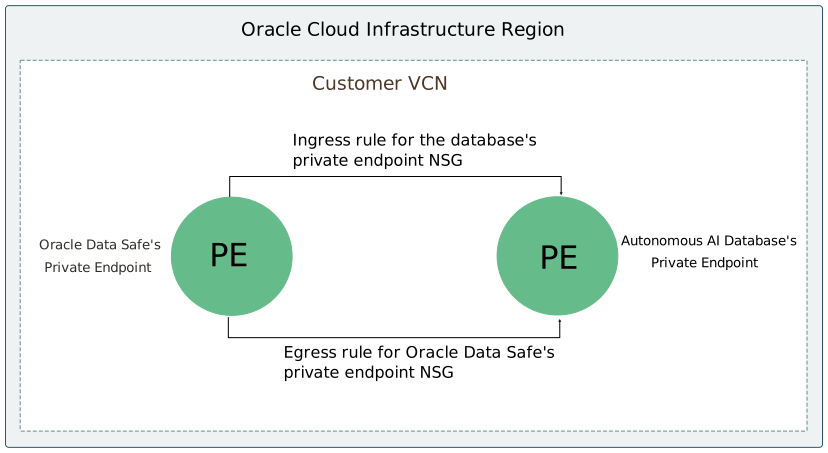
Description of the illustration security-list-configuration-adb-shared-privatevcn.svg