Add the Loggers
After adding both the trigger and invoke connections in the canvas, you can add the logger to log messages. In this example, you need to add the following two loggers in the orchestration flow:
-
Add the first logger after "RA_Interface_Lines"
This activity is to log message about the "Success Count" information after the successful invocation of the RA_INTERFACE_LINES_ALL REST service.
-
Add the second logger after "Submit_RAXMTR"
Once the concurrent program is successfully processed, use this activity to log message about the concurrent request ID. You can then view the associated report through the concurrent request ID for validation.
Perform the following steps to add loggers:
-
Add the First Logger "Interface" for Success Count
In the "EBS OIT Demo" integration page, from Actions section on right side of canvas, drag and drop the Logger activity to the canvas, right after "RA_Interface_Lines" and before "Submit_RAXMTR".
The Create Action page appears.
-
Enter "Interface" as the Name field in the Create Action page.
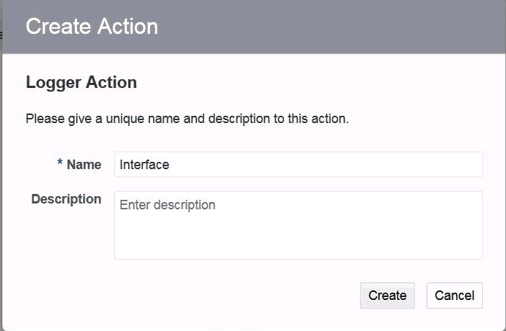
Description of the illustration logger_action.gifClick Create.
The logger "Interface" is created successfully.
-
In the Logger Action page, perform the following tasks:
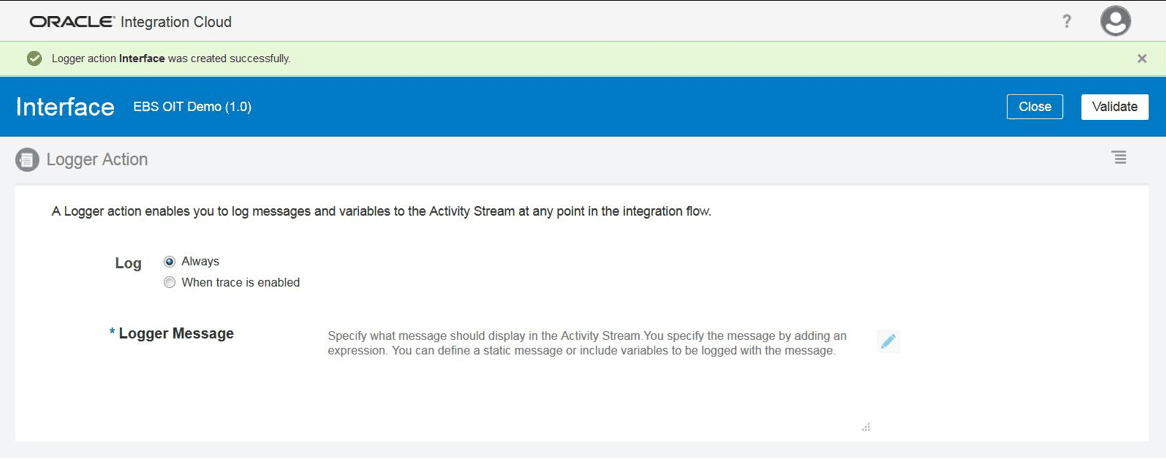
Description of the illustration logger_description.gif-
In the Log field, select the Always button.
-
In the Logger Message field, click the Pencil icon to provide the logger message in the Log Message page.

Description of the illustration log_message.gifUse the
String Concatfunction as Expression to display Success Count.In the Source section, expand the RA_INTERFACE_LINES_ALLResponse node, then the OutputParameters node, and then the Summary node.
Drag and drop the SuccessCount element to the right top under the Expression section. Click Close.
-
-
Add the Second Logger "CPSubmitResponse" for Concurrent Program Submit ID
In the "EBS OIT Demo" integration page, from Actions section on right side of canvas, drag and drop the Logger activity to the canvas, right after "Submit_RAXMTR".
The Create Action page appears.
-
Enter "CPSubmitResponse" as the Name field in the Create Action page.
Click Create.
-
In the Logger Action page, select the Always button.
Click the Pencil icon to provide log message in the Log Message page.
Use the
String Concatfunction as Expression to display CP Submit ID.In the Source section, expand the Submit_RAXMTR node, then the RAXMTRResponse node, and then the OutputParameters node.
Drag and drop the CP_Submit element to the right top under the Expression section. Click Close.