Add a Static Google Map to a Form
Pictures can be worth a thousand words. Maps can clearly show a lot of information in a small amount of space, such as the location of your business and its surroundings.
Note:
The StaticMap sample form uses Google's Maps Static API to add the map to a form. To use the Google API, you must authenticate requests using an API key. The API key is used to track API requests associated with your project for quota, usage, and billing. To get your API key and enable billing, visit the Google Maps Platform website at https://developers.google.com/maps/documentation/maps-static/get-api-key.Learn About the StaticMap Sample
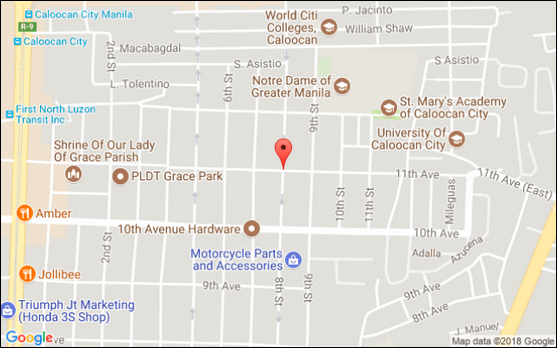
The StaticMap sample demonstrates how you can display a map on your form.
First, you add an Input Text control and an Image control to your form. Then, you configure the Image control to compute the value in the Input Text field and display the map based on the location coordinates entered.
Import the StaticMap Sample
To import the StaticMap sample:
- In the Integration Cloud navigation pane, click Processes.
- In the Processes navigation pane, click Applications.
- On the Process Applications page, click Create, click Import, and then click Application.
- Browse and locate the StaticMap.exp file you downloaded and click Import.
- Open the StaticMap application.
- In the Application navigation pane, click Forms, and then open the StaticMap form.
Map It Yourself
To add a map to your form:
- Click Edit to open the Configure Computed Value dialog.
- Click Add
 .
.
- Click Add

It’s possible to use a map with a global connector instead of a form control if your data comes from an external service. Also, many configurations are possible for static maps. See the Google documentation for using maps.