Fetch a List of Select Options Statically
For forms used by your process application, learn how to set up fields that use a drop-down selection list. In these samples, you enter the data that will be shown for each option that users can select from the drop-down list.
Learn About the Sample
The StaticSelectOptions sample form showcases how to build a Select control whose options depend on the selection of another control. In this sample form, the combinations of options are defined statically.
The basic sample shows a Parent field and a Child field. Selecting Parent A shows child options of A1, A2, and A3; selecting Parent B shows child options of B1, B2, B3, and so on.
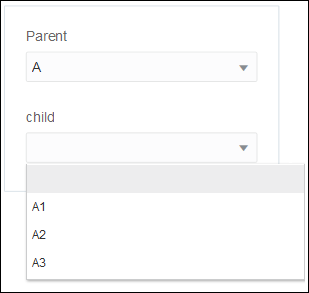
Description of the illustration sf-s1-parent-def.png
The second sample also has Parent and Child fields, but the data configuration is more complex. The major difference is that there are two separate lists of values for the Child field. The set of options available depends on the value selected in the Parent field.
In both samples, you configure the values for each field. The data is static.
Import the Sample and Preview the Fetch Options
Import the sample forms, select different values for the Parent field, and see how the options in the Child field change based on the selected value.
- In the Integration Cloud navigation pane, click Processes.
- In the Processes navigation pane, click Applications.
- On the Process Applications page, click Create, click Import, and then click Application.
- Browse and locate the StaticSelectOptions.exp file you downloaded and click Import.
- Open the StaticSelectOptions application.
- Preview the basic sample form first.
- In the Application navigation pane, click Forms, and then open the StaticOptions sample.
- Click Preview.
- In the Parent field, make a selection. Click the Child field to view the list of available options. For example, if you select Parent A, then A1, A2, and A3 are valid entries. You will see similar results for Parent B and Parent C.
- Close the Preview window.
- Now, preview the complex form.
- Click the Application Home tab, and then open the StaticOptionsComplex sample.
- Click Preview.
- In the Parent field, make a selection. Click the Child field to view the list of available options.
Use Static Data to Build a Basic Selection List
In many web forms, users enter a value into a field by selecting an option from a list of values. The StaticOptions sample highlights how you can add a Select control to a form and then configure the values for its selection list.
- Drag and drop two Select
 controls from the Basic Palette to the form canvas. Label the controls as Parent and Child.
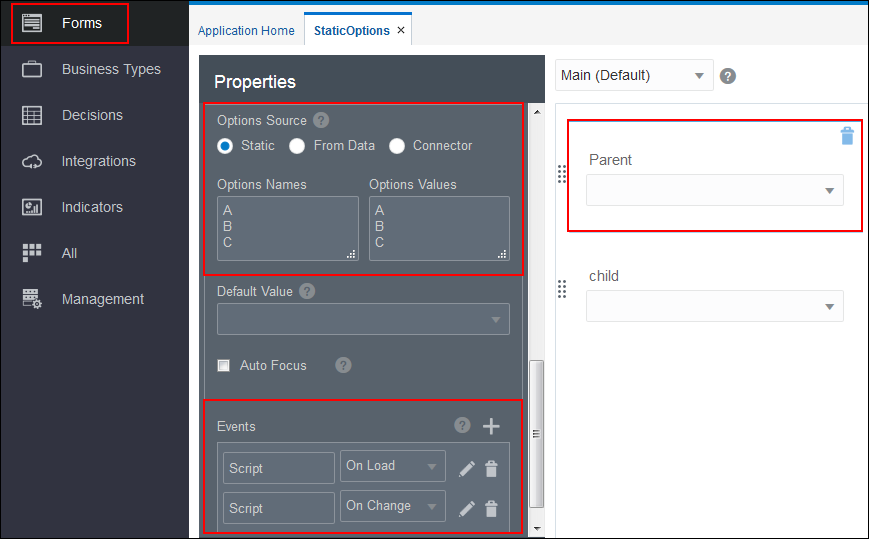
 - Specify the options for the Parent field.
- In your form, click the Parent control.
- On the General tab in the Properties pane, scroll to the Options Source section.
- Select Static.
- In the Options Names field and the Options Values field, enter the list of values.
- Add an On Load event on the Parent field. In the On Load event:
-
Set the default value for the Parent field.
-
Set the default options for the Child field.
-
Use a split function to statically define the options for the Child field.
-

Use Static Data to Build a Complex Selection List
The second form in the StaticOptions sample also highlights how you can add Select controls to a form and configure the values for each selection list. The major difference in this sample is that there are two separate lists of values for the Child field. The appropriate list and its options become available after the user selects a value from the Parent field.
- Drag and drop two Select controls from the Basic Palette to the form canvas. Label the controls as Parent and Child.