OAuth 2.0 Authorization Code Flow with PKCE
Oracle Visual Builder Add-in for Excel supports authentication for REST services using OAuth 2.0 Authorization Code flow with Proof Key for Code Exchange (PKCE). This authentication method allows clients like the add-in to authenticate and get an access token which can then be used to make REST requests to service endpoints.
This authentication method is required by some services such as NetSuite.
To configure your workbook to use OAuth 2.0 Authorization Code flow, you’ll need to obtain some authentication details from your REST service owner. See OAuth 2.0 Authorization Properties.
If you plan to authenticate through Identity and Access Management (IAM) identity domains, see Use OAuth 2.0 with Identity and Access Management.
The easiest way to configure OAuth is to fill in and import a JSON configuration file with the required OAuth properties. See Configure OAuth 2.0 Authorization for a Catalog for the steps to configure OAuth for your workbook.
OAuth 2.0 Authorization Properties
In order to configure your workbook to use OAuth 2.0 Authorization Code flow, you’ll need to obtain a client identifier from the security administrator for the service you are using. You’ll also need to provide other details such as required endpoint URLs. Consult with the REST service owner for help.
Here are the OAuth properties:
- Client Identifier: The identifier set up for the add-in to use when executing the authorization flow. Obtain this value from the security administrator for your service.
- Authorization Endpoint: The authorization server endpoint used by the client to obtain authorization from the resource owner via user-agent redirection.
- Redirection Endpoint: The client endpoint used by the authorization server to return responses containing the authorization code to the client using the resource owner user-agent.
- Access Token Scope: Optional. The authorization and token endpoints allow the client to specify the scope of the access request using the
scoperequest parameter. - Token Endpoint: The authorization server endpoint used by the client to exchange an authorization grant for an access token, typically with client authentication.
Note: The add-in does not require the Client Secret.
The Authorization Endpoint and Token Endpoint must use HTTPS. The Redirection Endpoint must use HTTPS, except for HTTP loopback URLs such as http://localhost/... or http://127.0.0.1/....
For more information on these properties, see OAuth 2.0 Authorization Framework.
OAuth 2.0 Authorization Code Flow Steps
The authorization flow follows these steps:
-
The add-in starts the login sequence by validating the OAuth2 configuration properties. If the properties are valid, the flow proceeds.
If the properties are missing or otherwise invalid, then the login attempt is aborted and an error is reported. For example, an endpoint property that is not an absolute URL is invalid and results in an aborted login.
-
The add-in constructs a Uniform Resource Identifier (URI) using the Authorization Endpoint property, along with Client Id and other values saved in the OAuth 2.0 Authorization Code (PKCE) screen.
-
The add-in displays the login browser window and instructs the browser to navigate to that authorization Uri. See The Embedded Browser.
-
The add-in watches for page transitions and redirects in the browser. All other browser and user interactions are governed by the logic and configuration of the authorization server.
There could be multiple pages and steps necessary for the user to provide credentials, get consent, and so on.
-
When the authorization server redirects the browser back to the Redirection Endpoint, the add-in closes the browser.
If the Redirect indicates an error, the add-in reports it and aborts the login flow. On a successful redirect, the add-in performs some validation on the returned values. If that succeeds, the add-in proceeds with the flow.
-
After a successful redirect, the add-in harvests the authorization code and sends it, along with other key values, in a POST request to the Token Endpoint.
The Token Endpoint returns an access token, which the add-in then includes in the Authorization header using the Bearer scheme, when making subsequent REST requests.
Refer to Authorization Code Grant for information on authorization code flow. See also Proof Key for Code Exchange by OAuth Public Clients for information on PKCE.
Configure OAuth 2.0 Authorization for a Catalog
You can configure your integrated workbook to authenticate with the REST service using OAuth 2.0 Authorization code flow. You can provide the required authentication properties when you create a catalog during the creation of a layout.
You can also configure an existing catalog to use this authentication method from the Business Object Catalog Editor.
The easiest way to configure this authentication method is to export a blank JSON file from Oracle Visual Builder Add-in for Excel, fill in the required values, and import the completed configuration file.
Before you proceed, obtain the required properties from the REST service owner. See OAuth 2.0 Authorization Properties. For acquiring the required properties for authenticating through Identity and Access Management (IAM), refer to Use OAuth 2.0 with Identity and Access Management.
To import a configuration file during new layout creation:
-
Launch the New Layout Setup wizard as described in either Create a Table Layout in an Excel Workbook or Create a Form-over-Table Layout in an Excel Workbook.
-
From the first screen of the wizard, select OAuth 2.0 Authorization Code (PKCE) from the Authentication list, then click Next.
The wizard displays a screen for entering OAuth 2.0 properties. This image shows the screen with sample values in the screen’s fields.
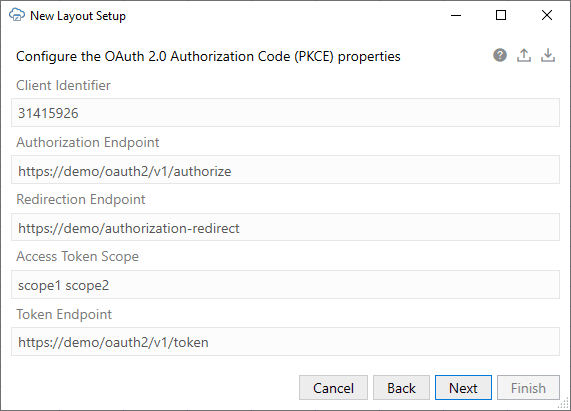
Description of the illustration oauth-properties-screen.png
Note: You can also access this screen for an existing catalog from the Advanced page of the Business Object Catalog Editor. To open this screen, select OAuth 2.0 Authorization Code (PKCE) from the Authentication list, then click Edit Authentication Flow Properties. See Set an Authentication Method for a REST Service.
-
Click the Export icon (
 ) to save a blank JSON file with the required properties to your local drive.
 -
Provide this file to the security administrator to fill in.
Here is an example of the JSON file showing sample values:
{ "type": "oauth2", "authorizationCode": { "clientId": "31415926", "authorizationEndpoint": "https://demo/oauth2/v1/authorize", "redirectionEndpoint": "https://demo/authorization-redirect", "accessTokenScope": "scope1 scope2", "tokenEndpoint": "https://demo/oauth2/v1/token" } } -
When you get the JSON file back with the required values, click the Import icon (
 ) to import the file to the add-in.
 -
Click Next to proceed through the New Layout Setup wizard.
Use OAuth 2.0 with Identity and Access Management
If the target REST service is hosted by Oracle Cloud Infrastructure (OCI), you can configure your integrated workbook to authenticate through Identity and Access Management (IAM) identity domains (formerly IDCS) using OAuth 2.0.
To do this, you’ll need to request a custom IAM application from the OCI IAM administrator responsible for supporting REST services clients’ OAuth 2.0 authentication needs. This will either be a new or existing application the admin will configure for your needs. See Oracle and Custom Applications in the Oracle Cloud Infrastructure Documentation for more details.
Once configured, use the relevant values to configure OAuth through the add-in.
Here are the requirements for an Oracle Visual Builder Add-in for Excel application using OAuth 2.0. Share these with the IAM admin.
- The add-in uses the Client ID and not Client Secret. The application must be a Mobile Application (also referred to as a Public application).
- In the Authorization section of the application configuration pages, Allowed grant types must have Authorization code selected.
-
Redirect URL must be a syntactically correct, absolute URL.
This does not need to point to an actual, valid resource or endpoint. It is only used as a marker URL during the authentication/authorization flow. No requests are made using this URL.
- Under Token issuance policy, set up the resources and scopes to include the REST endpoints needed by the add-in. Take note of the scope value(s).
The admin should configure other application properties to comply with the specific needs of the environment. If a new application was created, it must be activated by the admin.
Take note of the Client ID in the General Information section for the application. You’ll need this value when you configure OAuth 2.0 through the add-in.
When ready, proceed to the next step: Configure OAuth 2.0 Authorization for a Catalog.
OAuth Limitations and Known Issues
Before configuring OAuth 2.0 for an integrated workbook’s catalog, review the limitations here:
- PKCE support is required. See RFC 7636.
- There is currently no support for token refresh grants. When an access token expires, the add-in starts a new OAuth login flow rather than using a refresh token.
- For the first step in the OAuth 2.0 flow, the
code_challengeis set usingcode_challenge_method=S256.plainis not supported.