Add Fragments as Sections in a Dynamic Container
You can use existing fragments to define sections in a dynamic container. You also have the option to define a fragment as preferred content for sections.
-
With your page open in the Page Designer, drag the Dynamic Container from the Components palette onto your canvas. Here’s a dynamic container with the
Default Sectionremoved.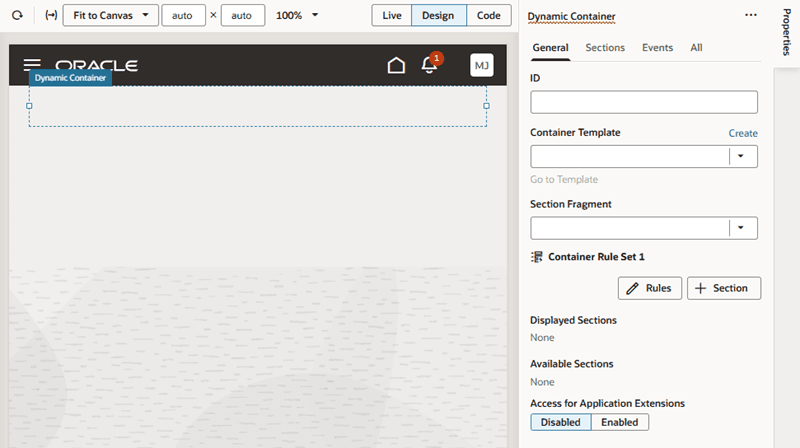
Description of the illustration dyncontainer-default-appui.png
- Add a fragment as a section to the dynamic container. Make sure the fragment already exists and is tagged
pageContent, so it becomes available for selection in a dynamic container.-
To add an existing fragment as a section, in the Container Rule Set section, click + Section, then select a fragment in the drop-down list. This list displays all
pageContentfragments (default tag). Other unused sections (including theDefault Section) are also listed.
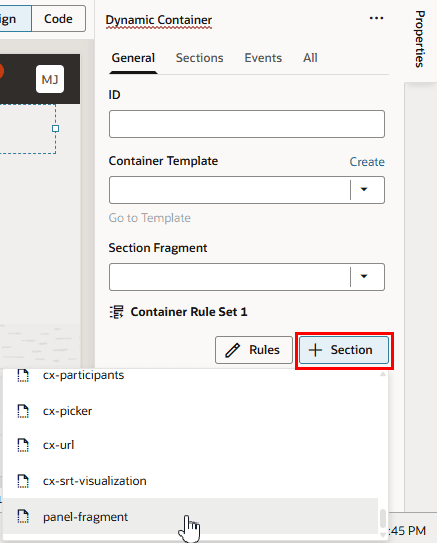
Description of the illustration dyncontainer-fragmentslistdefault-appui.png
-
To set a particular fragment as preferred content for all sections in the dynamic container:
-
From the Section Fragment list, select the fragment you want to make available to a section. This list displays all
pageContentfragments (default tag).
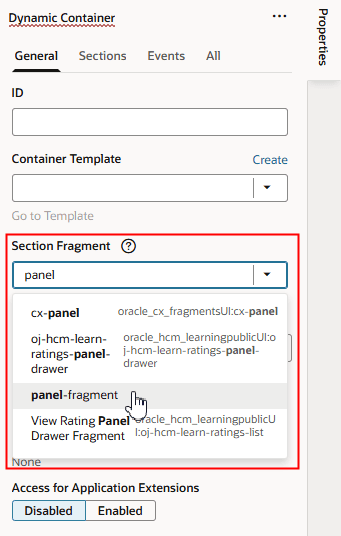
Description of the illustration dyncontainer-fragmentslistpreferred-appui.png
-
Click + Section, then select the preferred fragment in the drop-down list. Only the fragment specified as the Section Fragment can be added to the section (in addition to any unused sections).
-
-
-
Select each section and change the section’s title to make it more identifiable. For example, select the first
Panel Fragmentto open the details pane, and then click next to the section name to change its title, say, to
 User Panel: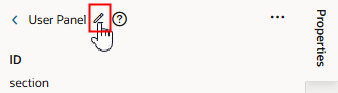
Description of the illustration dyncontainer-fragment-editname1.png
Repeat the steps to rename the second
Panel Fragment; this time, say asContact Panel. -
Select each section and configure its content (fragment) to suit your requirements.
Let’s say you have a dynamic container and you want to use a fragment in two different sections, and then modify each section by adding other components. After adding the fragment, you would simply drag components from the Components palette into the sections to configure them as desired. In this example, you can see in the Structure view that each section contains the fragment containing the header component, and one additional component.
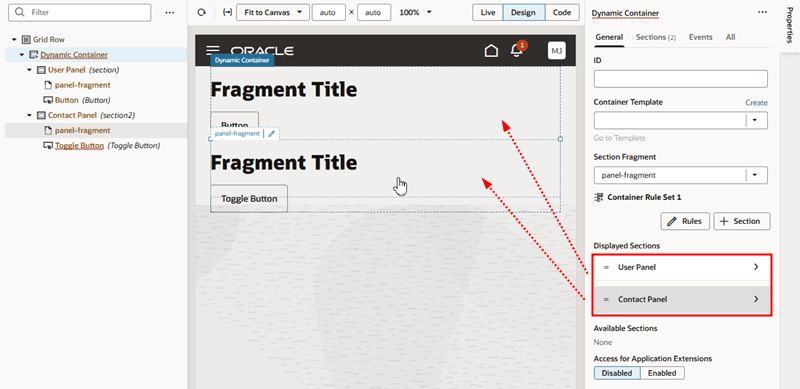
Description of the illustration dyncontainer-fragmentpanels-appui.png