Add JavaScript Modules As Global Functions
When different parts of your application routinely use similar JavaScript functions to transform or manipulate data, you can extract those functions as global functions and reuse them.
To make these functions reusable in pages, you can define their implementation as global functions and make them available in all pages (fragments or any other container), both within and across extensions.
Let’s say extA defines two JavaScript utilities, dateUtils.js and standardUtils.js, shared by containers (page, fragment, and dynamic layout artifacts) in the extension. Rather than copy the code for the utilities into every extension that requires the same logic, you can add them as global functions (at the extension1/sources/ui/self/resources/ level) and declare rules for their usage in an associated functions.json metadata file. This way, dependent extensions (and their App UIs) can import the functions as resources and use them with minimal effort.
To add JavaScript modules as global functions to your extension:
-
Create an archive (for example, a
functions.zipfile) that contains your JavaScript files and a relatedfunctions.jsonfile.You can structure your files any way you want, meaning they can be a flat list of files or in subfolders of any depth, as long as the
functions.jsonfile uses the correct file paths. Here’s an example of the structure you can use:functions | functions.json | someFunction.js | subfolder1/ | | myFunction.js | subfolder2/ | | otherFunction.jsMake sure your JavaScript files do not have any dependencies. See Example JS Module Defined As a Global Function.
The
functions.jsonfile defines the context name, label, description, and other necessary metadata and is required to expose the functions properly. See Example functions.json to Declare Global Functions. -
Import the archive to your extension at the global resources level.
Note: Global functions can only be defined at the extension level. You cannot add them to an App UI’s resources or any other folder, including those meant for the Unified Application.
- In the App UIs pane, right-click the global Resources folder and click Import. If you’re using Source view, go to
extension1/sources/ui/self/resources/and click Import. - Drag your archive (for example,
functions.zip) from your local file system and drop it onto the target area. - Click Import.
- In the App UIs pane, right-click the global Resources folder and click Import. If you’re using Source view, go to
-
Once the
functionsfolder is created in your extension, you can add or delete files as needed. Here’s an example of thefunctions.zipimported with thecalculator.jsandfunctions.jsonfiles: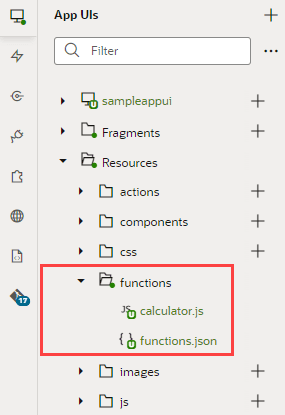
Your functions now become available to you:
-
In the Advanced Expressions editor for business rules, validation rules, and default values, where you can drag these functions from the Actions palette:
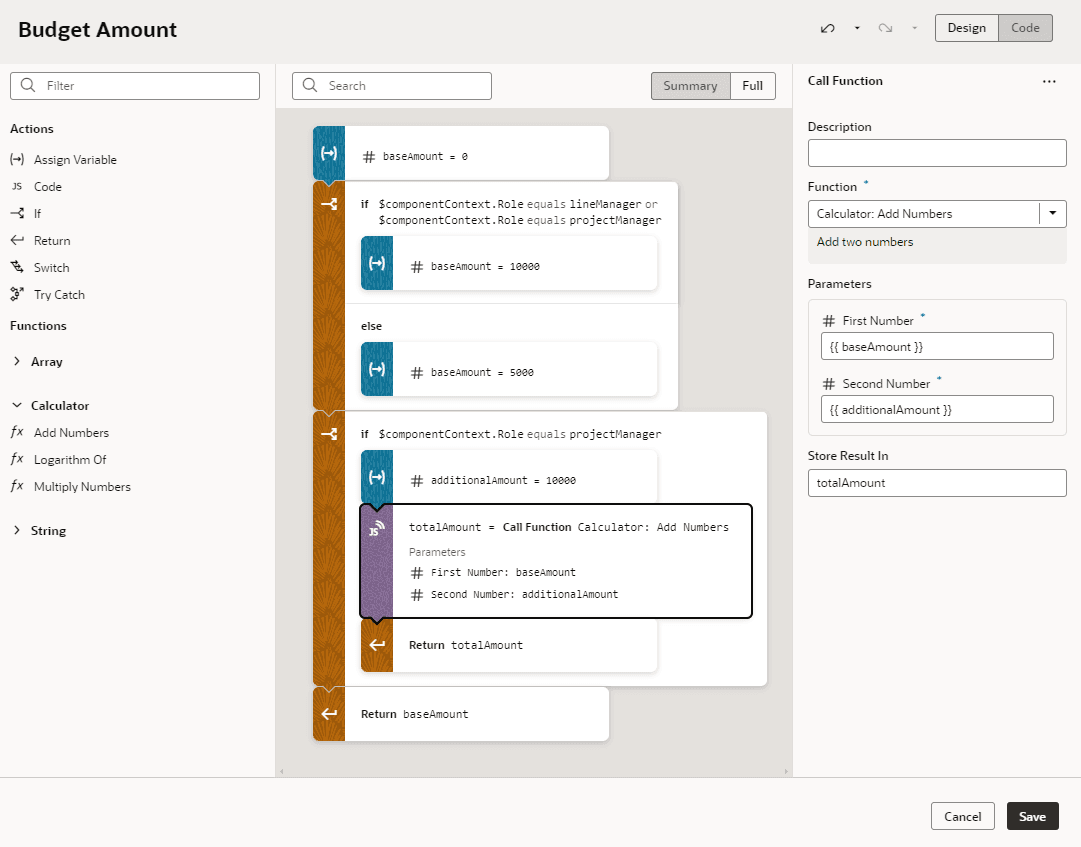
Description of the illustration globalfunction-bizrule.png
To edit the code directly, use the format
$modules.*`module-id`*.*`function-name`*(...), for example,$modules.calculator.add(baseAmount, additionalAmount). For information on how to build expressions, see Build Advanced Expressions. -
In the JavaScript Action Chains editor, where you can drag these functions from the Actions palette:
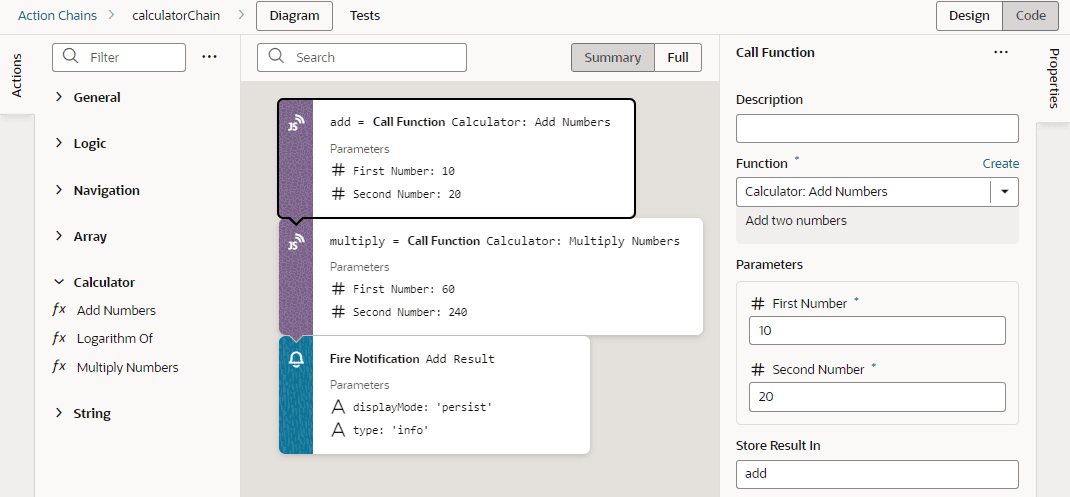
Description of the illustration globalfunction-jsactionchains.png
To edit the code directly, use the format
$modules.*`module-id`*.*`function-name`*(...), for example,$modules.calculator.add(10, 20). For information on how to use the Call Function action, see Add a Call Function Action.
If you get errors at runtime, make sure the JavaScript module is correctly imported to your container.
- To automatically import the module, drag the function from the palette and build your expression or action chain.
- To manually import the module:
- Open the container’s Imports tab in the Settings editor.
- Click + Module under Module Imports, enter the module name (for example,
calculator), then the path to the module in the format{extId}:{resourceType}/{resourceAlias}, where:{extId}refers to the extension that the resource belongs to, eitherselfto indicate the current extension orextensionIDto refer to another extension{resourceType}is a special keyword for/functionsresources, for example,$functions{resourceAlias}is the JavaScript alias defined infunctions.json. For example, theself:$functions/calculatormodule path resolves tocurrentExt/ui/self/resources/functions/calculator.jswhileotherExt:$functions/calculator.jsresolves tootherExt/ui/self/resources/functions/calculator.js.
- Click Create.
Manage Global Functions
Use the Functions editor to manage global functions added to your extension, where you can edit the functions.json file as well as create new JavaScript files that contain global functions.
-
In the App UIs pane, expand the global Resources: functions folder, then select
functions.jsonto open the file in the Functions tab.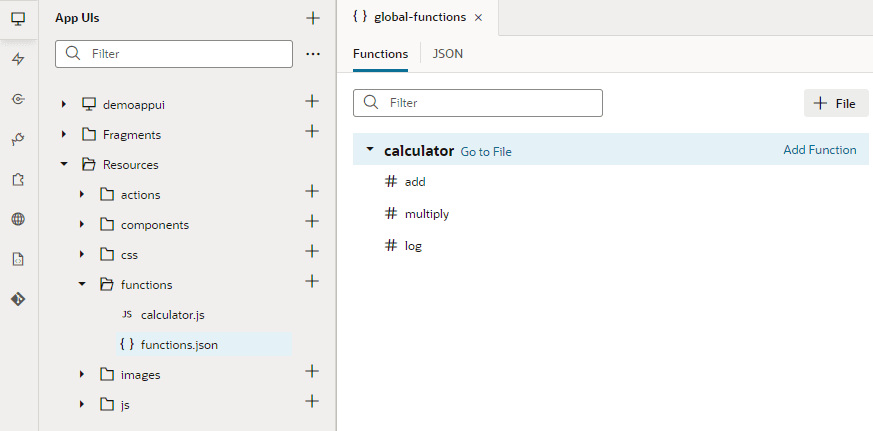
Description of the illustration global-functions-editor.png
The Functions tab provides an intuitive interface where you can manage the JS files added to
functions.jsonas well as the functions within each file. If you prefer to work with JSON, you can always switch to the JSON tab. - Add a new or existing JS file to
functions.json:- To add a new file, click + File, select Create New File, enter a name for your JS file, and click Create. The new file is created in the Resources: functions folder and automatically added to
functions.json. - To add a file that was previously imported to the Resources: functions folder, click + File, select Add Existing File, then select the JS file you want to add in the Path list, and click Add. This option appears only if the JS file has already been imported to the
functionsfolder.
- To add a new file, click + File, select Create New File, enter a name for your JS file, and click Create. The new file is created in the Resources: functions folder and automatically added to
- Update the JS files (and functions) associated with
functions.json:-
To update the JS file’s metadata, select the file (for example,
calculator) and update its metadata in the Properties pane: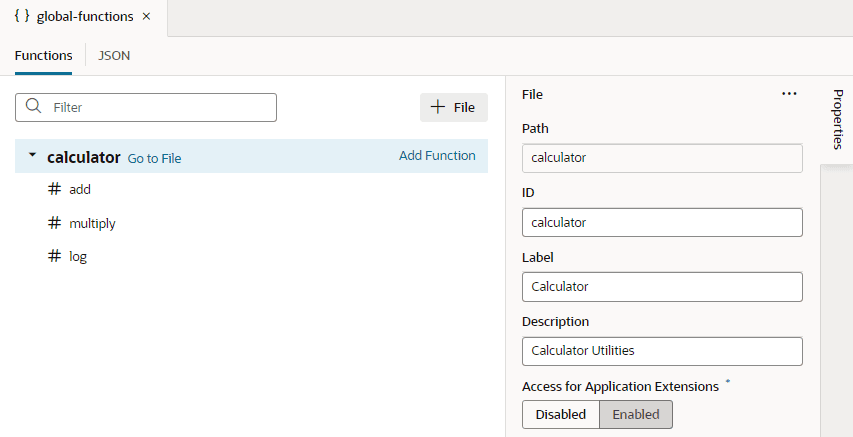
Description of the illustration global-functions-editmodule1.png
Except for the file path, you can change anything you want. See File Metadata Object for details.
- To add a function to a JS file, select the file and click Add Function. Enter an ID for the function and click Create. You can now use the Properties pane to define the function’s metadata, which includes adding or editing input parameters. See Function Metadata Object and Param Metadata Object for details.
- To update an existing function in a JS file, select the file and click Go to File. You’ll also find this option in a file’s context menu and its Action menu in the Properties pane.
-
To update a function’s metadata or input parameters, select the function within the JS file (for example,
addundercalculator) and update its details in the Properties pane: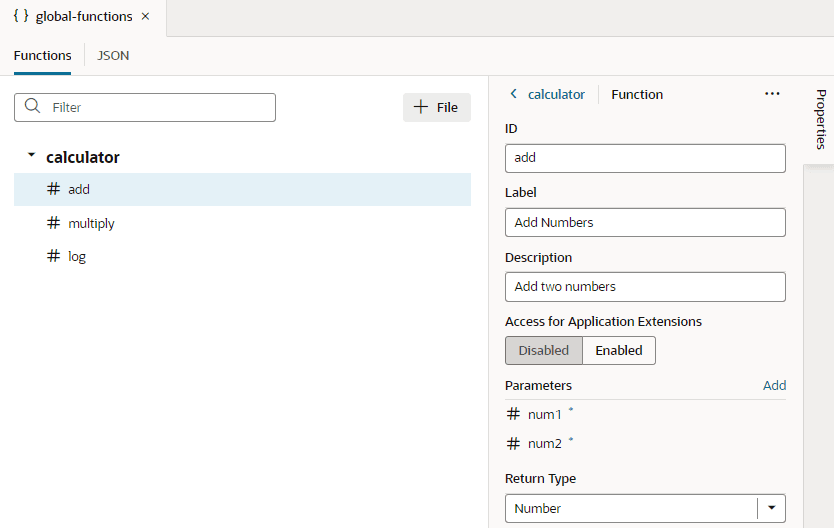
Description of the illustration global-functions-editfunction1.png
To manage the function’s input parameters, hover over a parameter under Parameters and click
 to update the parameter’s metadata: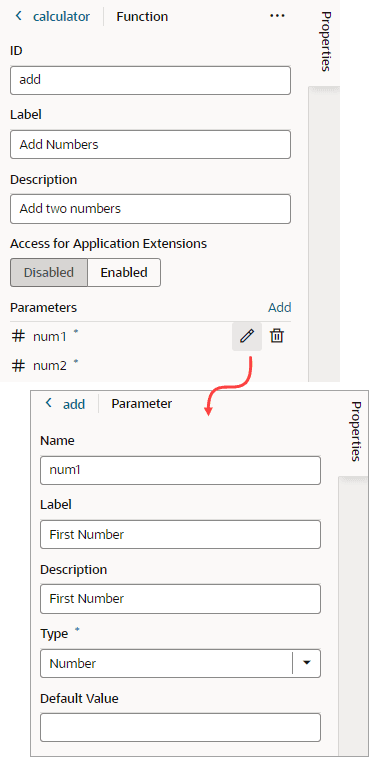
Description of the illustration global-functions-editparameter.png
Required parameters are indicated by an ***** in the Properties pane and are typically those without a default value. To add an optional parameter, set a default value for the parameter. If a default value isn’t defined (using
defaultValueinfunctions.json), you can set it in the parameter’s Properties pane.To add a new input parameter, click Add next to Parameters.
- To delete a JS file or a function in a JS file, right-click the file or the function and select Delete. Note that deleting a file only removes it from
functions.json, it does not delete the file from thefunctionsfolder.
-
- If you want users in dependent extensions to reference your global function, the function and its module must be marked as accessible to extensions. This setting depends on the
referenceableproperty infunctions.jsonand defaults toself, meaning only the current extension (where the module is defined) can access its functions. To manage this setting from the Functions editor:- Select the module (JS file) that contains the function (for example,
calculatorthat definesadd) and select Enabled under Access for Application Extensions in the Properties pane. - Select the function within the module (for example,
add) and select Enabled under Access for Application Extensions in the Properties pane.
Remember, a function cannot supersede the access set on the module. So if a function is marked as accessible to extensions but the module is not, the function can only be called by artifacts in the current extension.
- Select the module (JS file) that contains the function (for example,
Example JS Module Defined As a Global Function
Here’s an example of a calculator.js module, which defines three global functions:
define([], () => {
  'use strict';

  function add(num1, num2) {
    return num1 + num2;
  }

  function multiply(num1, num2) {
    return num1 * num2;
  }

  function log(number, base=10) {
    // some calculation
    return 0;
  }
  return { add, multiply, log };

});
This calculator.js module defines the add function to return the sum of two numbers, the multiply function to multiply two numbers, and the log function to calculate the logarithm of a number with a specified base.
The functions.json file would include the calculator.js file in its list of JS modules in the files section.
Example functions.json to Declare Global Functions
The functions.json file is used to declare JavaScript modules as global functions and specifies the metadata of functions, such as module name, function name and parameters it takes, as well as the implementation file path. Here’s an example of a functions.json file that references the calculator.js module:
{
  "files": {
    "calculator": {
      "path": "oracle/calculator",
      "label": "Calculator",
      "description": "Calculator Utilities",
      "iconClass": "oj-ux-ico-airport",
      "referenceable": "extension",
      "functions": {
        "add": {
          "label": "Add Numbers",
          "description": "Add two numbers",
          "params": {
            "num1": {
              "label": "First Number",
              "description": "First Number",
              "type": "number"
            },
            "num2": {
              "label": "Second Number",
              "description": "Second Number",
              "type": "number"
            }
          },
          "return": "number",
          "referenceable": "extension"
        },
        "multiply": {
          "label": "Multiply Numbers",
          "description": "Multiply two numbers",
          "params": {
            "num1": {
              "label": "First Number",
              "description": "First Number",
              "type": "number"
            },
            "num2": {
              "label": "Second Number",
              "description": "Second Number",
              "type": "number"
            }
          },
          "return": "number",
          "referenceable": "self"
        },
        "log": {
          "label": "Logarithm Of",
          "description": "Logarithm of given number",
          "params": {
            "number": {
              "label": "Number",
              "description": "Number",
              "type": "number"
            },
            "base": {
              "label": "Base",
              "description": "Log Base",
              "type": "number",
              "defaultValue": 10
            }
          },
          "return": "number",
          "referenceable": "extension"
          }
      }
    }
  }
}
File Metadata Object
The files section can include one or more JS files. Each file path (relative to dynamicLayouts/self/resources/functions/) maps to a metadata object that describes a group of functions.
| Name | Type | Description |
|---|---|---|
path |
string | Relative path of the implementation file. In the example above, the path to the .js file is oracle/calculator. When the file is a RequireJS module, the .js file extension can be dropped. |
label |
string | A string naming this function group. |
description |
string | A string describing this function group. |
referenceable |
self | extension |
(Optional) Whether the module is accessible to the current extension or dependent extensions. For example, the calculator module is set to "referenceable": "extensible", meaning the file is accessible to dependent extensions. If referenceable isn’t defined, its value defaults to self, which means only the current extension (where the module is defined) can access its functions. |
functions |
Object <String,Function> |
(Required) An object that maps function name to function metadata. See Function Metadata Object. |
Function Metadata Object
The functions section can be used to list functions that are available to callers.
| Name | Type | Description |
|---|---|---|
| label | string | A string naming this function group. |
| description | string | A string describing this function group. |
| params | Object <String,Function> |
(Required) An object that maps parameter name to a param object. See Param Metadata Object. |
| return | string | Function’s return type. Only primitive types, array, object, and any are supported. |
| referenceable | self | extension |
Whether the function can be referenced from the current or a dependent extension. A function can be less permissive about its access, but it cannot supersede the access set on the module. For example, the calculator module allows access to all dependent extensions ("referenceable": "extension"), whereas the multiply method only allows access to the current extension ("referenceable": "self") . This definition means a dependent extension that imports the calculator module will not be able to call the multiply function. Consider another example: "dateLocalUtils": { where the dateLocalUtils module is only accessible to the current extension ("referenceable": "self"), but the dateToIsoString function within dateLocalUtils expands its access beyond what the module allows. This is not allowed, so the function can only be called by artifacts in the current extension. If a function does not define referenceable, it assumes the access set on the module. The default access for a module is self. |
Param Metadata Object
| Name | Type | Description |
|---|---|---|
label |
string | A string naming this function group. |
description |
string | A string describing this function group. |
type |
string | Parameter type. Only primitive types array, object, and any are supported. Default is any. |
defaultValue |
string | (Optional) Default value for the parameter, used to indicate whether a parameter is required or optional. If a default value isn’t specified, the parameter is considered required. |