Create a Custom Dimension
Follow these steps to create a custom dimension.
Consider a scenario where a customer needs to analyze Accounts Payable (AP) accounting transactions based on the Accounting Class generated by Oracle Subledger Accounting (SLA), such as Expense, Liability, Tax, and Prepayment. To support this reporting requirement, create the W_AP_ACCOUNTING_CLASS_D custom dimension table to store the distinct Accounting Class values extracted from SLA along with their corresponding surrogate keys. This dimension enables efficient reporting and analysis of AP accounting transactions by Accounting Class and the custom fact tables can referenc this through the generated surrogate keys.
- In Oracle Fusion Data Intelligence Administration Console, click Data Configuration.
- On the Data Configuration page, select E-Business Suite in Data Source and click Data Applications.
- On the Data Applications page, click Create and select DA Scripts.
- On the DA Scripts page, under Source, click New, click File, select Code to create a code file.
- Based on the business requirement, you can choose to create either a Dimension Staging table or a Dimension table. This use case creates both Dimension Staging table and the corresponding Dimension table to support the end-to-end pipeline process.
Specify the code file name as SDE_ORA_AP_AccountingClass_Dimension

For Staging data store use mapping convention as SDE_ORA_%.
- For Dimension staging mapping, first add the
IMPORT SOURCEentries based on the functional requirement.If the source table isn't used in any ready-to-use DA Script application, verify the Offering Name associated with the corresponding source data store. Next, check whether the same Offering name is already configured for the Oracle E-Business Suite connection. If the Offering isn't present, add the required Offering to the Oracle E-Business Suite connection and perform a Refresh Metadata operation before using the source data store in the mapping.

For transactional data stores, specify the Initial Extract Date (IED) and Last Update Date (LUD) columns based on the functional requirements to support full and incremental data extraction.
- Create intermediate or temporary datasets based on the functional requirement.
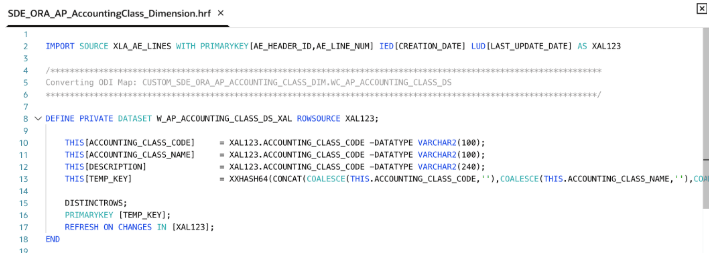
Create intermediate datasets as PRIVATE and use PUBLIC dataset for target data store only. For Custom data stores, ensure the naming convention is W_%.
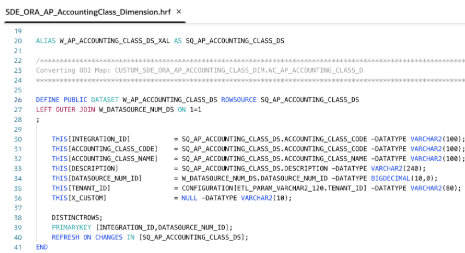
For the TENANT_ID column, use the parameter defined in the EBS_PARAMETERS DA Script application.
- Create Custom mapping for Dimension data store.
For mapping, use naming convention as SIL_AP_AccountingClass_Dimension.

For dimension, use naming convention as W_%.
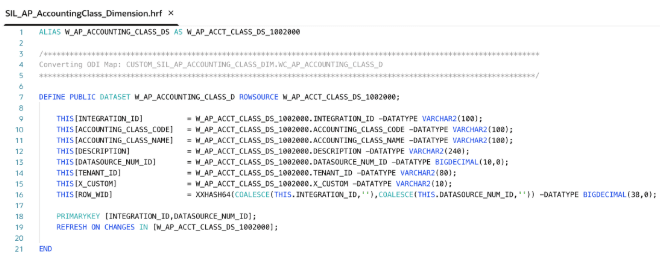
For REFRESH ON CHANGES, specify the source data stores for which incremental data only need to be processed.
- The custom mapping uses the W_DATASOURCE_NUM_DS dataset, which is created from the data stores available in the EBS_CONFIG application. This dataset is used to populate the
DATASOURCE_NUM_ID, ensuring that the source system is correctly identified and that the custom mapping remains consistent with the data model.For Variables, create "BiacmVariables" code file and add the required data store. The W_DATASOURCE_NUM_DS data store is already added as part of Extending Ready-to-use Dimension with Custom Attributes. Therefore, you don't need to add it again.
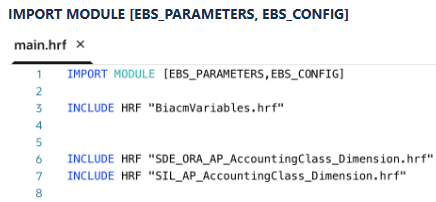
- In
main.hrf, add the hrf files.To refer the data stores from the ready-to-use DA Script application, you mus import the corresponding module. In the Custom mapping logic, this use case used data stores created in EBS_CONFIG module and parameters in EBS_PARAMETERS application. Hence include all of them in the IMPORT statement.
- Build the DA Script application and resolve build errors if there are any.
- Deploy the Custom DA Script application and validate the data.