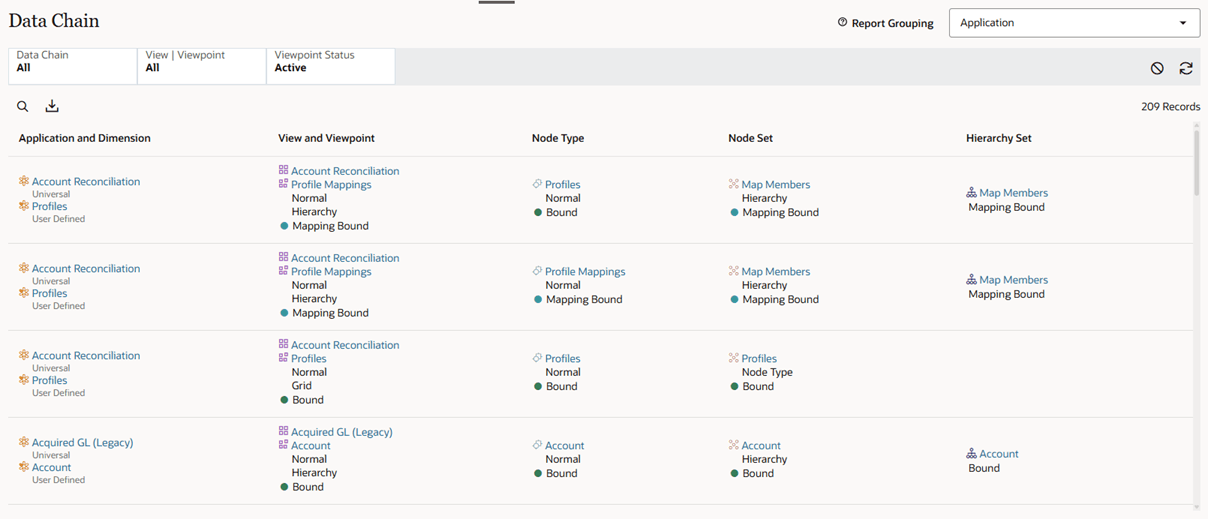
Data Chain Report
The Data Chain report provides a view of all of the data chains in Oracle Fusion Cloud Enterprise Data Management.
A data chain is a series of related data objects (see Understanding Data Chains). The Data Chain report enables you to view data chain information across Cloud EDM without having to navigate to the Data Chain tab on individual data chain objects.
From the report, you can click on a data chain object to open that object in the inspector.
Tip:
From the Data Chain tab of the inspector, you can also download a report of the data chains filtered to the object being inspected. See Inspecting Data Chains.The report contains the following features:
- Use the Report Grouping drop down menu to group the report by Application, View, Viewpoint, or Node Type.
- Search the report results by clicking Search
 and entering text. The columns of the report are searched for the text that
you enter.
and entering text. The columns of the report are searched for the text that
you enter.
- Use the report filters to customize the report for the data chain information that
you want:
- Data Chain: Select All or a specific
application, dimension, node type, hierarchy set, or node set.
Note:
You must choose an individual application in order to select a dimension. You must choose a specific dimension in order to select node types, hierarchy sets, and node sets. -
View | Viewpoint: Select All or a specific view. If you select a view, you can select All viewpoints or a specific viewpoint.
- Viewpoint Status : Select Active, Archived, or All
viewpoints.
Note:
Viewpoints that are in Draft status are not displayed in the report.
- Data Chain: Select All or a specific
application, dimension, node type, hierarchy set, or node set.
-
After you have customized the report to display the data chain information that you are looking for, you can download the report to an Excel file by clicking Download all matching records to a file
 .
.
The downloaded report contains a Summary tab with filter settings for the report and a Data Chain tab with data chain information from the report.
-
Click Refresh Data
 to rerun the report after you change a filter, and click
Reset All Filters icon
to rerun the report after you change a filter, and click
Reset All Filters icon  to reset the filters to the default settings.
-
From the report, you can click on a data chain object to open that object in the inspector. See Inspecting Data Chains.