Configuring SSO Between Services Across Identity Domains within an Oracle Cloud Account
Within a single Oracle Cloud account, you may have multiple services deployed across different identity domains. To provide a seamless user experience, you can configure Single Sign-On (SSO) between these identity domains.
Example Scenario
Suppose you're using the Oracle Fusion Suite, which includes Fusion ERP and Oracle Fusion Cloud Enterprise Performance Management services, each set up in separate identity domains. You can enable seamless cross-domain access by setting up SSO between them:
- Fusion ERP serves as the Identity Provider
- Cloud EPM functions as the Service Provider
In this topic, we’ll walk through how to configure SSO for this scenario:
- Step 1 - Open Separate Sessions for Each Domain
- Step 2 - Fusion ERP Domain - Download Fusion ERP Metadata
- Step 3 - EPM Domain - Configure Fusion ERP as an Identity Provider
- Step 4 - Fusion ERP Domain - Add Cloud EPM as an Integrated Application
- Step 5 - EPM Domain - Verify SAML SSO
- Step 6 - Fusion ERP Domain - Test SSO
Step 1 - Open Separate Sessions for Each Domain
Start by signing in to the Oracle Cloud Console for each identity domain using two separate browser sessions. For example, if you are using Google Chrome, you can open one session in regular mode and the other in incognito mode. This allows you to have both consoles open at the same time, one for the source domain and other for the target domain.
The steps below guide you through signing in to the source domain. You can repeat them in a separate browser to sign in to the target domain.
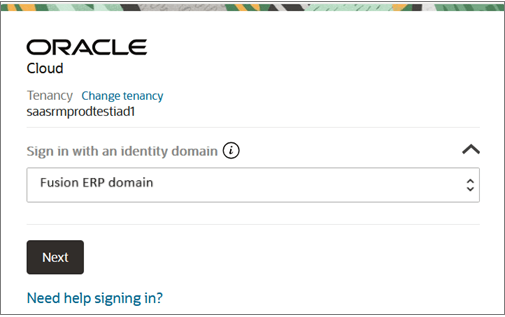
- Use the Sign in with an identity domain option to access
each domain individually.
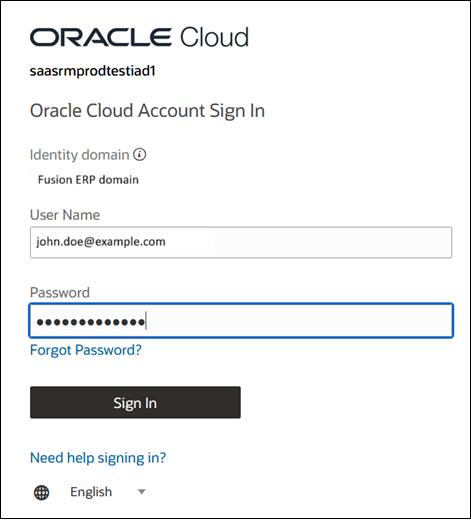
- Enter your credentials in the domain. You may use Multi-factor authentication
methods to sign in to the console. See Enabling Multifactor Authentication.
Step 2 - Fusion ERP Domain - Download Fusion ERP Metadata
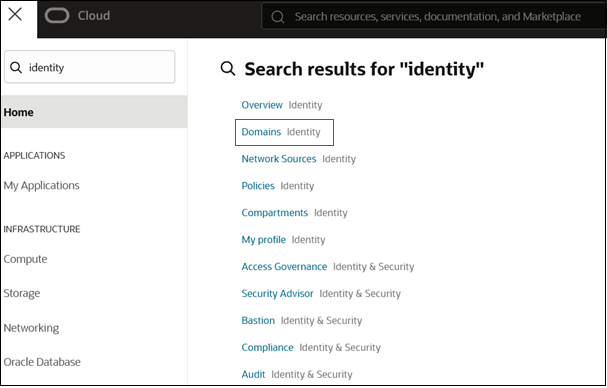
- In the Fusion ERP domain, go to the Navigation menu,
search for Identity, and select
Domains.
- Select the Fusion ERP domain to view the domain's details.
- Navigate to the Federation tab.
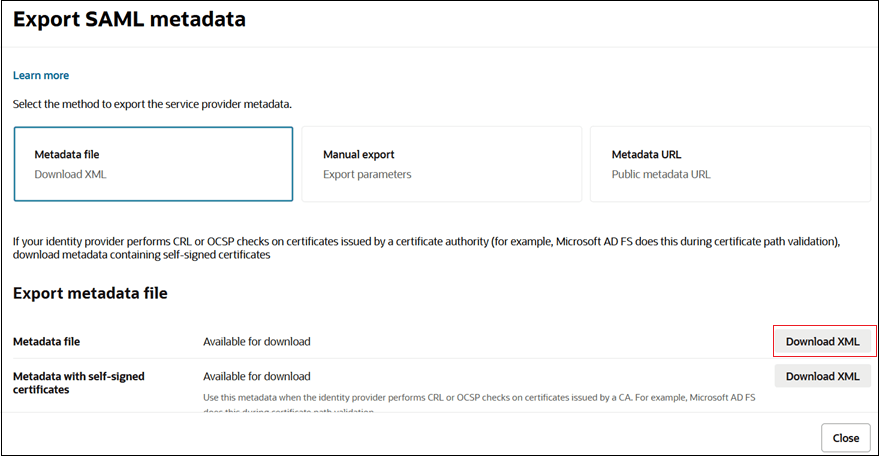
- Select Export SAML metadata.

- Download metadata file. You will use this file to configure Fusion ERP as an IdP
in EPM domain.
Step 3 - EPM Domain - Configure Fusion ERP as an Identity Provider
Configure the Fusion ERP service as a trusted identity provider in the Cloud EPM domain.
- In the Cloud EPM domain, go to the Navigation menu, search for Identity, and select Domains.
- Select the Cloud EPM domain to
view the domain's details page.
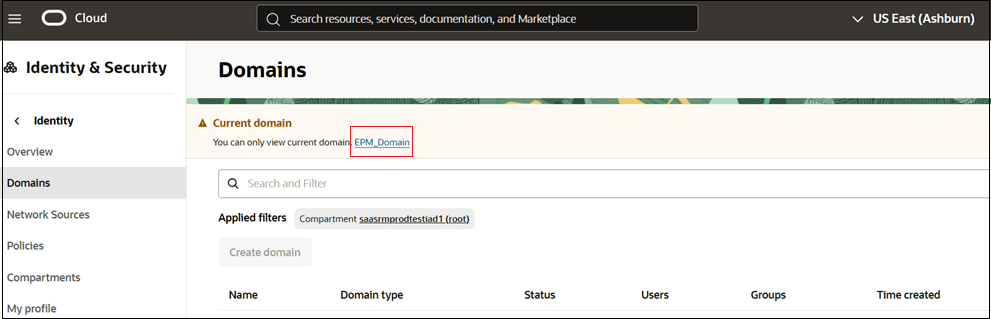
- On the EPM Domain page, navigate to the Federation tab.
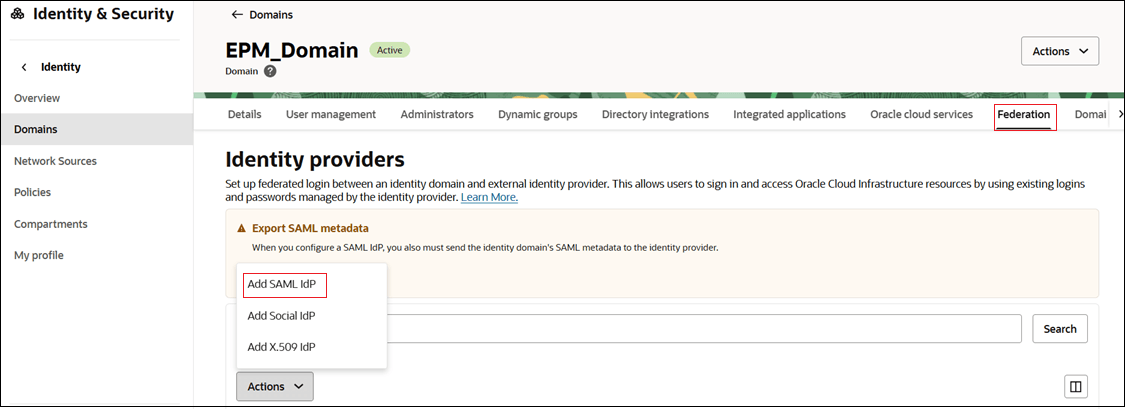
- Click Actions, select Add SAML IdP and submit the
tasks in the workflow.
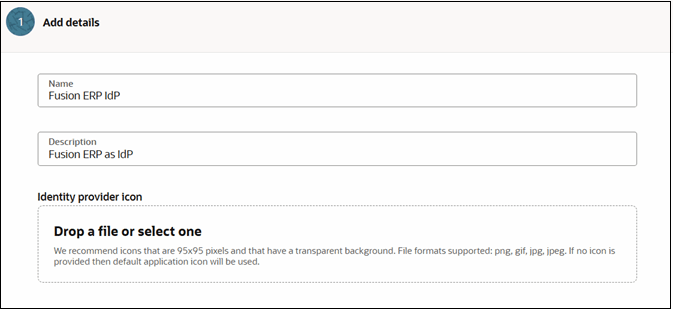
- Task 1 - Add details:
- Name: Enter the name of the SAML IdP.
- (Optional) Description: Enter a description of the IdP.
- (Optional) Identity provider icon: Drag and drop a supported image, or click select one to browse for the image.
- Click Next.
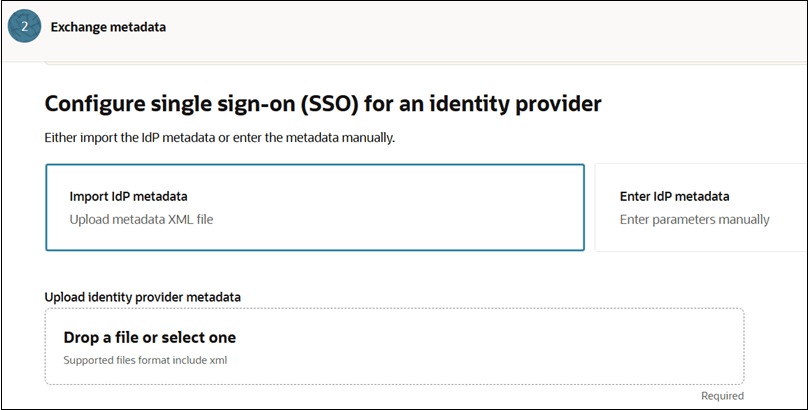
- Task 2 - Exchange metadata:
- Select Import IdP metadata.
- Click Drop a file or select one to upload the
metadata file you downloaded from Fusion ERP.
- Click Next.
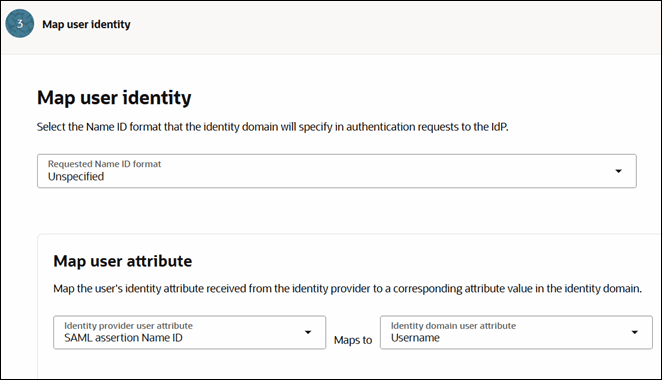
- Task 3- Map user identity. Configure the fields as shown in referenced
image:
- Click Next.
- On the Review and Create page, verify the entered
details. Click Create IdP.
The Fusion ERP service gets listed under Identity Providers in the Federation tab.
- Select Fusion ERP service identity provider you just created to open the
Details page.
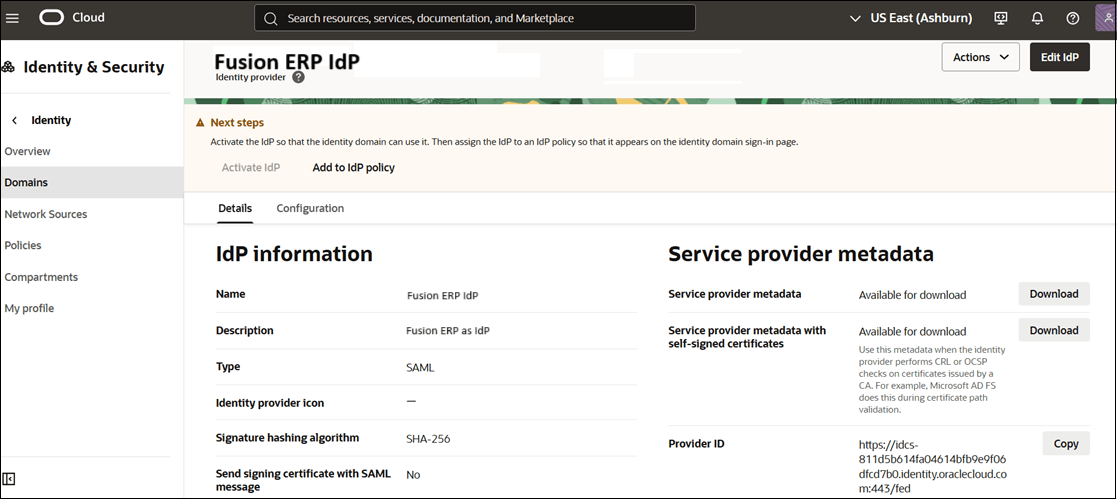
- Click Download next to Service provider metadata.
- Scroll down and click Download next to Service provider signing certificate.
Step 4 - Fusion ERP Domain - Add Cloud EPM as an Integrated Application
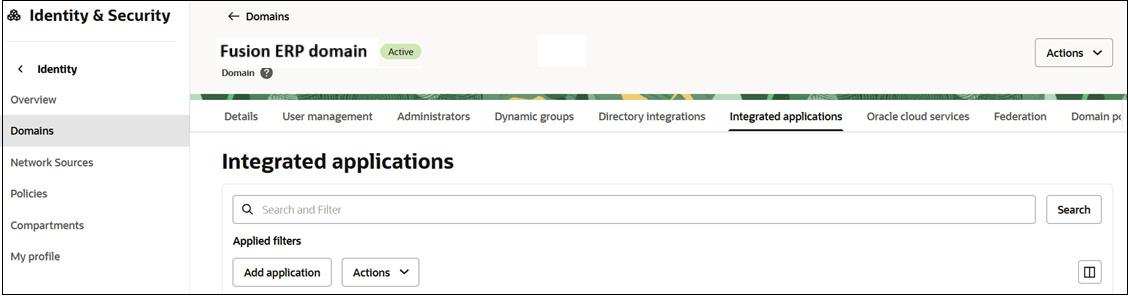
- On the Fusion ERP Domain page, go to the Integrated applications tab.
- Click Add application.
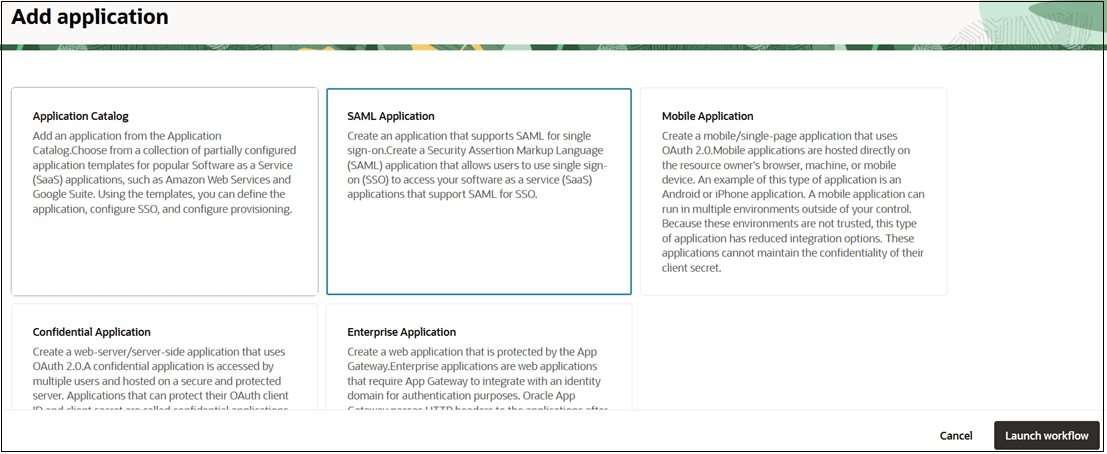
- On the Add application page, select SAML Application.
- Click Launch workflow.
- Provide name and other details, and click Submit.
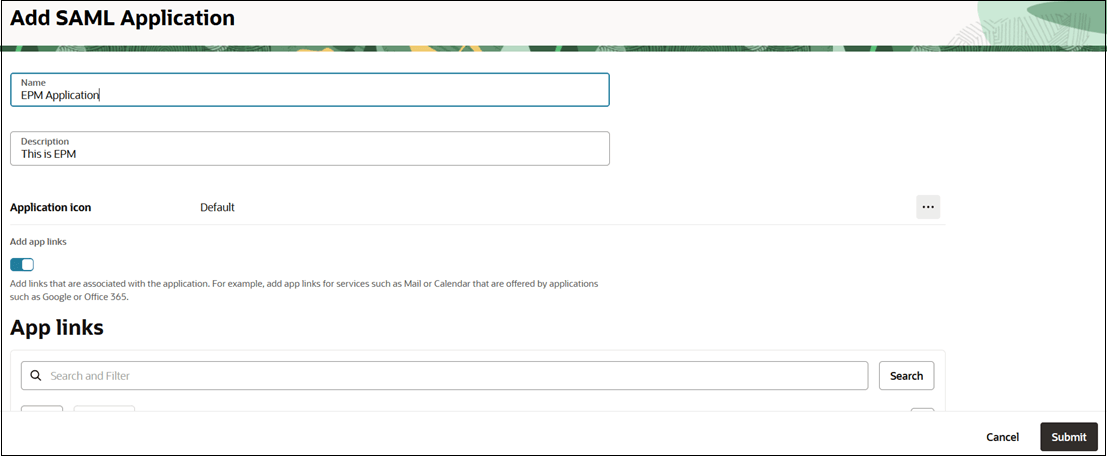
- Configure SSO.
- Navigate to SAML SSO configuration tab.
- Click Edit SSO configuration.
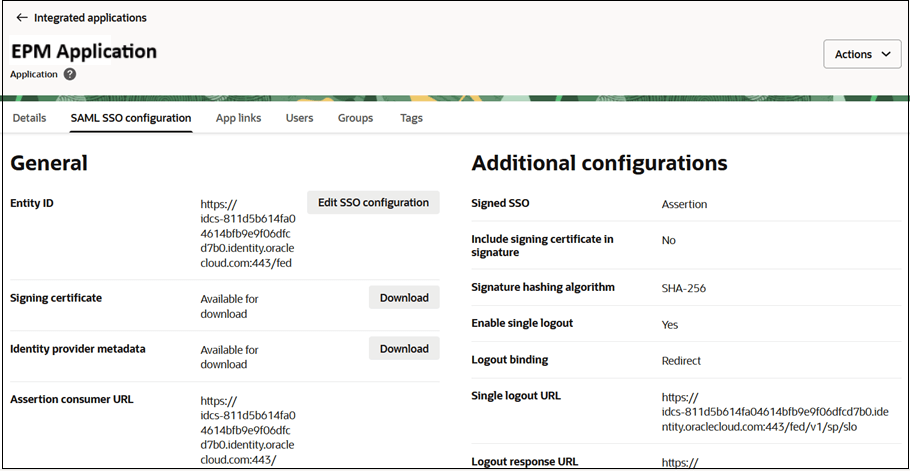
- Under General, enter the Service Provider metadata values that
you downloaded in last section. See Step 3 - EPM Domain - Configure Fusion ERP as an Identity Provider. Map the fields as
follows:
- Entity ID - Provider ID
- Assertion consumer URL - Assertion Consumer Service URL
- Single logout URL - Logout Service Endpoint URL
- Logout respone URL - Logout response URL
- Configure additional SSO settings:
- Name ID Format: Select Unspecified
- Name ID Value: Select Username
- Signing Certificate: Upload the Service Provider signing certificate downloaded from the Service Provider Metadata screen. See Step 3 - EPM Domain - Configure Fusion ERP as an Identity Provider.
- Click Save changes.
- Assign users to the application.
- Navigate to the Users tab.
- Click Action on top, and then select Activate from the menu.
- Next, click Assign users.
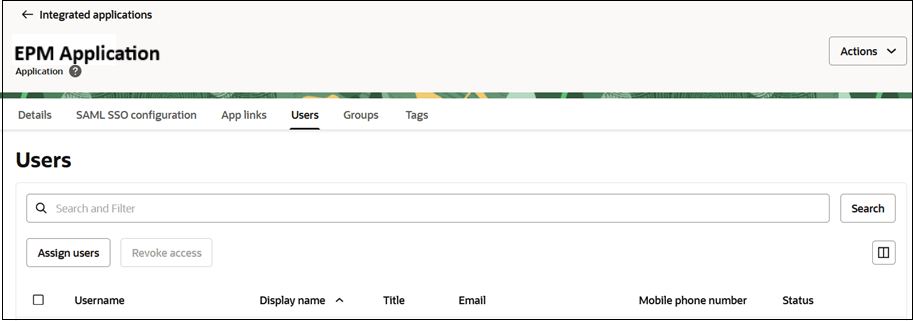
- Search for and select users to assign this application to, and click Assign.
Step 5 - EPM Domain - Verify SAML SSO
- On the EPM Domain page, verify SAML SSO with your identity provider.
- Click Actions on top, and then select
Test login from the menu.
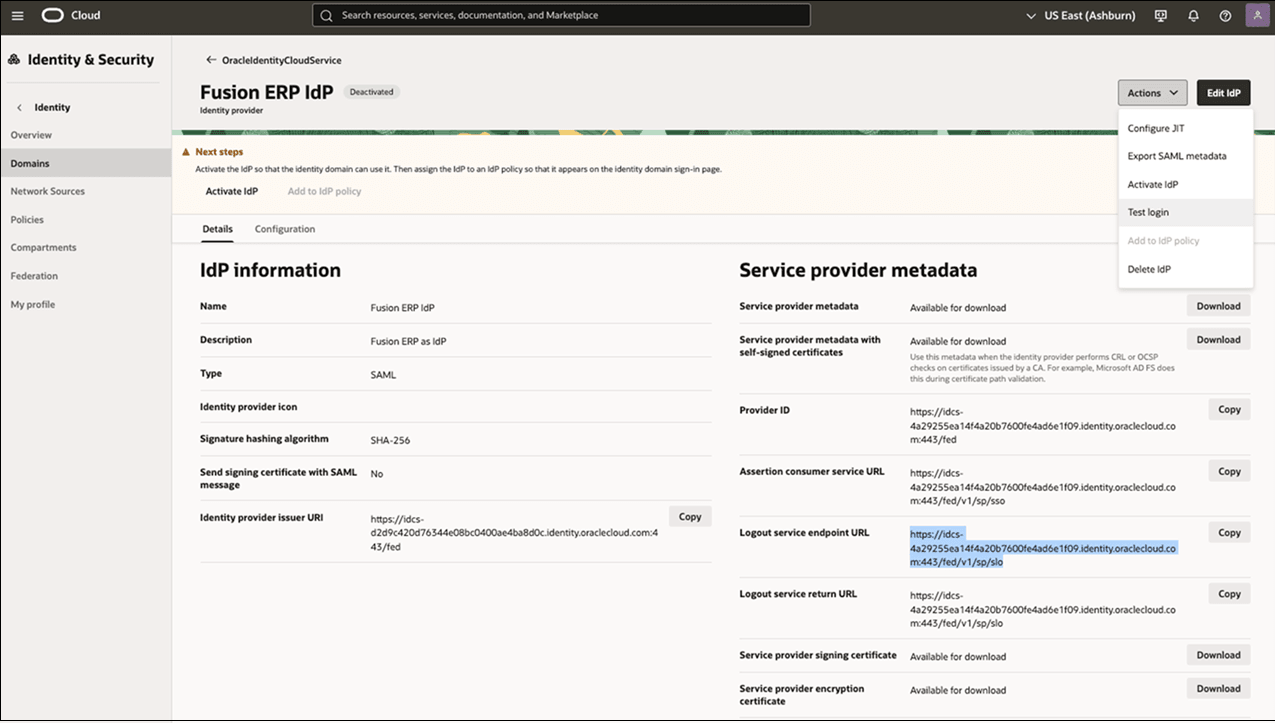
- Authenticate with your credentials to test the connection.
If successful, a message will appear: "Your connection is successful."

- Click Actions on top, and then select
Test login from the menu.
- Activate the Identity provider so that the identity domain can use it. Click
Actions, then select Activate
IdP from the menu.
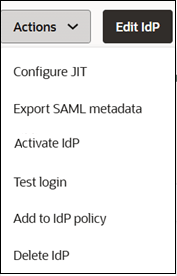
- Next, assign the identity provider to an IdP policy so that it appears on the
identity domain sign-in page.
- Click Actions, and then select Add to IdP Policy from the menu.
- Scroll-down, under Identity Provider Policies, select the policy
to assign.
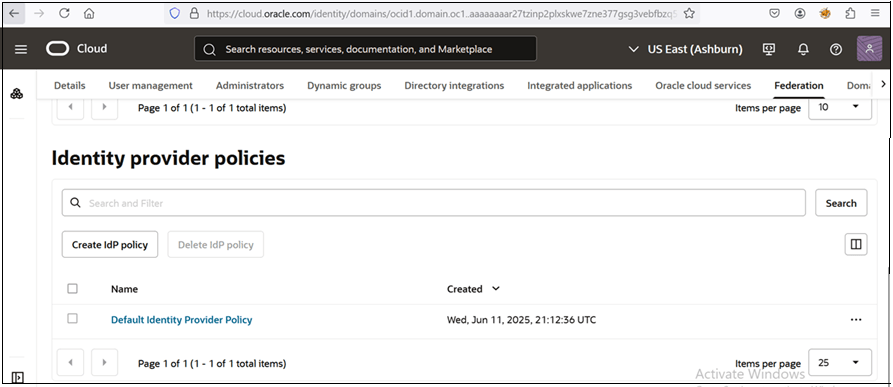
- Click on Default Identity Provider Policy.
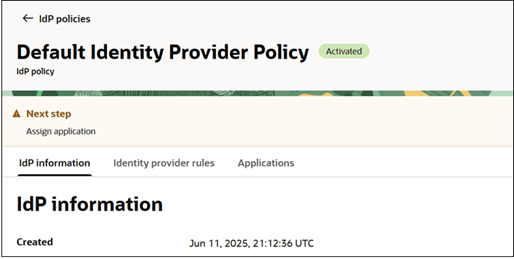
- Navigate to Identity provider rules tab.
- Click the ellipses next to the IdP rule, then
click select Edit IdP rule.
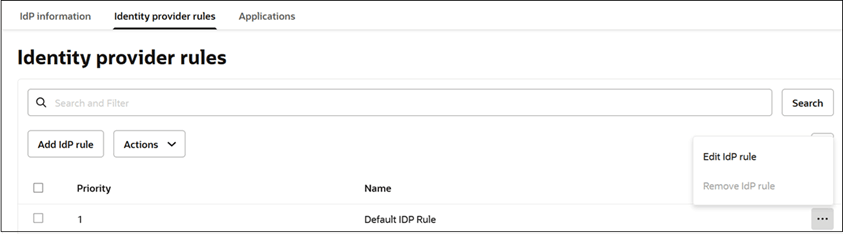
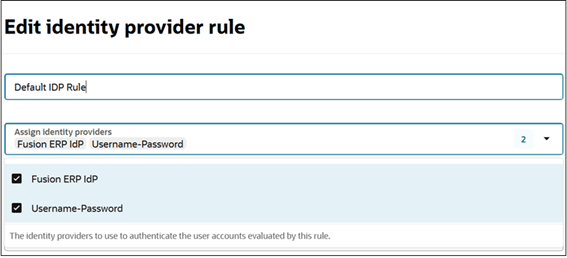
- On the Edit identity provider rule page, in the Assign
identity providers dropdown, select Fusion ERP
IdP and Username-Password.
- Click Save changes.
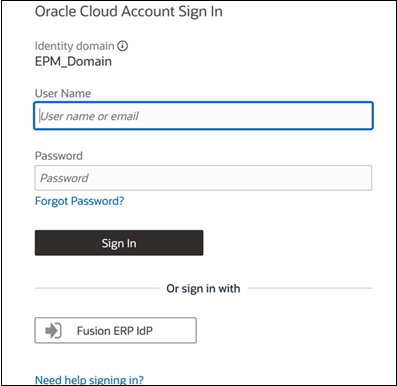
- Click Profile icon on top and select Sign out.
- Navigate to the Sign into the Console page in the EPM Domain. The Fusion ERP
IdP button is displayed at the bottom.
Step 6 - Fusion ERP Domain - Test SSO
- Login to Fusion ERP Domain.
-
In a separate browser window, navigate to the Cloud EPM Environment URL.
-
When prompted for authentication, select the SSO (Single Sign-On) provider.
You will be automatically logged in to the Cloud EPM Environment without needing to re-enter your credentials.