Creating Encryption Keys
Use OCI Vault to create or import encryption keys for BYOK.
Prerequisites
Create a vault as a logical container for encrypting keys. See Creating a vault in Oracle Cloud Infrastructure Documentation.
Creating Or Importing an Encryption Key
After you create a vault, create or import the required encryption keys.
- Sign in to the Oracle Cloud Console as an Account Administrator or Identity Domain Administrator.
- Open the Navigation menu, search for Identity & Security, and select Vault.
- On the Vaults page, select the vault where you want to create the key.
- On the vault details page, select Master encryption keys.
- Click Create Key.
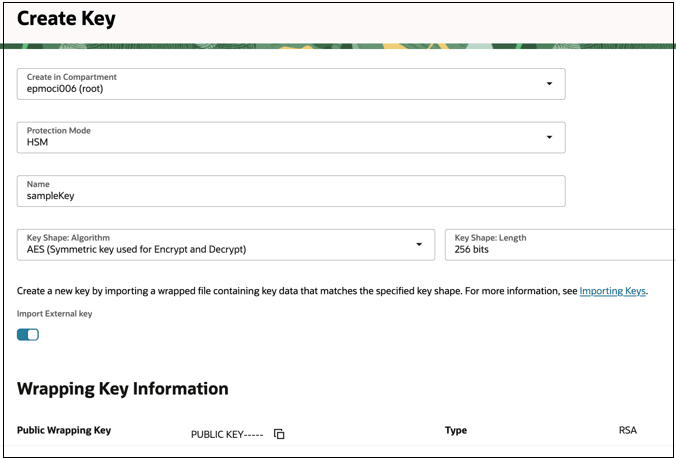
- Enter the required details:
- Create in Compartment: Create the key in the same compartment as the vault
- Protection Mode:
- HSM - Stores and processes in a hardware security module (HSM).
- Software - Stores the key in the Vault service software layer.
- Key Shape: Algorithm: AES
- Key Shape: Length: 256 bits
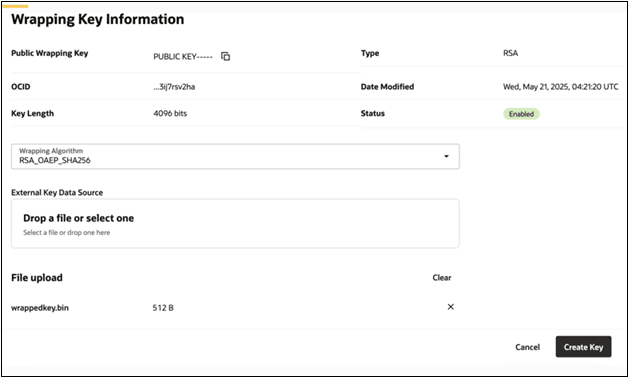
- To import an external key (for example, from your HSM), enable Import External Key.
- Download the Public Wrapping Key in a file using Save link.
- Wrap your key file using the public wrapping key using the wraping algorithm as
RSA_OAEP_SHA256. Refer Wrapping the External Key Before Import. - Upload the wrapped key file using External Key Data Source
- Click Create Key.
Wrapping the External Key Before Import
Do not upload a raw key. Always wrap the key using the OCI Vault public wrapping key before uploading it.
Wrapping the key:
- Protects the key during transfer
- Ensures OCI Vault can securely unwrap the key
Example: Wrap an External Key
The following example shows how to wrap a customer-managed key before importing it into OCI Vault. Assume:
- The customer key is stored in
aes_key.bin. - The public wrapping key is stored in
publickey.pem.
Run the following command:
openssl pkeyutl -encrypt \
  -in aes_key.bin \
  -inkey publickey.pem \
  -pubin \
  -out wrappedkey.bin \
  -pkeyopt rsa_padding_mode:oaep \
  -pkeyopt rsa_oaep_md:sha256
This command generates a wrapped key file named:
wrappedkey.bin.
Upload the wrappedkey.bin file to OCI Vault specifying the wrapping
algorithm as RSA_OAEP_SHA256, to complete the key import
process.
For more information, see Applying RSA-OAEP to Wrap the Key Material for a Symmetric Key in Oracle Cloud Infrastructure documentation.