Using Prompts with a Bursting Definition
If selected artifacts contain prompts, you can configure prompt values in the bursting definition or provide values at runtime. You can choose Compact view to work with consolidated prompt entries, or Full view to inspect prompt entries individually in the context of each selected artifact.
Compact View: You can use Compact view for prompt entries in a concise list. Compact view consolidates duplicate prompts (data source, dimension, label, choice list, default selection, and Allow Multiple Selections setting) across reports.
Full View: You can use Full view when you need to inspect prompt occurrences individually across artifacts, compare their contexts, or configure a prompt whose entries must not be treated as a single compact item. Full view displays all prompts in all reports and inserted books separately.
To define Prompt selections:
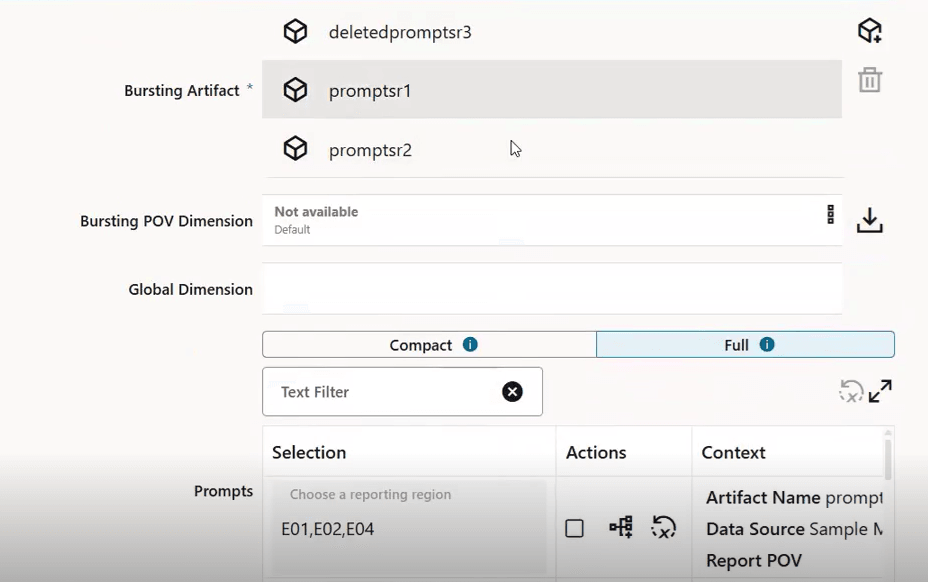
- In the bursting definition, you will find the list of prompt selections prompt
selections in the Compact and Full
view, under the Global Dimension area:
-
Filter the prompt list by entering filter criteria text into the Text Filter box.
-
Click Reset All Prompt Selections
 to reset any prompt selection changes to the original report
prompt selection. This only applies if one or more prompts in the report
have Prompt For Value On Preview disabled.
to reset any prompt selection changes to the original report
prompt selection. This only applies if one or more prompts in the report
have Prompt For Value On Preview disabled.
-
Click Expand
 to expand the Prompts window to full size.
-
- You can configure each prompt:
-
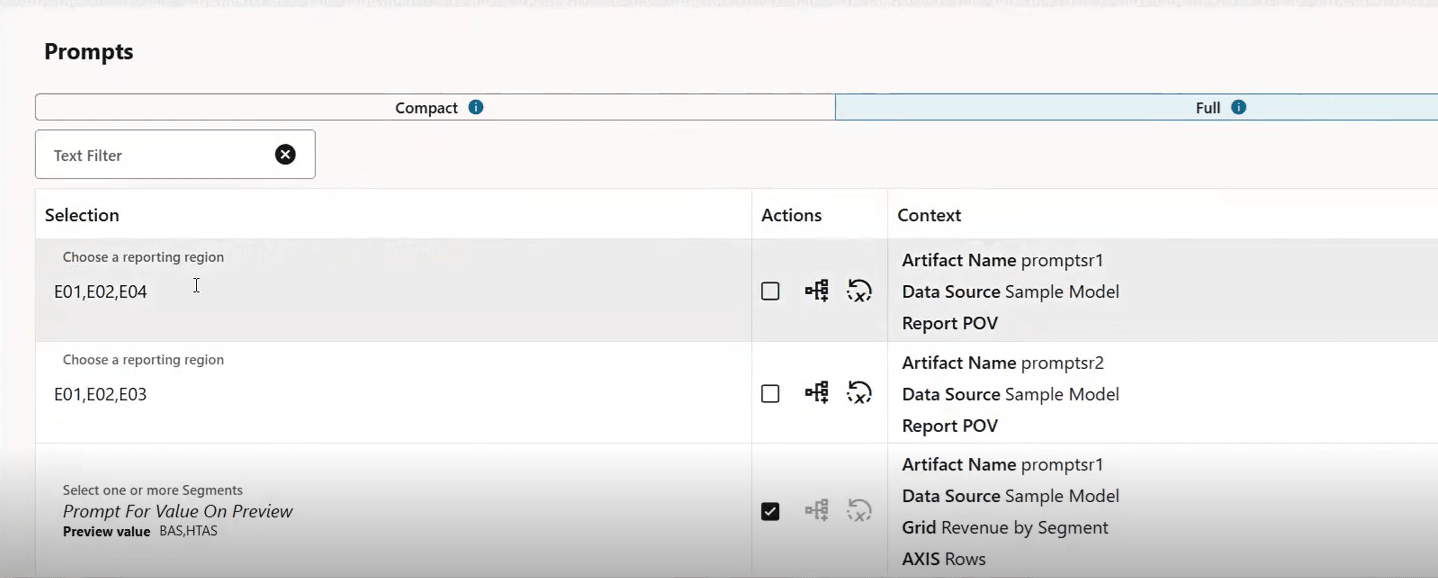
The Selection column displays the prompt label and selection.
-
The Actions column allows disabling or enabling Prompt For Value On Preview; when enabled, it displays the prompt for the user executing the bursting definition. When disabled, the designer specifies the selection for the prompt by clicking Select Members
 to open the member selector.
-
You can also click Reset All Prompt Selections
to reset any prompt selection changes to the original report
prompt selection.
-
The Context column displays the data source and where the prompt is applied (for example, grid rows, POV, and so on).
-
To respond to prompts when executing a bursting definition:
- The Prompts dialog will appear if there are prompts in the
report(s) that have been configured with Prompt For Value On
Preview enabled.
-
For each prompt, click Select Members
to open the member selector and make the desired selection. You can
also click Reset All Prompt Selections
to reset any prompt selection changes to the original report prompt
selection.
-
Once all prompts have been selected, click OK to proceed with the preview.