Filtering and Sorting Comments
You can filter comments in the comment management panel. For example, you can show or hide comments, display open or closed comments, or display or hide a user’s comments.
To filter and sort comments:
-
In the Narrative Reporting ribbon, click
Refresh Comments to see new comments and
replies.

- Optional: Click the Hide Anchor or Show Anchor button to hide or display the comment anchors in the review instance.
Hide Anchor displays by default the first time you open a review instance, meaning that anchors are currently showing.

After clicking Hide Anchor, the button toggles to Show Anchor.

Anchors display throughout the review instance and mark the location where comments are entered. Anchors are signified by a pushpin icon. In Figure 24-58, an anchor is circled in a portion of the review instance.
Figure 24-58 Anchor Example in Review Instance

-
Click Filter Comments,
 , and choose a display option:
-
Open Comments
-
Closed Comments
-
All Comments: Display comments of all users.
-
My Comments: Display comments that you have entered.
-
My Mentions: Display comments where you have been mentioned.
You can choose to display Open Comments and Closed Comments at the same time.
It may happen that comments filtering does not work using the Filter Comments menu from the Narrative Reporting ribbon. In such cases, use the filtering options in the Comments pane, as explained in the next step.
-
-
View the results of your selections in the comments pane in the Smart View Panel.
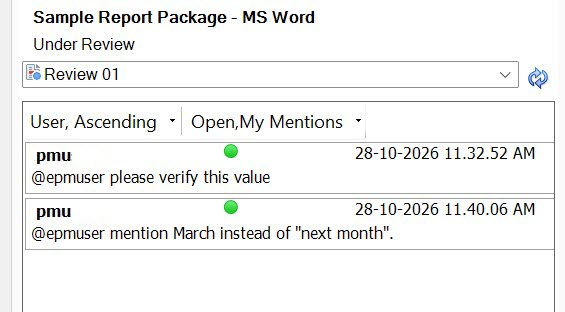
Alternatively, you can choose filter and sort options by using the drop-down lists in the comments pane. The heading at the left is for sorting comments; the heading at the right is for filtering.
The following example shows comments sorted by time in ascending order and, filtered for Open and My Mentions.