Managing IPM Jobs in Smart View
In Oracle Smart View for Office, run and manage IPM jobs configured for generating IPM Insights and defining predictions using Auto Predict.
Data source types: Planning, Enterprise Profitability and Cost Management, Financial Consolidation and Close, FreeForm, Tax Reporting
In the web application of your business process, you as a Service Administrator, can configure IPM jobs for generating Insights and define predictions using Auto Predict. You can run these jobs at regular intervals to fetch the latest insights based on changes in your business data.
In addition the web application, you can run and manage the IPM Insights and Auto Predict jobs from Smart View using the IPM Configure action. In the Smart View Panel, right-click the application name and then click IPM Configure to view the list of available jobs in the IPM Configure dialog box.
Note:
The IPM Configure action is available only to Service Administrators with IPM - Manage granular role.In the IPM Configure dialog box, you can view the name of the job, its type (Insights or Auto Predict), the cube name to which it is associated with, the date and time when the job was last modified, the date and time when the job was last run, and the current status of the job (Processing, Completed, Error, Completed with Error, and so on).
The last modified and last run date and time always display the server time stamp that is seen in the web application, and not the time stamp of your local machine.
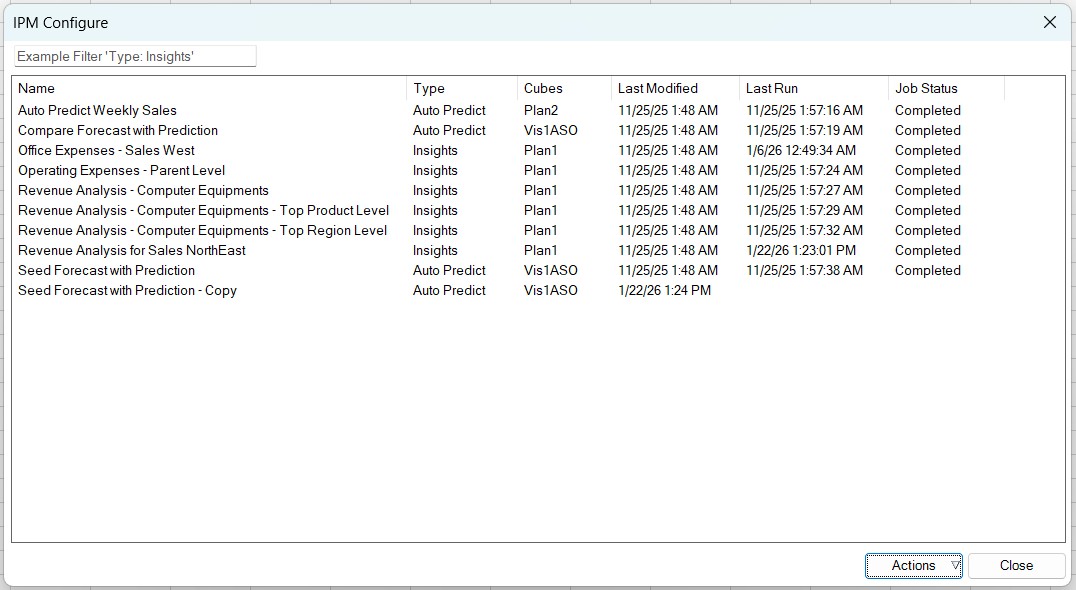
You can perform the following actions on IPM jobs:
- Filtering IPM Jobs
- Running an IPM Job
- Deleting an IPM Job
- Duplicating an IPM Job
- Downloading an IPM Job Report
To create and edit IPM jobs, use the IPM Configuration wizard in the web application of your business process. See:
- Planning: Configuring IPM in Administering Planning
- FreeForm: Configuring IPM Insights in Administering FreeForm
- Enterprise Profitability and Cost Management: Configuring IPM Insights in Administering and Working with Enterprise Profitability and Cost Management
- Tax Reporting: Configuring IPM Insights in Administering Tax Reporting
- Financial Consolidation and Close: Configuring IPM Insights in Administering Financial Consolidation and Close
Filtering IPM Jobs
You can filter the list of IPM jobs in the IPM Configure dialog box based on job name, type, and cube.
- To filter by name, start typing the name of the job in the filter box. The jobs matching the entered name are displayed.
- To filter by type of job, start typing "Type:" and select the required parameter from the list. The type of jobs include Insights and Auto Predict.
- To filter by cube, start typing the cube name in the filter box. The jobs matching the entered name are displayed.
Running an IPM Job
You can run an IPM job to generate insights or auto predictions from the latest available data.
To run an IPM job:
- Open an Excel sheet, a Word document, and a PowerPoint slide and connect to your business process that has IPM Insights.
- In the Smart View Panel, right-click the application name and then select IPM Configure.
- In the IPM Configure dialog box, select the job that you want to run from the list of available jobs.
- In the Actions drop-down menu, click
Run.
An acknowledgement message appears to inform that the job has started. Click OK.
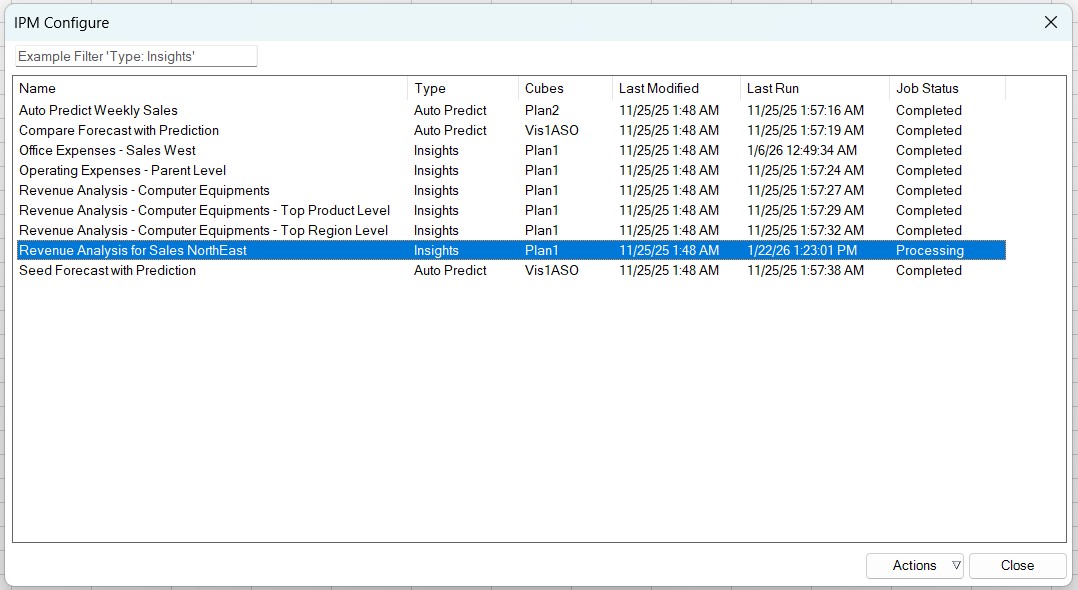
The status of the job in the Job Status column appears as Processing. Once complete, the Completed status is displayed.
Some jobs may take a longer time to complete and continue to display the Processing status. To check the latest status of the job, close the IPM Configure dialog box and open it again.
Deleting an IPM Job
You can delete an IPM job that is no longer required.
To delete an IPM job:
- In the Smart View Panel, right-click the application name and then select IPM Configure.
- In the IPM Configure dialog box, select the job that you want to delete.
- In the Actions drop-down menu, click
Delete.
An confirmation message appears to confirm the deletion of the job. Click OK.
The job is removed from the list of available jobs in the IPM Configure dialog box.
Duplicating an IPM Job
You can duplicate an existing IPM job that is available in the IPM Configure dialog box. However, you can edit a duplicated job only from the web application.
To duplicate an IPM job:
- In the Smart View Panel, right-click the application name and then select IPM Configure.
- In the IPM Configure dialog box, select the job that you want to duplicate.
- In the Actions drop-down menu, click
Duplicate.
A new copy of the job is created and displayed in the list of available jobs in the IPM Configure dialog box. The duplicated job displays the original job's name along with a "- Copy" suffix. For example, if the original job's name is "Sales Forecast", then the duplicated job's name appears as "Sales Forecast - Copy".
Currently, you can edit a duplicated job only from the web application.
Downloading an IPM Job Report
You can review the details of an IPM job with Completed status in a downloadable report. This report is downloaded in an Excel workbook format and includes details on prediction status and methods, presented in the following worksheets.
- Summary: A summary including details about the job time stamps, date range of data, cube, POV and series dimensions, and any events that were considered during the prediction.
- Report: A detailed report presenting the status, accuracy, prediction method, seasonality, adjusted outliers, error measure, and other prediction statistics for member dimensions.
- SV_Series_Data_CubeName: Data used for the insight or prediction. You can perform ad hoc analysis on this data using Smart View. For jobs involving multiple cubes, separate sheets are created for each cube.
The report is overwritten the next time the job runs and completes successfully.
To download and review the job report:
- In the Smart View Panel, right-click the application name and then select IPM Configure.
- In the IPM Configure dialog box, select the job for which you want to review the report.
- In the Actions drop-down menu, click Download
Report.
An new Excel workbook opens with the downloaded report. You can save this Excel report using the Save As option of Microsoft Excel.
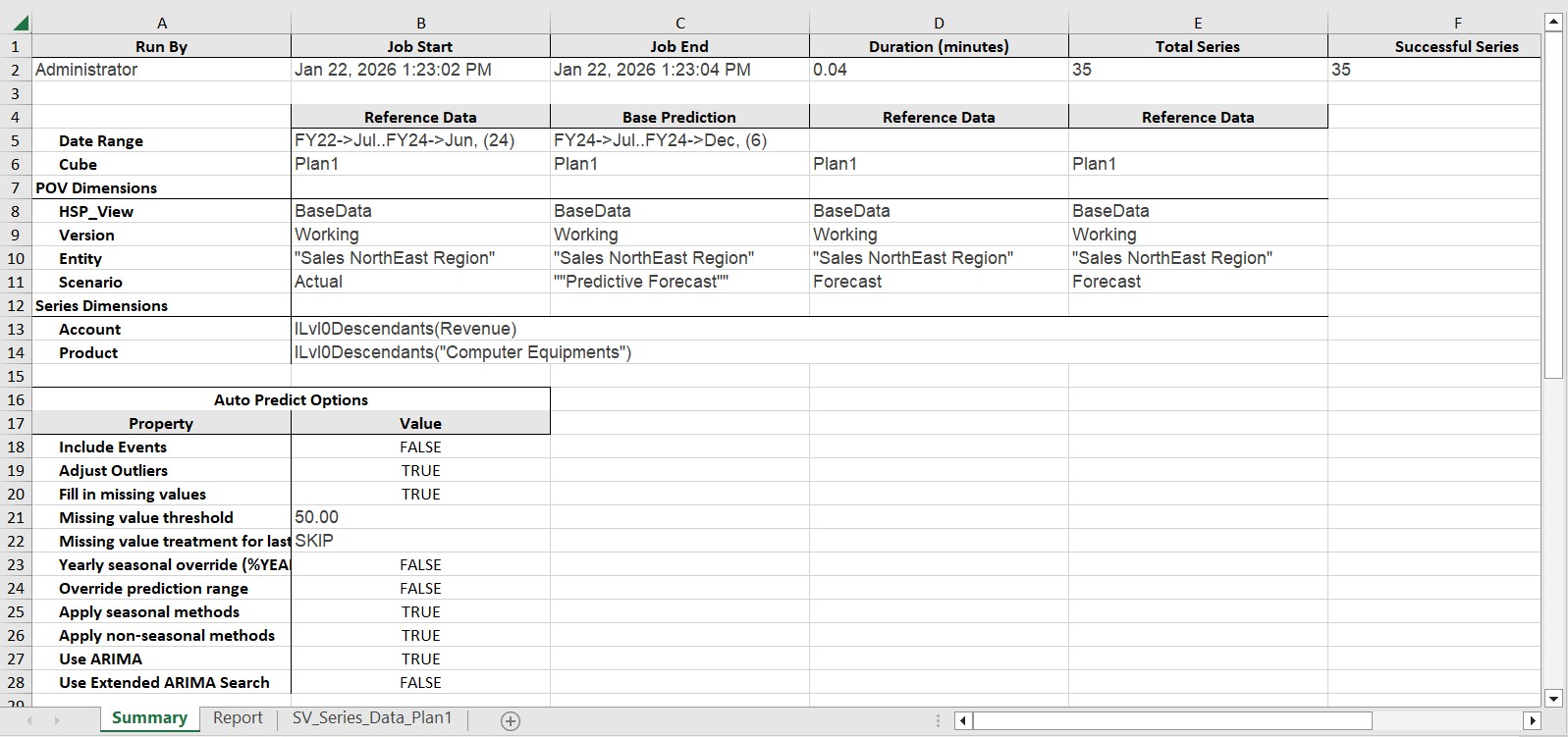
You can also connect it to its data source where the job was run, and analyze the data in the SV_Series_Data_CubeName sheet using the various ad hoc analysis operations offered by Smart View.