Reviewing Insight Summaries
Review AI summaries generated for single insights as well as a set of insights in Oracle Smart View for Office.
When you insert an IPM insight in a Microsoft Excel sheet or a Microsoft PowerPoint slide using Smart View, a summary of the insight also gets inserted.
Summaries help you understand insights better by adding meaningful information and providing a narrative for explaining the charts. Insight summaries are automatically generated using Generative AI (GenAI) for a single insight or a set of insights. The insight summaries that are generated and available on the Insights dashboard in the web application are displayed in Smart View.
Insight summaries can be used in these ways:
- For a single insight, the summary provides additional context beyond the brief rule-based chart description in the insight. See Reviewing Summaries for a Single Insight.
- For a set of multiple insights, based on a parent member, the summary evaluates the parent member and all of its children. This summary can help you find the root cause for the insight, and makes it easy to share an analysis of a set of insights with your team. See Reviewing Summaries for a Set of Insights.
Enabling Insight AI Summaries
To view insight summaries, Service Administrators must first enable them in the application settings for your business process.
To enable insight summaries:
- In the web application of your business process, click Application, and then click Settings.
- In the Enable AI section, select the
Generative AI check box to enable the ability to
automatically generate narrative summaries for a single insight or group of
insights.
Note:
Insight summaries use GenAI. Output from GenAI may not always be factual, accurate, or appropriate. You are responsible for reviewing and using GenAI output at your discretion.
Reviewing Summaries for a Single Insight
To review a narrative summary for a single insight:
- Insert an IPM insight in a Microsoft Excel sheet or a Microsoft PowerPoint slide. See Inserting Insights in Smart View.
- Review the narrative summary in the Insights AI Summary
section, displayed next to the chart.
Note:
This summary uses GenAI. Output from GenAI may not always be factual, accurate, or appropriate. You are responsible for reviewing and using GenAI output at your discretion.In this example, the Insights AI Summary for an insight inserted in Microsoft Excel appears next to the chart and below the Explainability table.
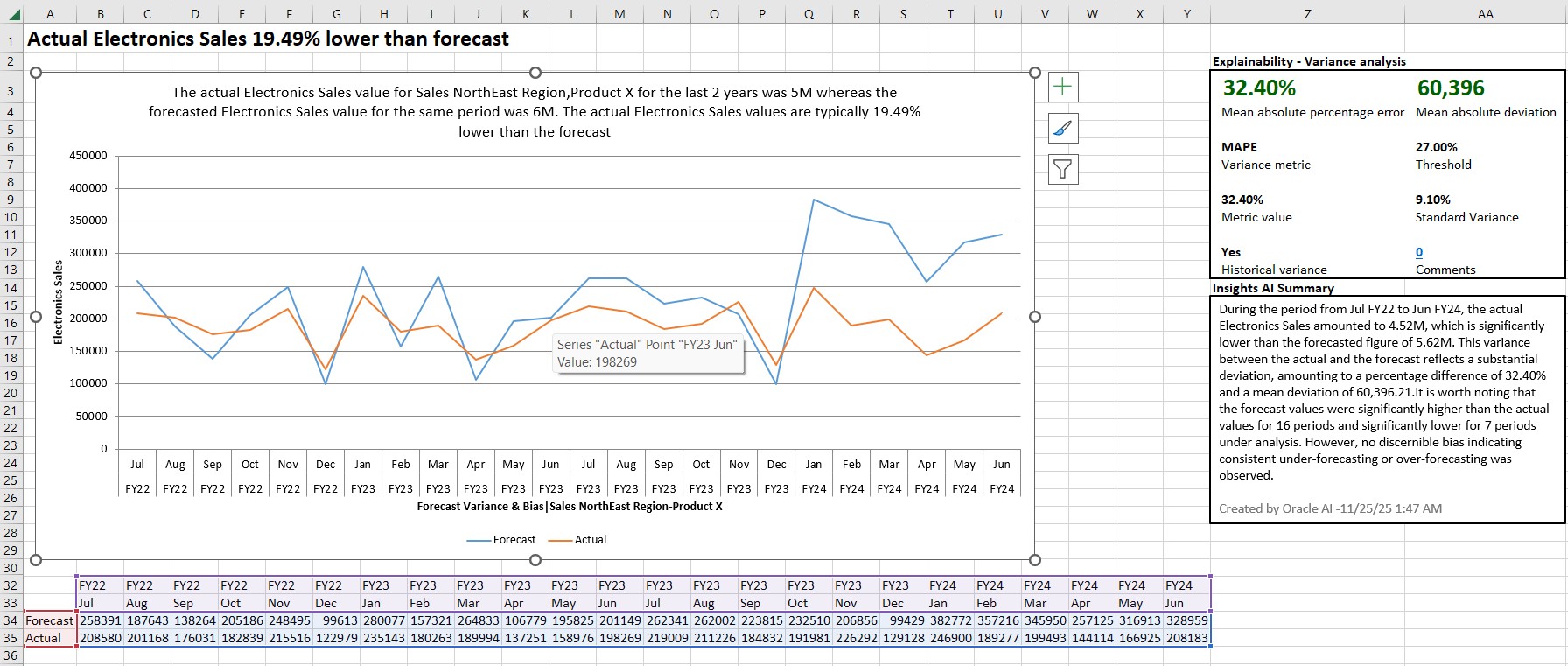
- Optional: You can edit the summary as per your requirement. To restore
the original text of the summary, click
Refresh.
However, if you delete the Insights AI Summary box from a Microsoft PowerPoint slide, it cannot be restored using Refresh. You need to insert the insight again to restore the summary.
Reviewing Summaries for a Set of Insights
To review a narrative summary for a set of insights:
- In the Smart View Panel, right-click the application name and then click IPM Insights.
- In the IPM Insights dialog box, click Show
Summaries.
The list of available summaries appear in the IPM Insights dialog box. For each summary, you can view the POV based on which the summary was generated.
The Show Summaries button appears only when insight summaries are already generated and available for a set of insights. If such summaries are not available, then this button does not appear in the IPM Insights dialog box.
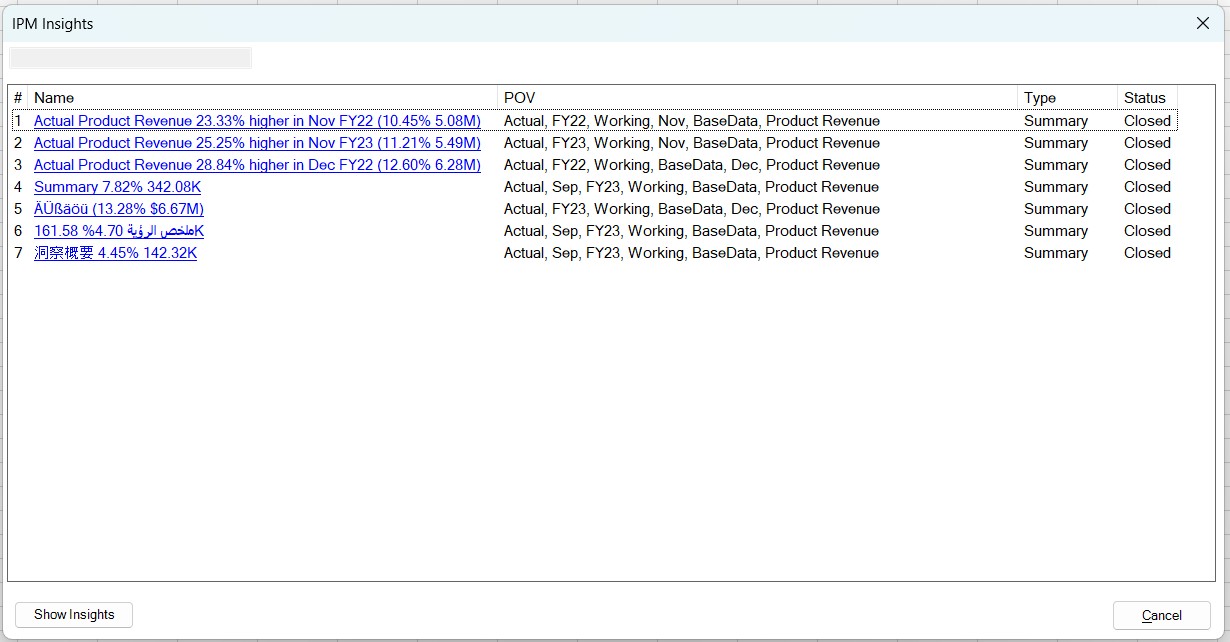
- Click the summary name link to open and review the generated summary in a
separate dialog box.
Note:
This summary uses GenAI. Output from GenAI may not always be factual, accurate, or appropriate. You are responsible for reviewing and using GenAI output at your discretion.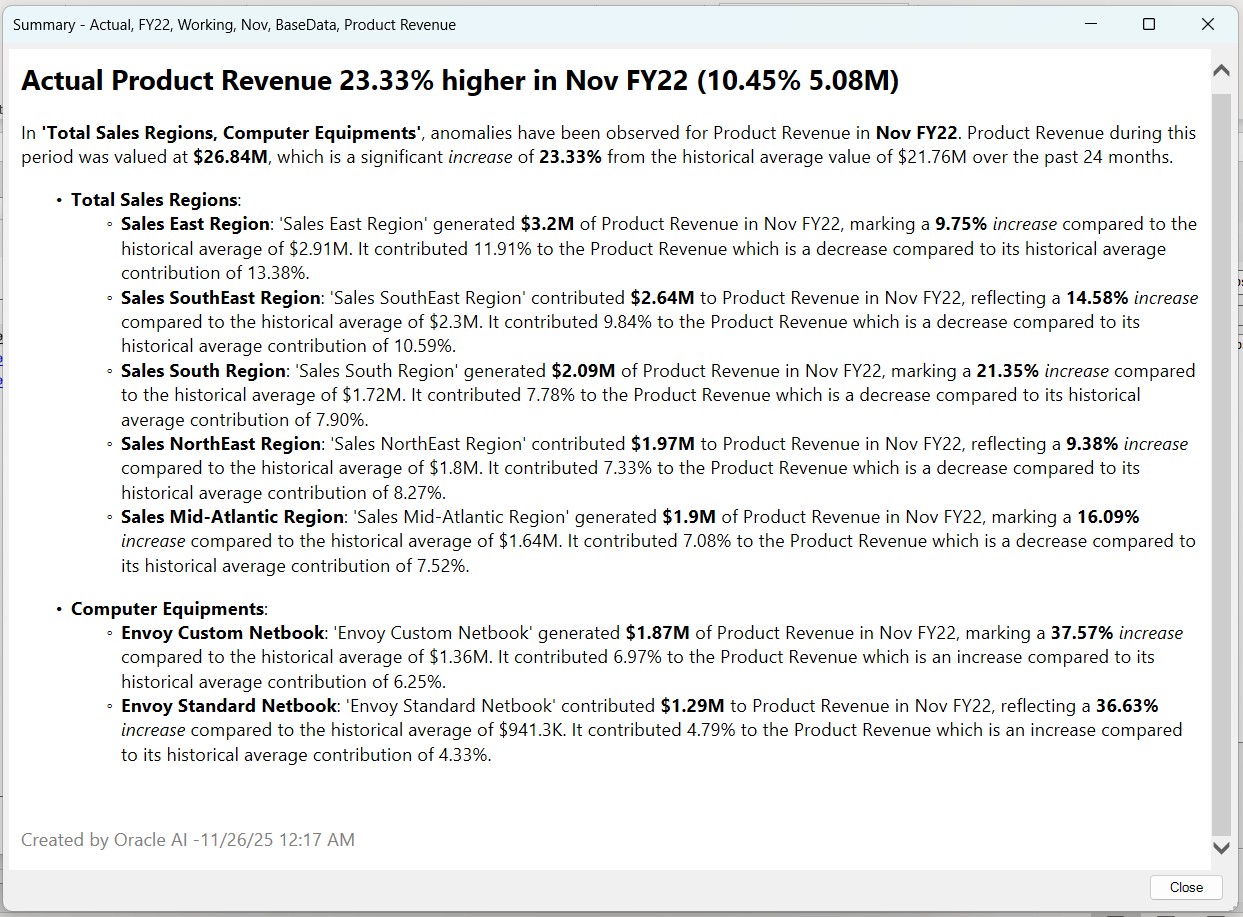
- After reviewing the summary, click Close to close the dialog box.
- To view the list of insights, click Show Insights in the IPM Insights dialog box.