Inserting Insights in Smart View
Insert IPM insights in a Microsoft Excel sheet, a Microsoft Word document, and a Microsoft PowerPoint slide using Oracle Smart View for Office.
To view and insert insights from an application in Smart View:
- Open an Excel sheet, a Word document, or a PowerPoint slide and connect to your business process that has IPM Insights.
- In the Smart View Panel, right-click the application
name and then click IPM Insights.
Alternatively, you can also click More in the Action panel and then click IPM Insights. The IPM Insights dialog box displays all the available insights generated in the application.
- View the list of available insights generated for the application in the
IPM Insights dialog box, along with the following
details:
- Impact: Indicates the relative amount of deviation or impact from the usual value in percentage.
- Values: Displays the absolute value of the deviation for an insight.
- Details: Describes the insight statement in brief.
- POV: Indicates the POV values involved in the insight.
- Type: Indicates the type of insight — Anomaly, Prediction, Forecast Variance and Bias.
- Priority: Indicates the category of insight — High, Medium, or Low priority.
- Status: Indicates the status of insight — Open or Closed.
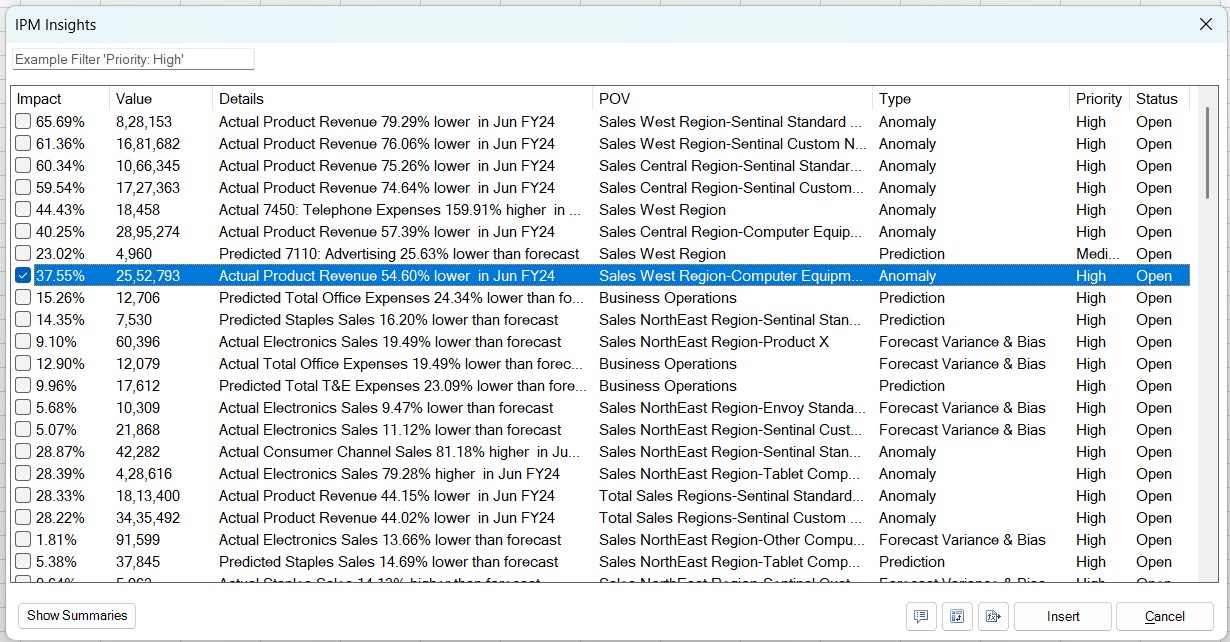
- Optional: You can filter the list of insights in the IPM Insights dialog box based on insight type, POV, priority, status, custom hashtags, and user name tags. See Filtering Insights.
- In the IPM Insights dialog box, select an insight and click
Insert.
Note:
In Word, you can select an insight by clicking a row. In Excel and PowerPoint, you can insert multiple insights at the same time by selecting the check boxes next to the required insights.The insights are inserted in the following way in an Excel sheet, a Word document, and a PowerPoint slide:
- Optional: After inserting the insight, you can perform the following
actions:
- Save and Refresh Insights: You can save the Excel sheet, Word document, or PowerPoint slide and refresh the inserted insights to display the latest values. See Saving and Refreshing Insights.
- View and Add Comments: You can view and add comments and tag other users or groups in comments for better team collaboration. You can also add custom hashtags in comments for filtering insights. See Collaborating on Insights Using Comments and Tags.
- Review Insight Summary: You can review the summary generated for an insight. See Reviewing Insight Summaries.
- Analyze Insights: You can open the data table of an insight inserted in Microsoft Excel in ad hoc analysis mode. See Analyzing Insights Data after Inserting an Insight.
Inserting Insights in Microsoft Excel
In Microsoft Excel, the insight is inserted as a chart along with the insight statement and the data table associated with the insight.
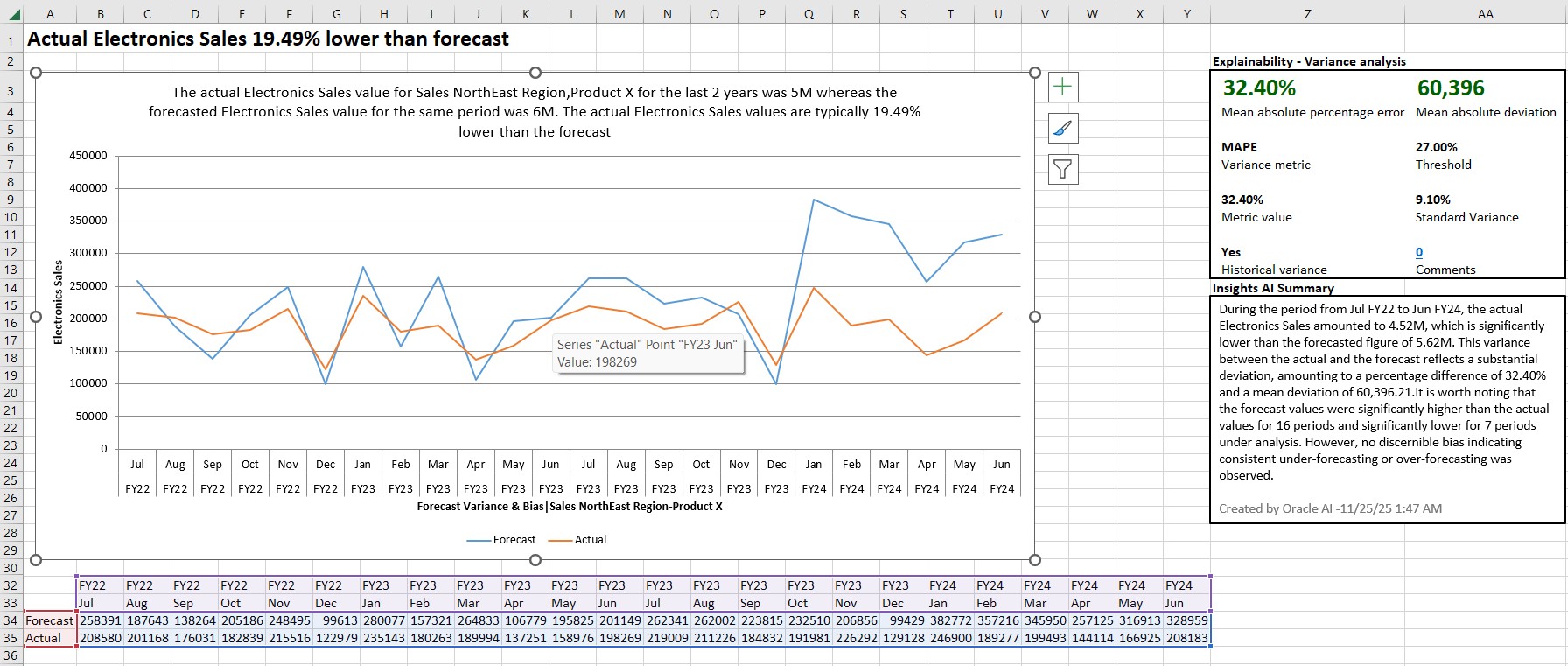
You can view the following details:
- Chart: The chart shows a brief description of the insight at the top, and the insight type and POV on the axis. You can hover on the chart to view the specific data points. You can also click a line chart to view the associated row highlighted in the data table.
- Data Table: The data table displays the scenario members in the table
header, unlike the web application which displays both scenario members and
insight type in the header.
You can open this data table in ad hoc analysis mode in a new sheet tab by right-clicking in the insight sheet and selecting the Analyze option under the Smart View menu and perform various ad hoc analysis operations offered by Smart View.
- Explainability: The Explainability table displays details about the insight including metrics and methods used in the insight. These details make the insight data more prominent and more transparent. These details may differ based on the insight type.
- Comments: Comments help you collaborate with other users over insights. To view the comments, you can double-click the comments number link in the Explainability table and view them in the Add/Delete Insight Comments dialog box. You can also add new comments in the same dialog box. See Collaborating on Insights Using Comments and Tags.
- Insights AI Summary: The narrative summary, automatically generated using
Generative AI (GenAI), provides additional context beyond the chart description
for the insight. See Reviewing Insight Summaries.
Note:
Insight summaries use GenAI. Output from GenAI may not always be factual, accurate, or appropriate. You are responsible for reviewing and using GenAI output at your discretion.
Note the following considerations about inserting insights in Excel:
- You can insert only one insight per sheet. If you try to insert insight on a sheet that already has an existing insight, form, or ad hoc grid, then the existing content and metadata are cleared before inserting the new insight.
- In Excel, you can insert multiple insights at the same time by selecting the check boxes next to the required insights. If multiple insights are selected while inserting, each insight is inserted on a separate sheet within the workbook.
- If there are any negative values to be plotted in the insight chart, the plotted axis is anchored at 0 (zero) and may possibly show up above the plotted lines.
-
For Prediction type of insight, you can update the forecast values in the data table to the predicted values by changing the relevant cell values. The chart also gets updated to reflect the changed values. You can submit the changed values to update the forecast, provided the POV associated with the cells is writable. The Submit Data action works similar to the Update Forecast action available in the web application.
Not all data cells can be updated and submitted. If you update a cell that is not supposed to be updated, it will display the changed value for the moment, but on submitting data, it will revert to its original value.
- You can view additional details and metadata associated with the insight in the Sheet Information dialog. See Viewing Insight Metadata in Sheet Information.
Inserting Insights in Microsoft Word
In Microsoft Word, the insight is inserted as a chart along with the insight description. The chart shows a brief description of the insight at the top, and the insight type and POV on the axis. You can hover on the chart to view the specific data points.
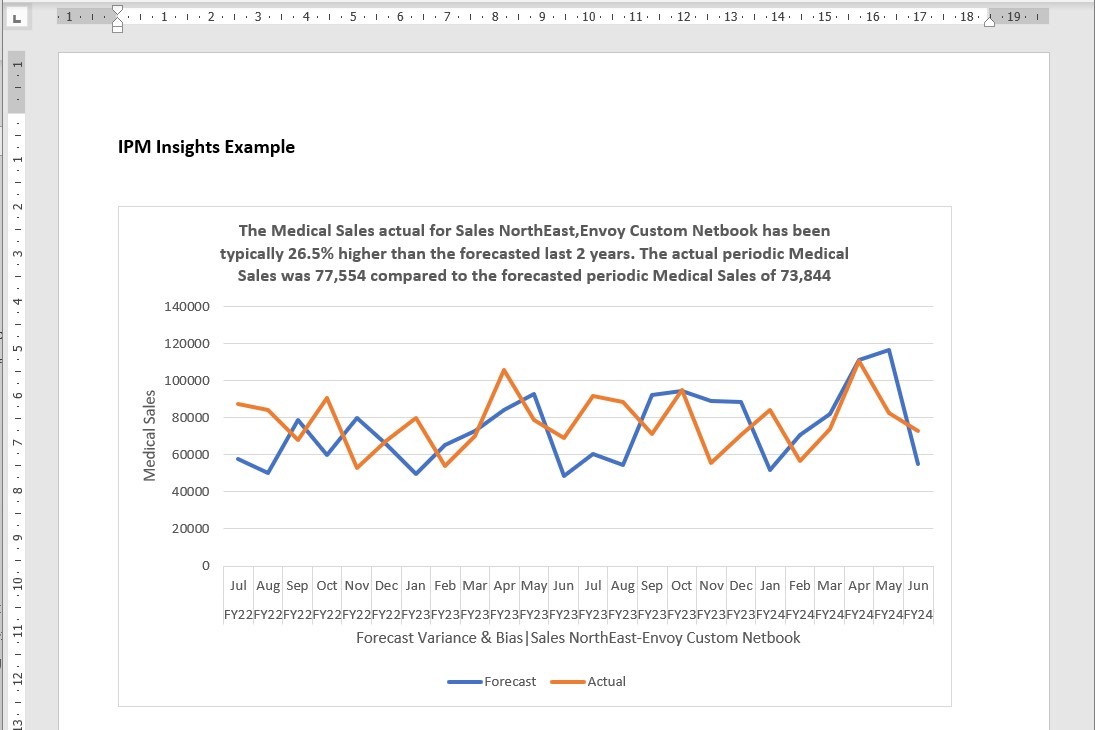
Note the following considerations about inserting insights in Word:
- You can insert only one insight at a time in Word.
- If there are any negative values to be plotted in the insight chart, the plotted axis is anchored at 0 (zero) and may possibly show up above the plotted lines.
Inserting Insights in Microsoft PowerPoint
In Microsoft PowerPoint, the insight is inserted as a chart along with the insight description and the insights AI summary.
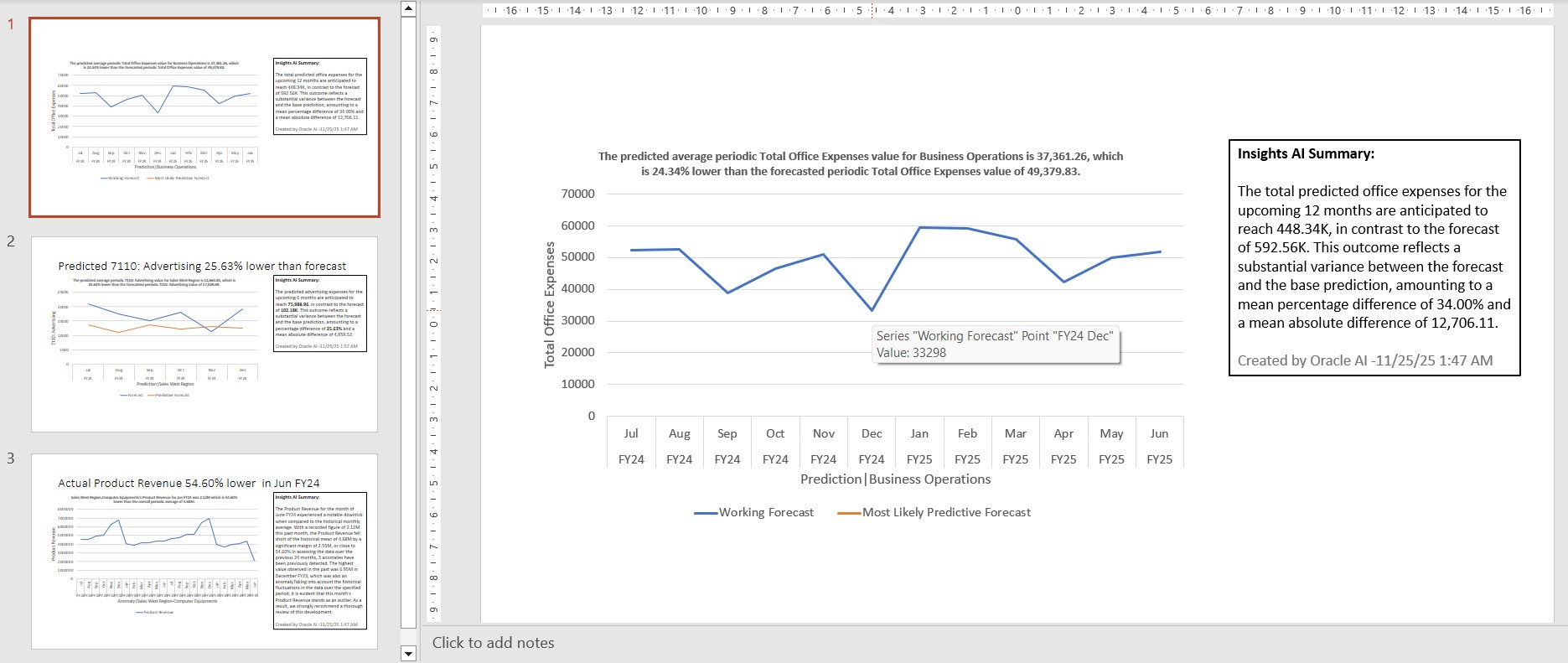
You can view the following details:
- Chart: The chart shows a brief description of the insight at the top, and the insight type and POV on the axis. You can hover on the chart to view the specific data points.
- Insights AI Summary: The narrative summary, automatically generated using
Generative AI (GenAI), provides additional context beyond the chart description
for the insight. See Reviewing Insight Summaries.
Note:
Insight summaries use GenAI. Output from GenAI may not always be factual, accurate, or appropriate. You are responsible for reviewing and using GenAI output at your discretion.
Note the following considerations about inserting insights in PowerPoint:
- As a best practice, it is recommended to insert only one insight per slide to avoid information clutter.
- You can select multiple insights for inserting in PowerPoint. Each insight is
inserted on a new slide and the respective insight statement appears in the
slide title. You can edit the slide title as per your requirement.
When you insert a single insight, the insight statement is not inserted on the slide as the slide title.
- If there are any negative values to be plotted in the insight chart, the plotted axis is anchored at 0 (zero) and may possibly show up above the plotted lines.
- If you edit the AI summary for an inserted insight and want to restore the original text, click Refresh. However, if you delete the Insights AI Summary box from the slide, it cannot be restored using Refresh. You need to insert the insight again to restore the summary.