Copying a Point of View
You can copy data from one point of view to another. For example, if you wanted to create a "what if" version of a point of view, you could start with data that was already included in an existing point of view, copy it to a new point of view, and then do some additional edits and calculations.
Tip:
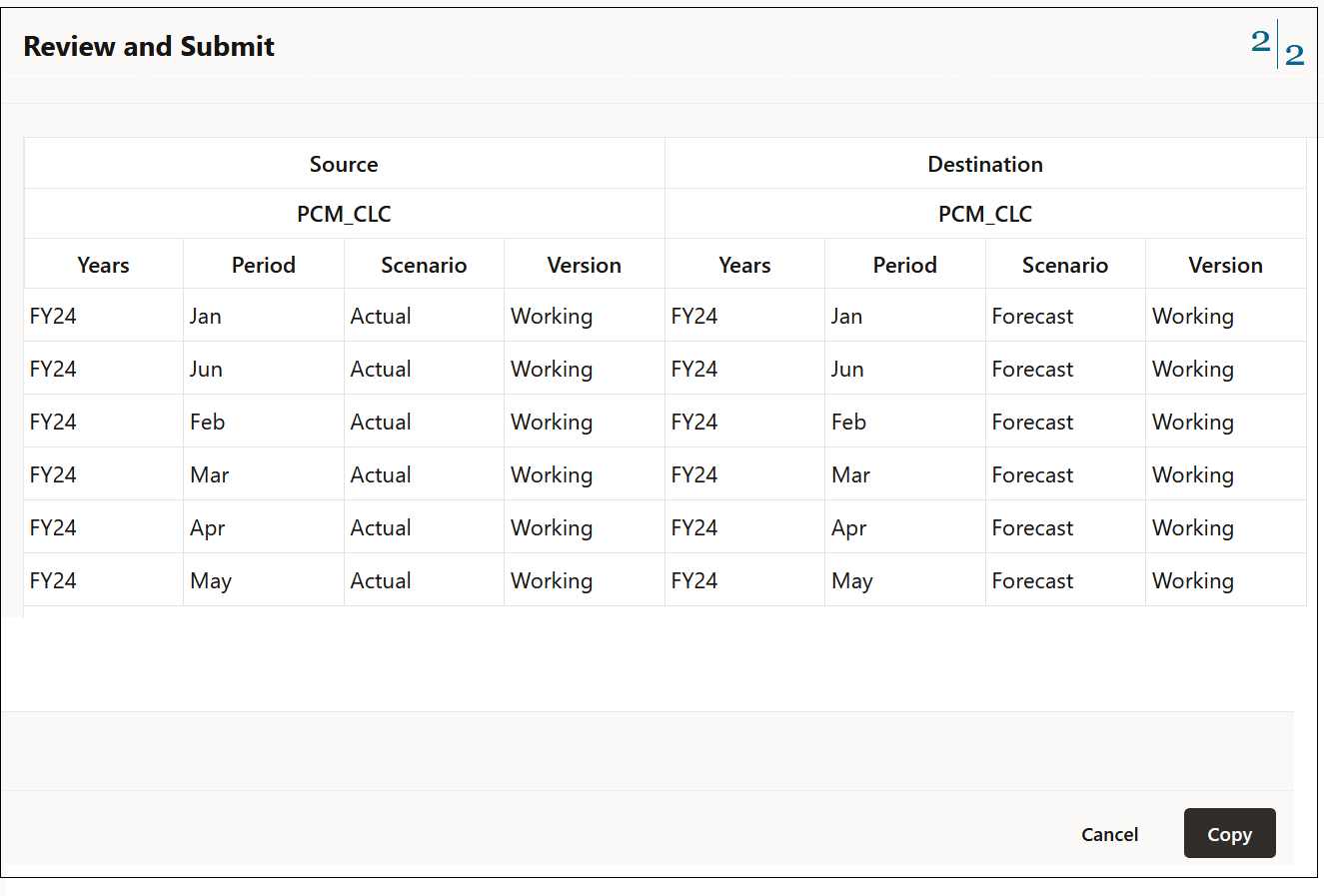
You can copy more than one point of view at time. For example, you could copy 12 periods of data from the calculation cube (PCM_CLC) to the reporting cube (PCM_REP), and you could copy 6 periods of data from Actual to Forecast in the same cube. See Copying Multiple Points of View Examples.
To copy one or more points of view:
-
On the Calculation Control page, select the point(s) of view you want to copy, and then click Copy.
-
In the Configure dialog box, select a Source cube and a Destination cube.
-
Select the members for the Years, Period, Scenario, and Version dimensions that will be used in the copied point of view.
-
Under Data, select an option that relates to the level 0 members in the PCM_Balance and PCM_Rule regions.
Table 10-1 Data that is Copied for the Selected Point(s) of View
Copy POV Option PCM_Balance Region Copied PCM_Rule Region Copied What this Means All Input Data
Level 0 descendants of PCM_Balance
PCM_Rule.NoRule
For all members in all business dimensions, copies all level 0 descendants in the PCM_Balance dimension, intersecting with the NoRule member in the PCM_Rule dimension.
All Data
Level 0 descendants of PCM_Balance
Level 0 descendants of PCM_Rule
For all members in all business dimensions, copies all level 0 descendants in the PCM_Balance dimension, intersecting with all of the level 0 descendants in the PCM_Rule dimension. This results in all of the data in the POV being copied.
-
Click Continue.
-
Review the options you have selected, and click Copy.
Note:
If you select options for Years, Period, Scenario, and Version to define a point of view that doesn't exist in the calculation control list yet, a dialog box is displayed letting you know that the destination point of view doesn't exist. Click OK to confirm that you want to create the destination point of view.
-
Optional: Go to the Jobs console and verify that the point of view was copied successfully.
The Copy Point of View job is displayed in the Jobs console with a "Completed" or "Completed with Errors" status.. You can select the job to see details about the job and troubleshoot any errors that may have occurred. See Viewing Point of View Jobs.
Tip:
Other ways to copy POVs:
-
PCM Agent, see Using PCM Agent to Copy a Point of View
-
Copy Data by Point of View REST API
-
copyDataByPointOfView EPM Automate command
Copying Multiple Points of View Examples
Example 1: Copy all the months in FY24 from the calculation cube (PCM_CLC) to the reporting cube (PCM_REP)
-
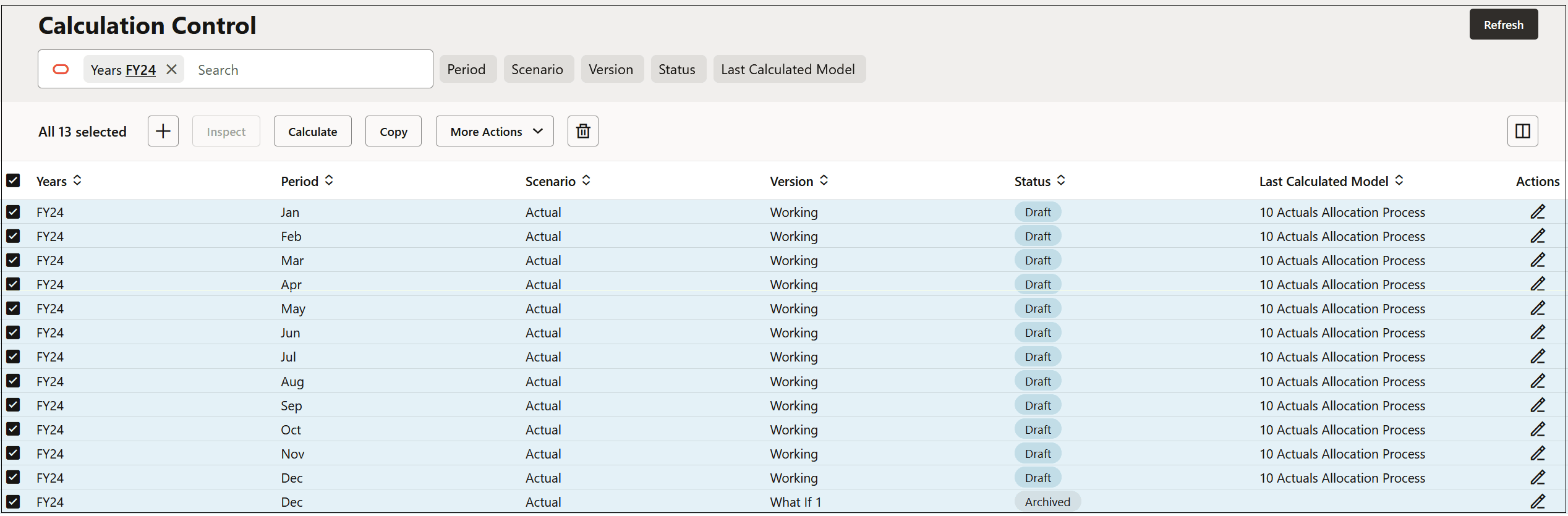
On the Calculation Control page, filter the years to FY24, click the checkbox next to Years to select all the years in FY24, and click Copy.
-
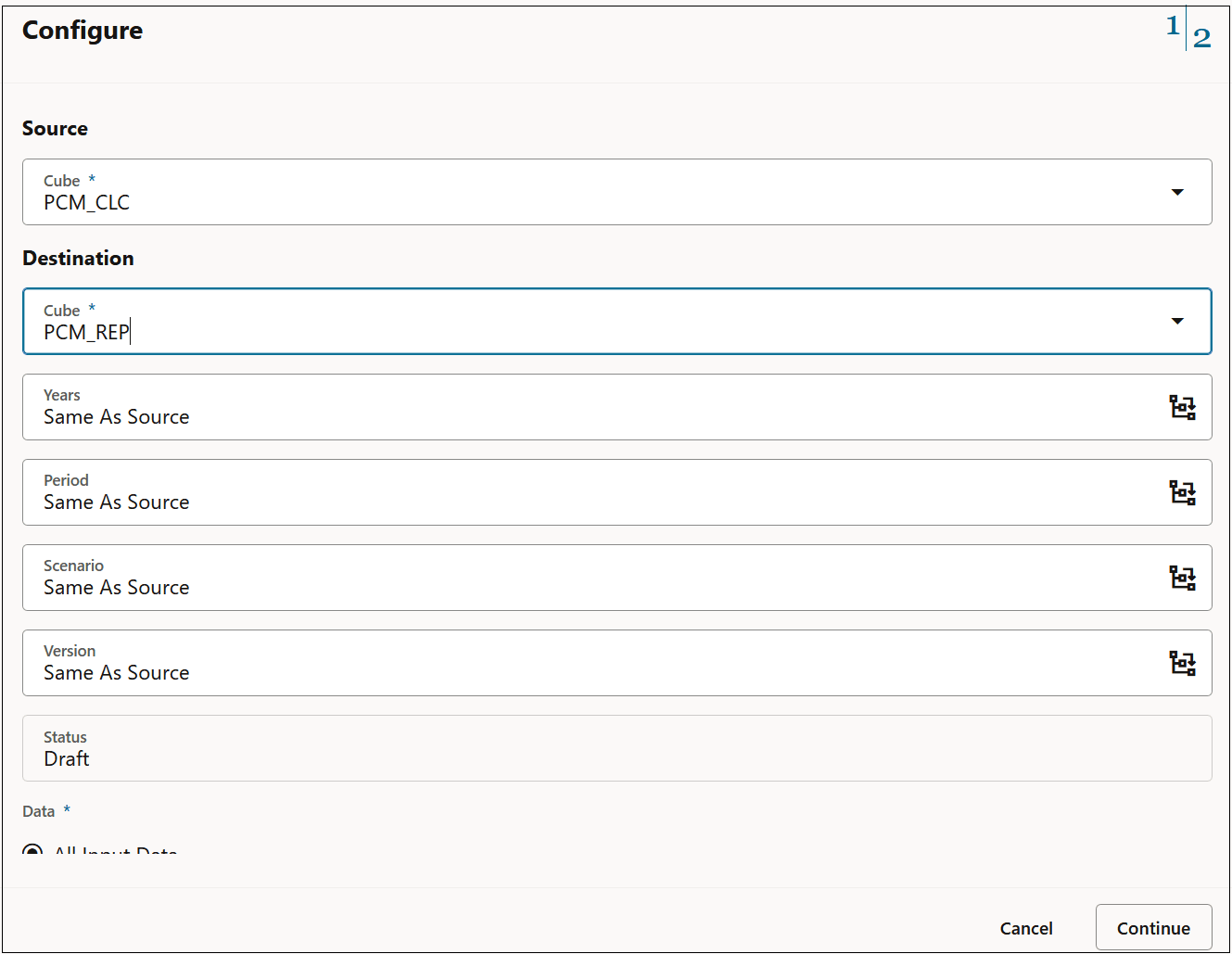
In Configure, change the Destination cube to PCM_REP, and then click Continue.
-
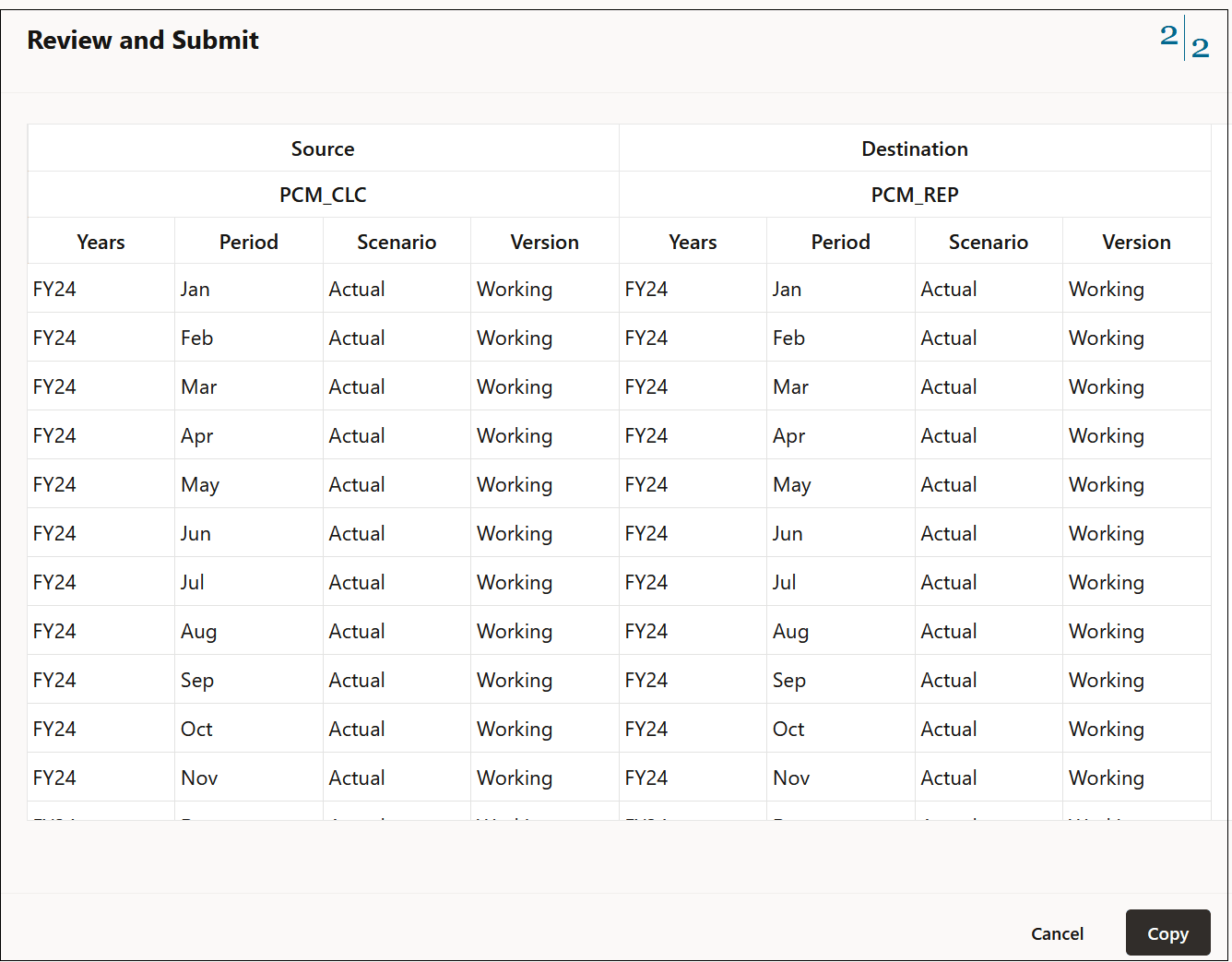
Review the information in Review and Submit, and then click Copy.
Example 2: In the calculation cube (PCM_CLC), copy the first six months of data in FY24 from Actual to Forecast
-
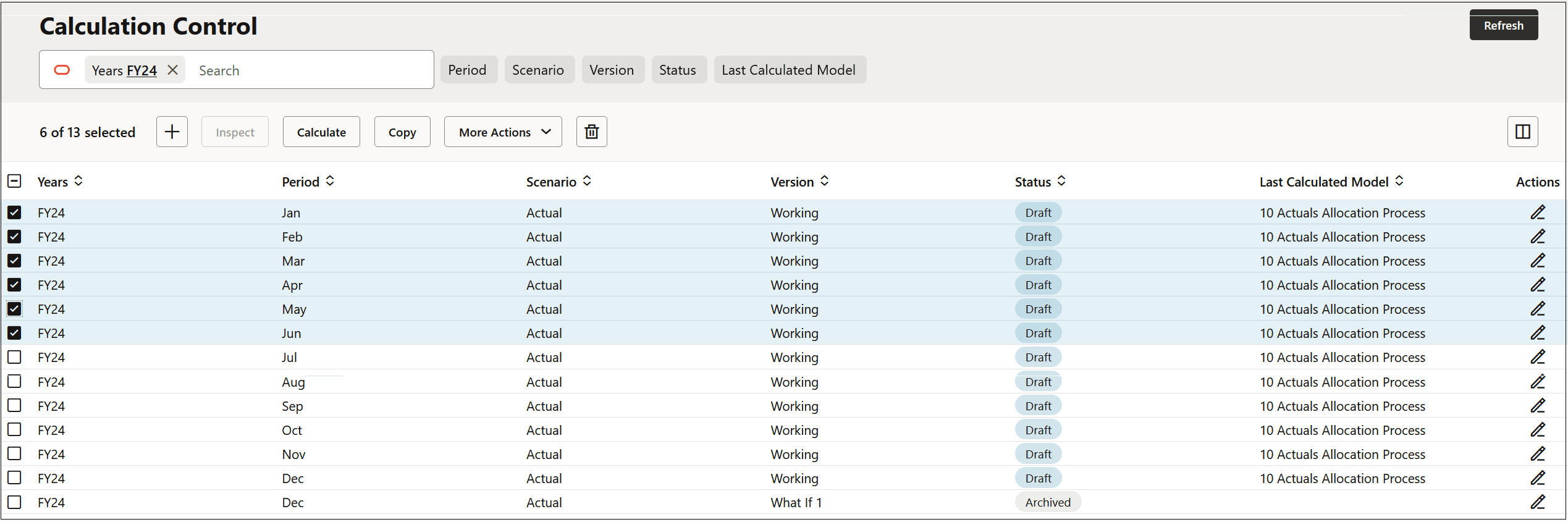
On the Calculation Control page, filter the years to FY24, select the POVs from January - June, and click Copy.
-
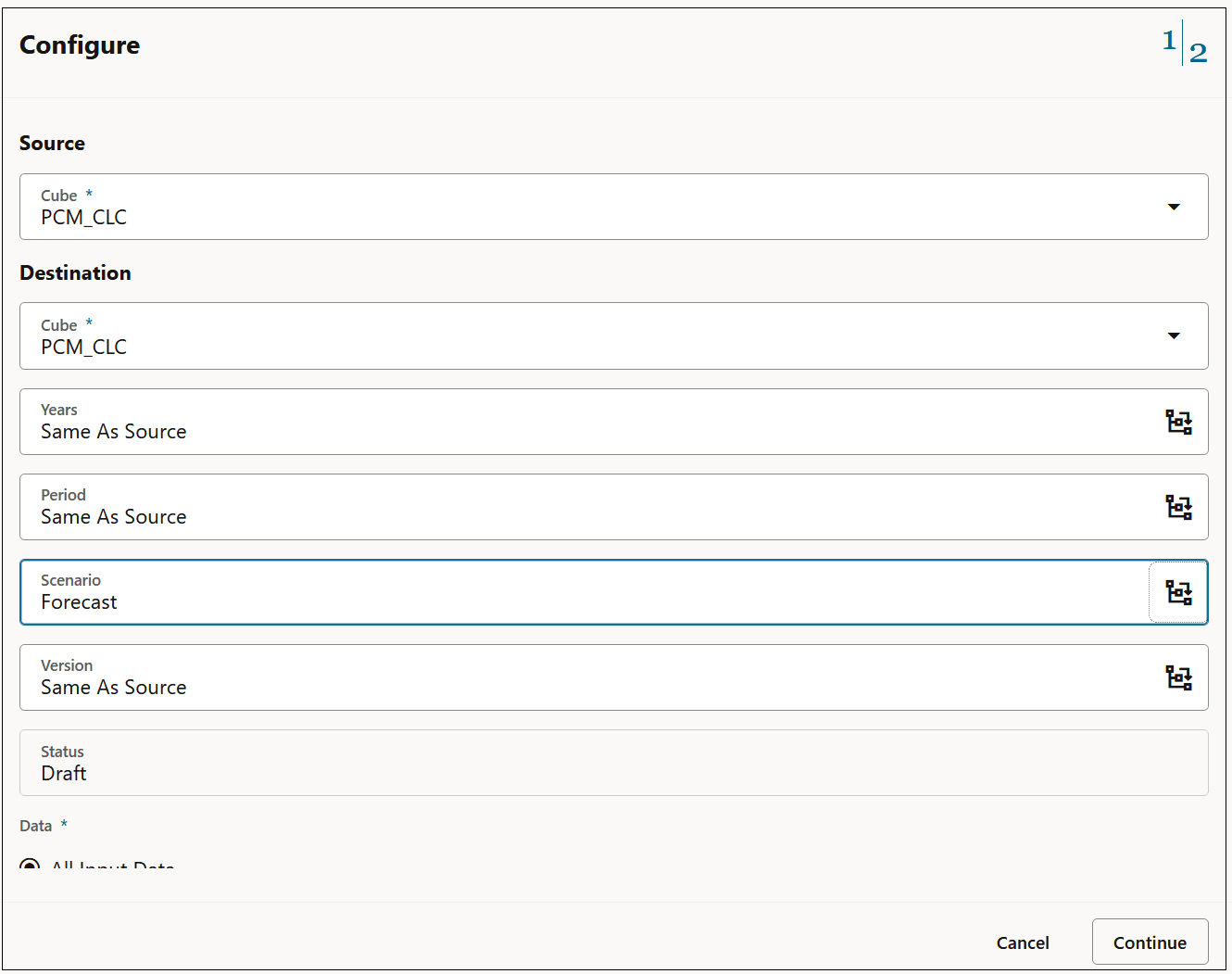
In Configure, change the Scenario cube to Forecast, and then click Continue.
-
Review the information in Review and Submit, and then click Copy.