Use the Add to Deinstalled action to track equipment or
inventory removed from the customer pool. For example, if a mobile worker removes an
existing cable box at the customer premise, the Add to
Deinstalled action tracks the removal of the equipment.
-
Open an activity that is in Started status.
-
Open the Inventory tab and click the
Add to Deinstalled link for the equipment
in the customer pool.
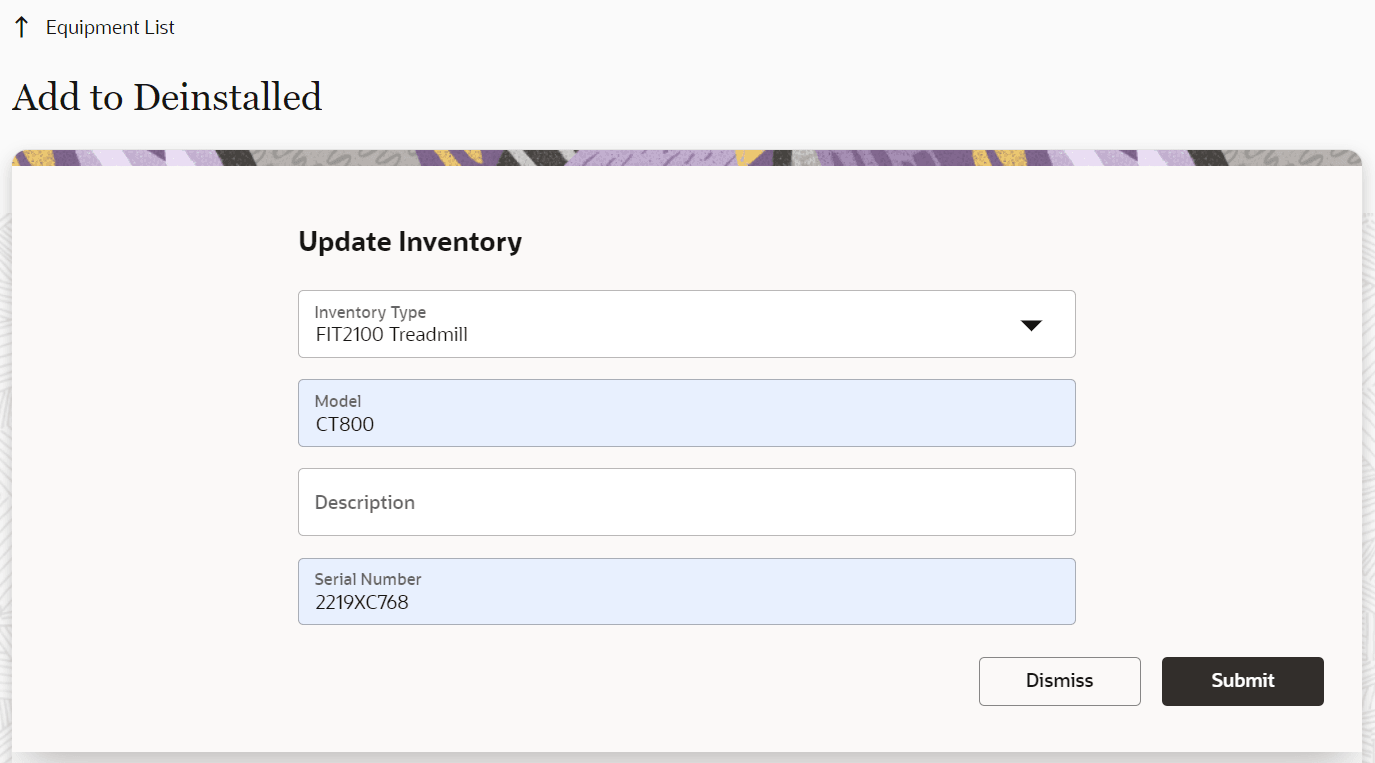
The Deinstall inventory dialog appears, as shown in this
screenshot:
-
Enter the details of the inventory you're deinstalling.
If this is non-serialized inventory and you enter a value that
exceeds the quantity precision that's configured, then the precision
is rounded off. For example: Quantity precision for an Inventory type
= 2. You enter 1.4552; this is rounded off to 1.46. In general, the
half-up rounding rule is applied; that is, 0.5 becomes 1 and 0.4
becomes 0. If you enter extra zeros after the decimal point, then all
trailing zeros are trimmed and not displayed in the inventory pool. If
you try to deinstall more non-serialized inventory than you've in the
pool, then the message, 'The quantity 6.5 exceeded your available
quantity of 5. Are you sure you want to proceed?' is
displayed.
-
Click Submit.
Equipment now shows as Deinstalled in the
customer pool. If you're using a warehouse to maange inventory, the
equipment now shows as Deinstalled and its quantity is incremented in
the Warehouse section on the Equipment List
page.