Understanding Data Discovery Output with Generative AI
In Data Discovery, you can use Generative AI to summarize, render, and format the output of the Notes and trace files. When you use this option, an HTML attachment file is generated for the results, including a single-run trace in table format, a multi-run trace in expandable list format, and Notes in a list format.
Using Generative AI to summarize and transform the raw output from Data Discovery to one HTML file enables you to more quickly review and analyze data details and take appropriate action.
To use Generative AI with Data Discovery:
-
Enable the Generative AI option application setting. From the Home page, click Application, then Settings, and from the Enable AI section, select Generative AI, then click Save.
-
From the Home page, click Navigator, then under Tools, select Data Discovery.
-
On the Data Discovery page, click Settings, select one or more settings, then click Save.
-
Open a form that has the Data Discovery context menu enabled.
-
Right-click on any data cell, then select Data Discovery.
Comparing Data Discovery Attachment with Generative AI Enabled and Disabled
When Generative AI is enabled, the cell attachment generated by Data Discovery differs from the one generated when it is disabled.
Table 19-15 Generative AI output
| Generative AI Enabled | Generative AI Disabled | |
|---|---|---|
|
If calculation trace is not applicable |
Data Discovery Dashboard.html |
Data Discovery Note.txt |
|
If calculation trace is applicable |
Data Discovery Dashboard.html |
Data Discovery Note.txt and Calculation Trace.txt |
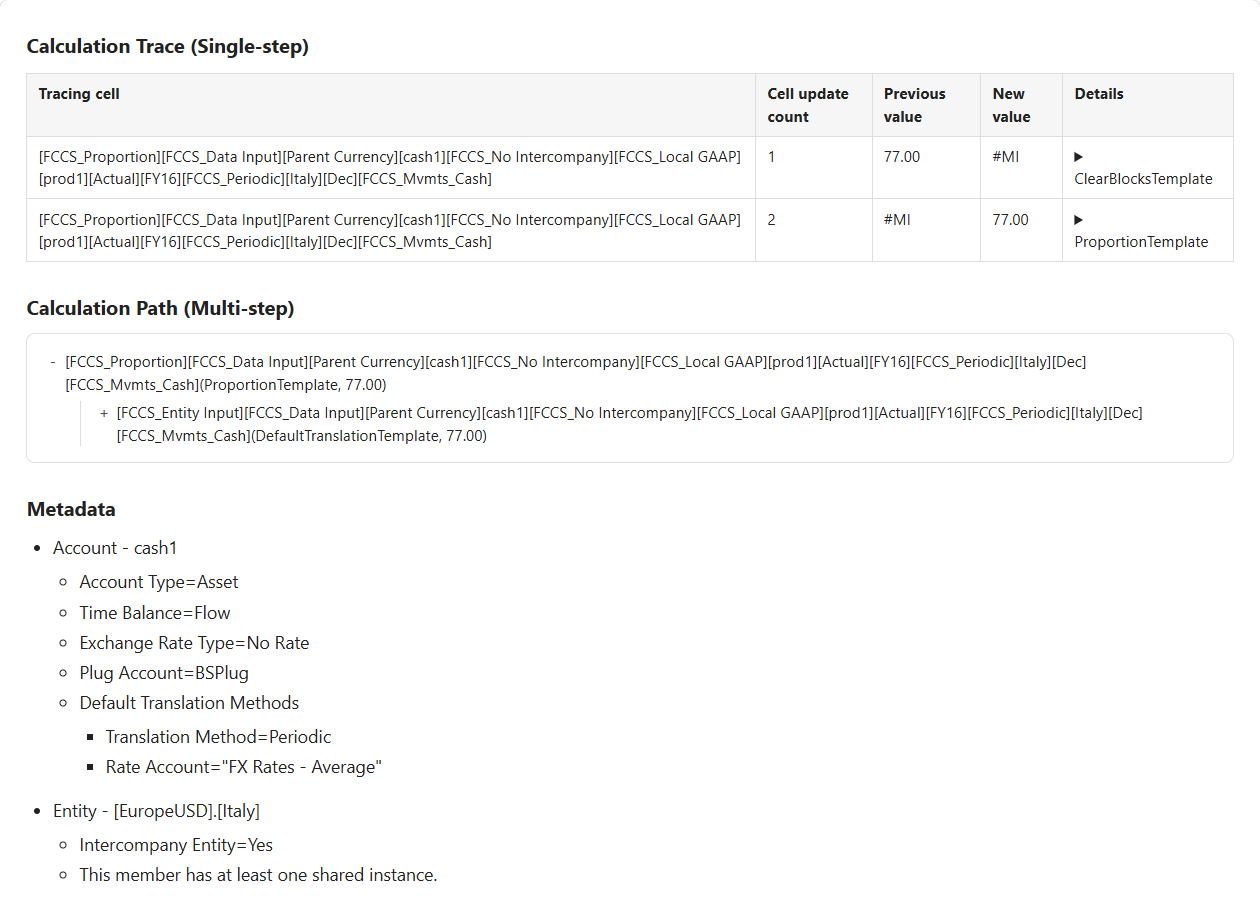
Data Discovery Dashboard Sample
The dashboard combines Data Discovery attachments into a readable, interactive format.
Figure 19-2 Sample Data Discovery Dashboard
Interactive Calculation Path
The Calculation Path section is interactive, allowing users to expand or collapse the calculation steps.
Figure 19-3 Sample Data Discovery Calculation Path
