Extend a Visual Builder Application with Intelligent Advisor Flows
Intelligent Advisor Flows was only made available to select customers, and will not be made Generally Available.
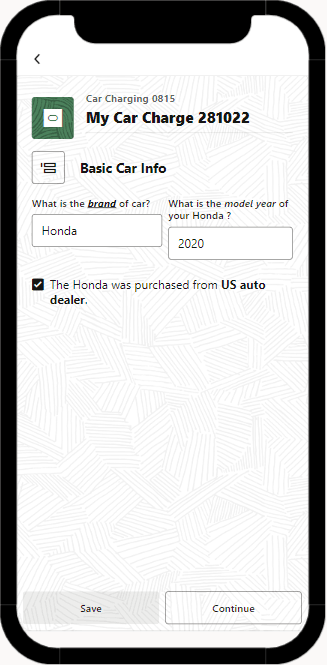
Intelligent Advisor flows can be embedded within applications developed using Oracle Visual Builder. This is done by adding the Intelligent Advisor Flow component (oj-ia-intv), which is a JET-based web component, to a Visual Builder web application. Web applications can be deployed to desktop as well as mobile devices.
The Intelligent Advisor Flow component:
-
Provides out-of-the-box rendering for all basic Intelligent Advisor flow controls, as well as custom controls, in a page-based layout with built-in navigation
-
Handles data action events, including built-in file upload and geolocation support
-
Supports seeding and updating the global input data defined in the associated flow scheme
-
Allows customization of the Intelligent Advisor flow runtime look
-
Has a responsive layout to fit different screen sizes
This topic explains how to embed a flow in a Visual Builder web application. There is a separate topic that explains more specifically how to build a mobile application using a flow with the Intelligent Advisor mobile application template. Note that the Intelligent Advisor Flow component can also be used in a non-Visual Builder Oracle JET application. (For more information, see Add Web Components to Your Page.)
The flow scheme that supports the Intelligent Advisor Flow component can be downloaded here and then imported into your Intelligent Advisor Hub: Example Flow Scheme
To embed an Intelligent Advisor flow in a Visual Builder application:
-
Ensure that the Prerequisites for Embedding an Intelligent Advisor Flow In a Visual Builder Application have been met.
-
In Visual Builder, open your web application.
-
Install the Intelligent Advisor Flow component. To do this:
-
Open the Components tab in the Navigator.
-
Type "flow" in the search field. The Intelligent Advisor Flow component should be listed.
-
Click the Install button for the Intelligent Advisor Flow component.
For more information, see Get Components From the Component Exchange.
-
-
Add the Intelligent Advisor Flow component to the page where you would like to embed the Intelligent Advisor flow. To do this:
-
Open the Web Applications tab in the Navigator.
-
Select the page (where you would like to embed the flow) to open it in the Page Designer.
-
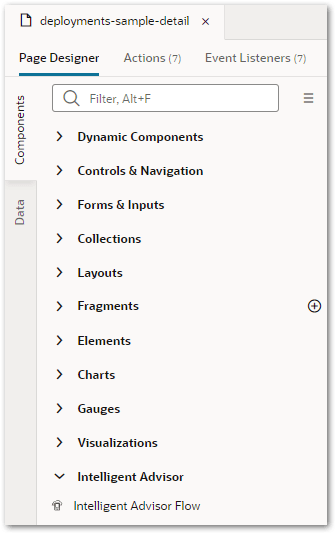
In the Components palette, locate the Intelligent Advisor Flow component.
-
Drag and drop it into position on the canvas or in the Page Structure view.
For more information, see Add Components to Pages.
-
-
Specify the Intelligent Advisor site URL. To do this:
-
On the canvas or in the Page Structure view, select the Intelligent Advisor Flow component.
-
In the right-hand Properties pane, select the General tab.
-
In the Ia Site Url field, enter the base Intelligent Advisor Hub URL. This is the part of the URL that prefixes /opa-hub. For example, if the Hub URL is https://myserver.com/12/opa-hub then the Ia Site URL would be https://myserver.com/12. You can set the URL value simply as myserver.com/12. The component will automatically add the HTTPS protocol prefix.
For more information, see The Properties Pane.
-
-
Specify the deployment name. To do this:
-
On the canvas or in the Page Structure view, select the Intelligent Advisor Flow component.
-
In the right-hand Properties pane, select the General tab.
-
In the Deployment Name field, enter either:
-
The name of the deployed flow, or
-
The value of a variable. Using a variable for the deployment name, rather than a static value, gives you the flexibility to reuse the page containing the flow component for different flows.
For more information, see Create Variables.
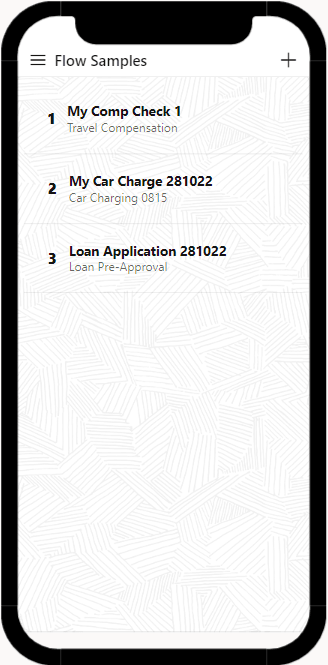
For example, you could expose a variable (for instance, flowSampleDetail) as a required input parameter of the page containing the flow component. This variable could be set when the user is navigated to that page from another page. For instance, clicking a flow on the start page of the application, could trigger an action chain (navigateToProjectDetailChain) registered on the list of flows.
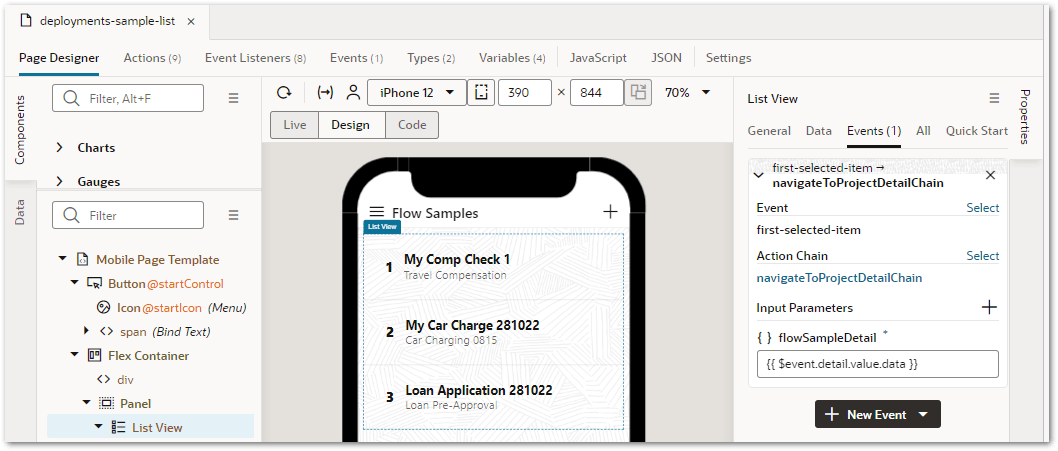
This action chain would contain an action to navigate to the page containing the flow component.
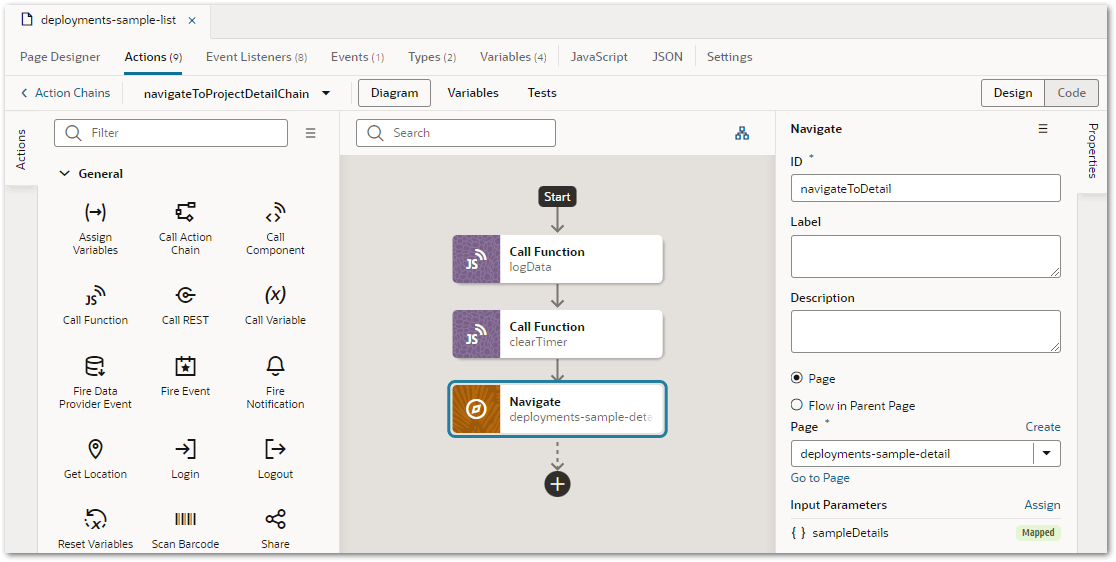
A mapping for this Navigate action is required to map the flowSampleDetail variable in the navigateToProjectDetailChain to the sampleDetails parameter.
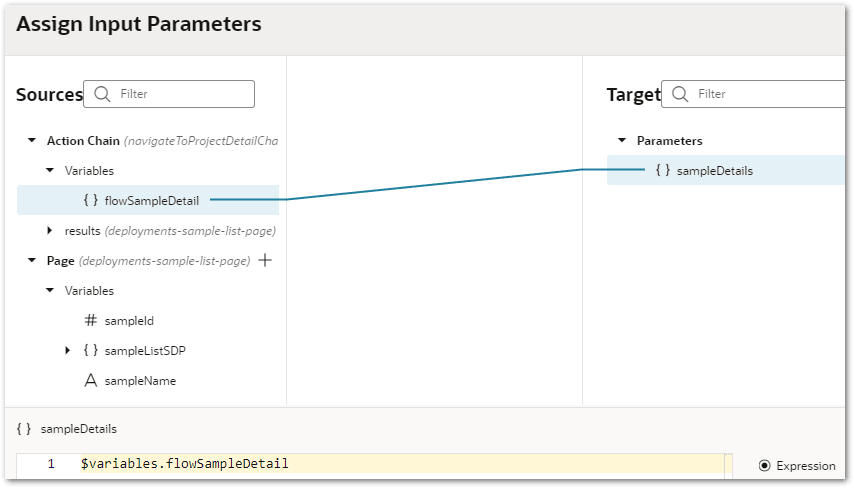
The flowSampleDetail value is initially from the $event.detail.value.data which is determined by the user clicking one item of the flow list.
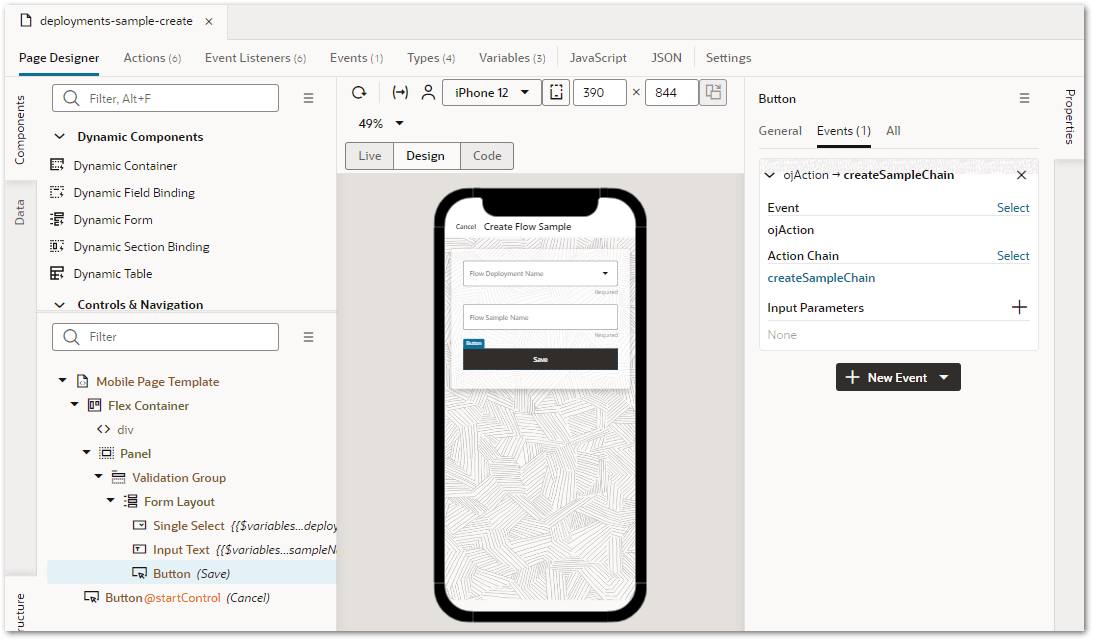
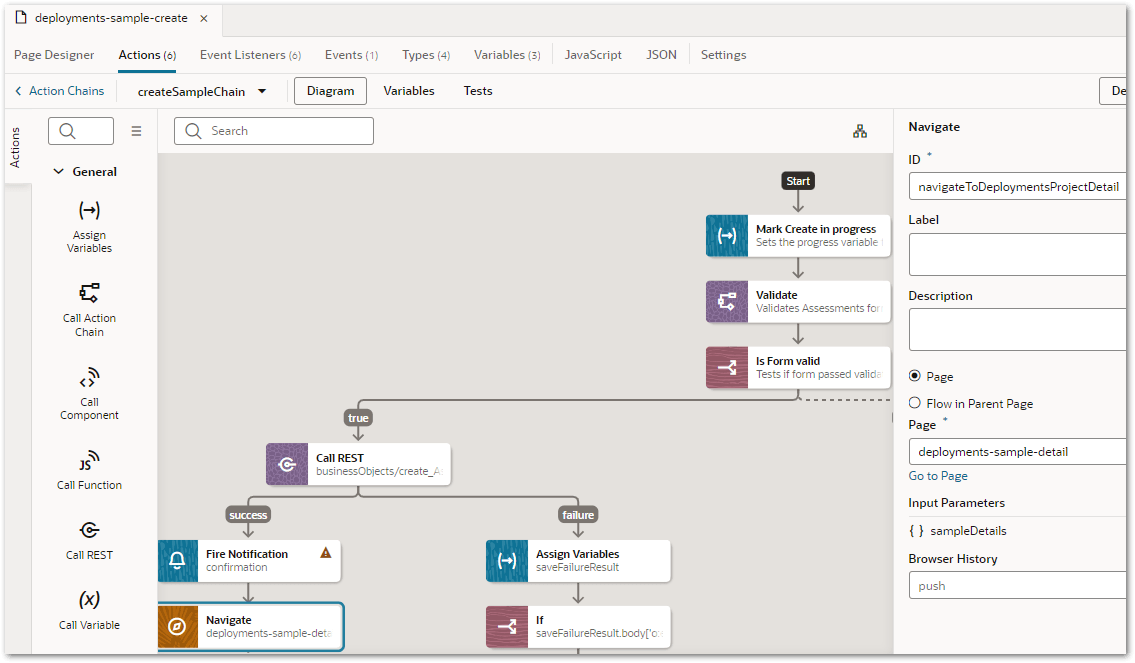
You could define a similar action chain for a page where the user can create new flows. Here the user could be navigated to the page containing the flow component once the Save button is clicked.
-
-
-
Set the token property. This is the JWT retrieved from the /flow/start web determinations endpoint. The session token must be passed through the token property to the component in this format:
{
    sessionJwt: <jwt session token>
}
It is up to you how your application sets/renews the token and then passes it to the flow component. Note that after 30 minutes of inactivity, an access token expires, and a new token must be obtained. For interactions longer than 30 mins, API clients can use a refresh token to request a new access token and continue access without needing to resend the client_id and client_secret. For more information, see Refresh an API Access Token.
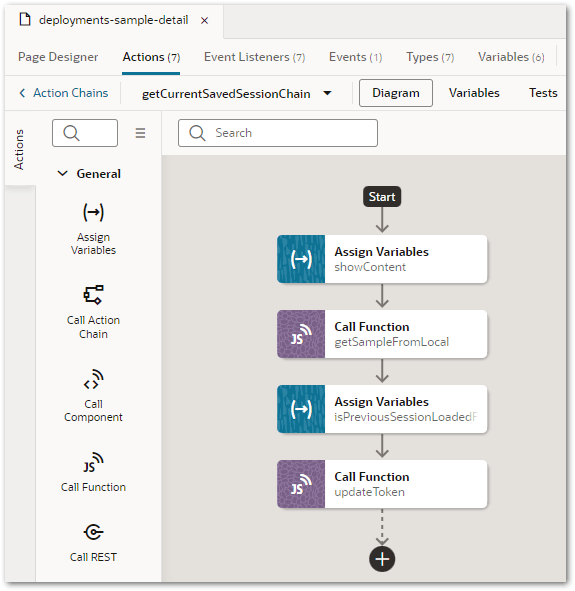
One way in which an application can set the token property in the flow component is to set it when the user enters the page containing the flow component. Entering the page could trigger a built-in vbEnter listener (for example, getCurrentSavedSessionChain). Inside this action chain, a function could be called to regularly fire an action (for example, collectTokenAction) to renew the token.
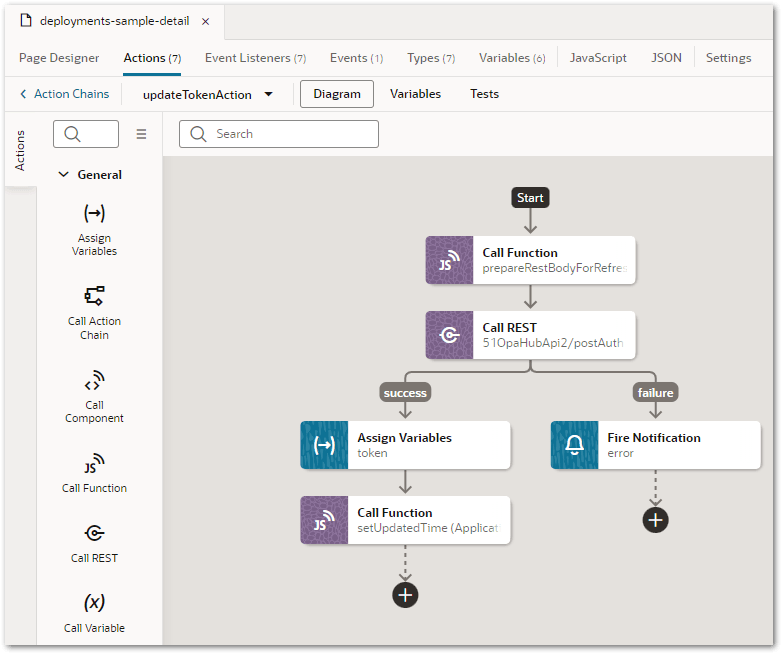
That action could trigger another action (for example, updateTokenAction) which assigns the latest renewed token to the token variable.
For more information, see Security for Web Apps.
-
Make any further configurations to the Intelligent Advisor flow component as required. See:
-
Expose Custom Data Actions In an Intelligent Advisor Flow In a Visual Builder Application
-
Seed Global Input In an Intelligent Advisor Flow In a Visual Builder Application
-
Define the Flow Completion Action In an Intelligent Advisor Flow In a Visual Builder Application
-
Segment an Intelligent Advisor flow into stages in a Visual Builder application
-
Configure the Save Behavior In an Intelligent Advisor Flow In a Visual Builder Application
-
Use an Intelligent Advisor Flow In a Visual Builder Application Offline
-
Customize the Look of an Intelligent Advisor Flow In a Visual Builder Application
-
Create a Custom Control In an Intelligent Advisor Flow In a Visual Builder Application
-
-
Test the Intelligent Advisor flow in the Visual Builder application. You can do this by clicking the Preview button on the Visual Builder toolbar. The application should open in a new browser window with the Intelligent Advisor flow displaying on the appropriate page.