Create a New Attribute In Policy Modeling
You can also manually create attributes in Policy Modeling. This is useful when you want to collect the value of an attribute in an interview (regardless of rules), or when you want to set up a data mapping before writing any rules. To create an attribute manually in Policy Modeling:
- On the Data tab, click the New Attribute button.
- In the New Attribute dialog:
- Enter the attribute text in the field provided.
- Check that the attribute has automatically been assigned to the correct entity by viewing the value in the Entity field. (The attribute is automatically assigned to a particular entity if it contains the text of the entity.) If you want to override the automatic entity assignment, select a new entity in the Entity field.
- Review the sentence forms that have been automatically generated.
- Check the type of attribute that has been automatically determined. If necessary, select a different type from the Attribute drop-down list.
- (Optional) Specify input validation using the Input validation drop-down window.
- (Optional) Specify a default value using the Default to field. (If no default is specified the default behavior is to allow the attribute to be unknown.)
- (Optional) Specify data mappings for the attribute, using:
- the Click to select Data Mapping source link, or
- if a data mapping connection has already been set up for the project, the Mapped in and Mapped out drop-down lists.
- (Optional) Select the option to Save an audit report for this attribute. If this option is selected, an audit report will be generated for the attribute if its value is known. Note that this option is only available for policy models that have a connection to another application.
- (Optional) Select the option to Seed from URL parameter. Note that this option is only available for policy models that have not been mapped.
- (Optional) Enter a name for the attribute in the field provided. Names are brief identifiers used for substitution on screens and forms and with external applications. Names should be assigned to all attributes that the application needs to access. This includes all input attributes and all goal attributes, as well as any important intermediate attributes. Note: If you wish to define a custom control for an input attribute, you must assign a name to that attribute or the custom control will not work.
- (Optional) Select the Substitution option. Substitution enables the text of a non-Boolean attribute to be replaced with its actual value when it is used in another attribute in the policy model.
- (Optional) Select a gender attribute from the drop-down list provided.
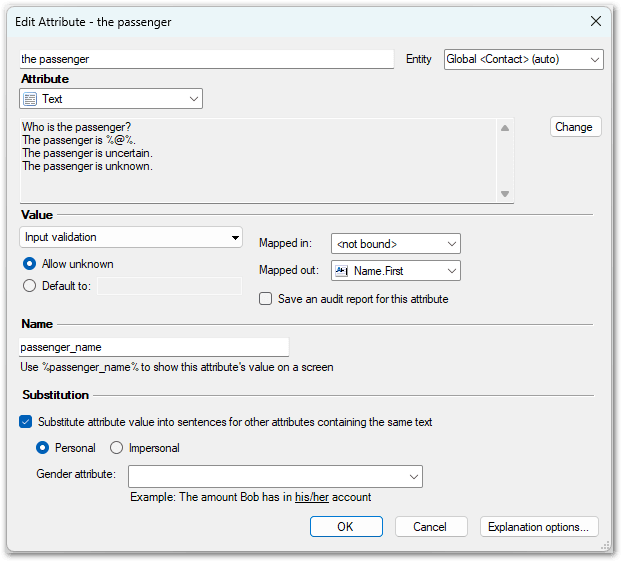
- Click OK to create your attribute.
It is also possible to create new attributes in the Input and Output Mapping views on the Data tab. For more information, see: