Insert Entity-Level Attributes Into an RTF Form Template
For entity-level form templates, you can insert attributes for that entity into the form in the standard way. That is, in the same way that you insert global attributes into a global form template as explained in Insert an Attribute Into an RTF Form Template.
When you want to insert attributes into a form that are at an entity-level lower than the form template (for example, inserting attributes for a child entity into a global form template), you need to need to manually create an entity group as explained below. (Alternatively, if you are familiar with developing Analytics Publisher templates, you can create a Repeating Group. Note that you need to select the Absolute Path check box in the Properties settings for the Repeating Group when inserting entity-level information into a form in this way.)
Note: Non-global entities, as well as any entity-level attributes, that are to be included in a form need to have a name defined in Policy Modeling.
To manually create an entity group in your template you need to:
- Create a For Each data field. This tells Analytics Publisher that you want the group of fields repeated for each instance of the entity. To do this:
- Insert a field.
- Double-click on the field to open the Oracle Analytics Publisher Properties dialog box. (If double-clicking the field does not open the dialog, re-load your XML.)
- Click on the Advanced tab. Enter the code that defines which entity the group belongs to, that is,
<?for-each:list-.entity_name/entity_name?>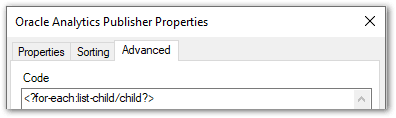
- Click on the Properties tab. Enter suitable text in the Text to display field. (This may be a copy of the code used on the Advanced tab, or it could be simply 'for-each' or 'F'.) You do this so that it is clear when looking at the template what the field represents (without having to open up the Properties dialog for the field).
- Click OK.
- Insert a field.
- Insert the required entity-level attribute fields. These can be added in the same way as global attribute values and properties. See Insert an attribute into a form for more information.
- Create an End data field. This denotes the end of the information to be repeated. To do this:
- Insert a field.
- Double-click on the field to open the Oracle Analytics Publisher Properties dialog box.
- Click on the Advanced tab. Enter the code for the end of the For Each group, that is,
<?end for-each?>.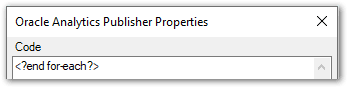
- Click on the Properties tab. Enter suitable text in the Text to display field. (This may be a copy of the code used on the Advanced tab, or it could be simply 'end' or 'E'.)
- Click OK.
An example of an entity group inserted into a template is:

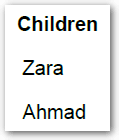
The resulting form when this attribute value is known would look like this:
Tip: Sometimes having the full display text for the "for each" fields at the start and end of the rows can upset the formatting of your table. If so, replace the full display text with an abbreviation (for example, "F" for the <?for-each:list-entity_name/ field, and "E" for the entity_name?><?end for-each?> field ).
Entity-level attributes can be displayed in several different ways:
- Group information by entity
- Group information by attribute
- Display entity information in table form
- Display entity information in table form alphabetically
Group information by entity
To have information grouped by entity, put the For Each field around the whole group of attribute values/properties in your template document. For example:
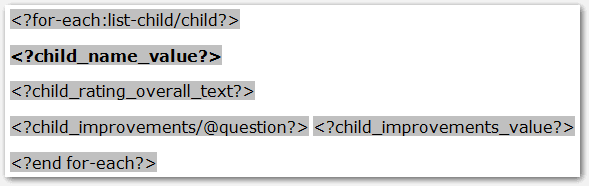
The resulting form when this attribute values are known would look like this:
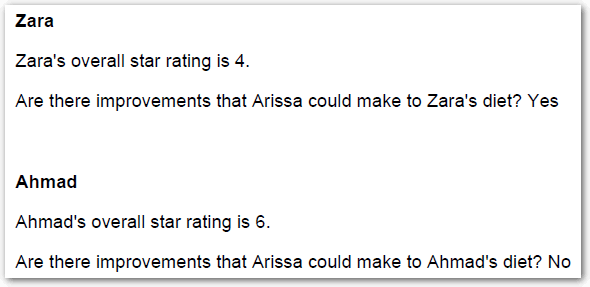
Tip: Information grouped by entities in forms are demonstrated in the Healthy Eating example project installed with Policy Modeling.
Group information by attribute
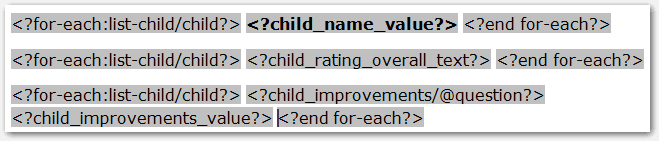
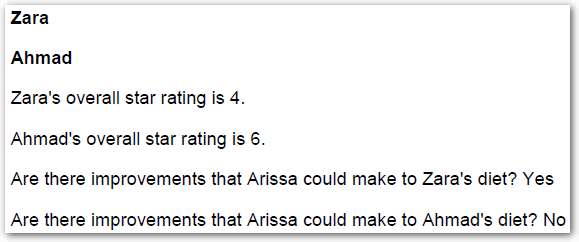
To have information grouped by attribute, put a For Each field around each individual attribute value/property in your template document. For example:
The resulting form when this attribute values are known would look like this:
Display entity information in table form
To display entity-level attributes in table form, the first cell in the row needs to start with the For Each field, and the last cell in the same row needs to end with the End field (with the entity-level attribute fields in between). For example:

The resulting form when this attribute values are known would look like this:

Tip: Sometimes having the full display text for the "for each" fields at the start and end of the rows can upset the formatting of your table. If so, replace the full display text with an abbreviation (for example, "F" for the <?for-each:list-entity_name/ field, and "E" for the entity_name?><?end for-each?> field ). Entity information displayed in a table in a form is demonstrated in the myBenefits example projects installed with Policy Modeling.
Display entity information in table form alphabetically
To display entity-level attributes in table form sorted alphabetically by entity value, follow the directions above but add a Sort element to the opening For Each field. The Sort element should be formatted as follows:
<?sort:
entity_name_value;'ascending';data-type='text'?>
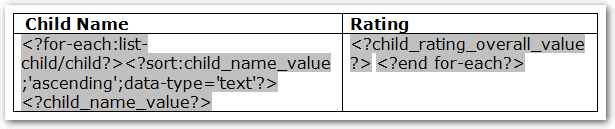
The resulting form when this attribute values are known would look like this:
