Insert an Attribute Into an RTF Form Template
The following information about attributes can be included in an RTF form template:
- attribute values (either formatted or unformatted for the project region)
- attribute text
- attribute question text
- attribute type
- inferred attribute values
- entity-level attribute values
Note: Attributes that are to be included in a form need to have a name defined in Policy Modeling. If not a global attribute, the parent entity must also have a name.
To include attributes in forms, you add fields to your template. To do this:
- In your template in Word, put your cursor in the place where you would like to the attribute to appear.
- Click the Field button on the Publisher ribbon.
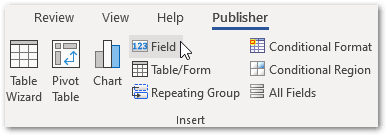
- In the Field dialog box, select the field that you want to insert.
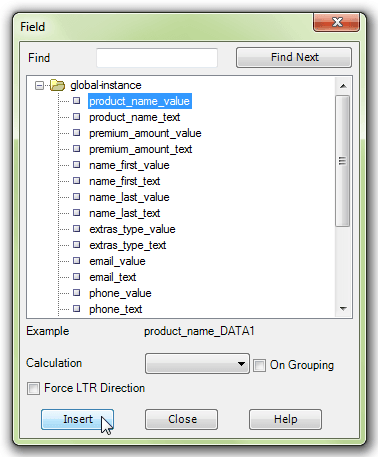
- Click Insert. (Alternatively, you can select a field in the Field dialog and drag and drop it to the desired location in your template.)
- Click Close.
An example of attribute value fields inserted into a template is:

The resulting form when these attribute values are known would look like this:

Note: For attribute values (formatted for the project region) and attribute text this is all you need to do. For all other information about attributes (that is, for unformatted attribute values, attribute question text, attribute type, inferred attributes values and entity-level attribute values) you need to insert a field for the relevant attribute and then modify the code for the field (see below).
The code for all fields, other than attribute values (formatted) and attribute text, must be modified.
- Double-click on the field in the template to open the Oracle Analytics Publisher Properties dialog box. (If double-clicking the field does not open the dialog, re-load your XML.)
- Click on the Advanced tab.
- Modify the code here to point to the property of the attribute that you want to be displayed. For the format required for the various attribute fields, see Analytics Publisher Code for Policy Modeling. For example, if you wanted to display an unformatted date value, you would enter the code
<?attribute_name/value?>.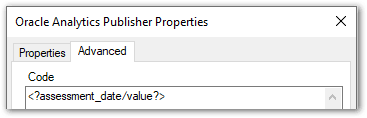
- Click the Properties tab.
- Enter suitable text in the Text to display field. (This may be a copy of the code used on the Advanced tab.) You do this so that it is clear when looking at the template what the field represents (without having to open up the Properties dialog for the field).
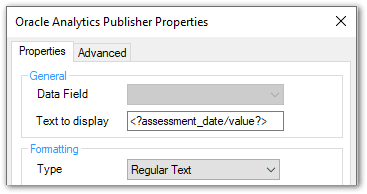
- Click OK.
An example of attribute value fields inserted into a template is:

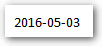
The resulting form when this attribute value is known would look like this:
Note: The Analytics Publisher code is case-sensitive.
Tip: The Healthy Eating example policy model that is installed with Policy Modeling, contains a Raw Template Example RTF file that you can use to copy and paste the code from for various fields. You just need to replace the attribute identifier (that is, attribute name) in the code, and update the display text as necessary.