Create a Behavior
The Create Behavior page lets you define a new custom behavior by specifying its details, configuring the logic that identifies the occurrence of the behavior, and associating relevant attributes.
The primary use of behaviors and behavior attributes is to use them in the rules that trigger entry into a tactic and for identifying tactic success criteria. Here's how to create a behavior:
- Sign in to Oracle Fusion Cloud Applications with a user account that has the required Behaviors access.
- Go to .
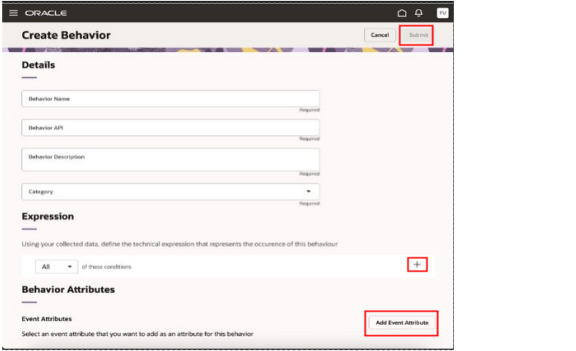
- Select Create from the Behaviors list page and the
Create Behavior screen is displayed as
follows:
-
Enter basic details about the behavior such as a user-friendly name and a brief description that explains what event or action is being captured.
The Behavior API is automatically generated by the application based on the Behavior name you entered.
The application converts the Behavior name into camelCase format and a suffix_cis appended to indicate that it's a custom behavior.Example:
- Behavior Name: Download File
- Generated API Name:
downloadFile_c
You can change the generated API name if needed. However:
- The
_csuffix can't be removed - The API name must be unique across all behaviorsNote: Ensure the API name follows naming conventions and doesn't conflict with existing behaviors.
- Select a Category for the behavior from one of the values in the drop-down list such as Commerce, Email, Content, Automations, and so on.
- From the Expression section, define the rules used to
identify when a behavior occurs. You can capture an expression as follows:
- Select the + icon within the expression dialog.
- Choose a parameter from the list of available named parameters.
- Select an operator and enter the value needed for the condition.
- Specify whether all conditions must be met (All) or if meeting any single condition (Any) is enough.
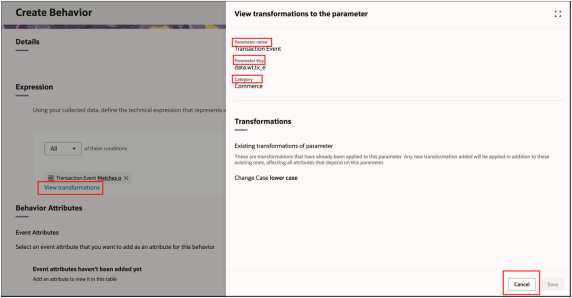
- Select View transformations to view transformations
applied to a parameter used in the behavior logic. A side panel opens,
displaying details of the selected parameter.
 Remember:
- Transformations affect how parameter values are processed and matched in expressions
- Any new transformation added will be applied in addition to existing transformations
- Changes to transformations might impact:
- Behavior triggering logic
- Data consistency
- Downstream processing
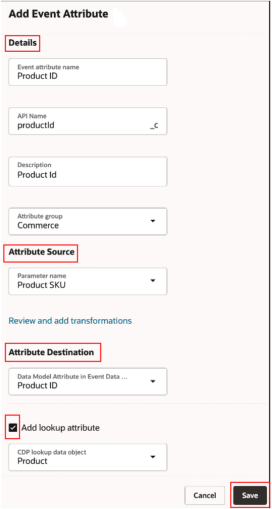
- Select Add Event Attribute to open a side panel where
basic details of the attribute can be provided such as:
-
Basic details
-
Event attribute source defines where the attribute value is sourced from
-
Attribute destination defines where the attribute is mapped in the data model
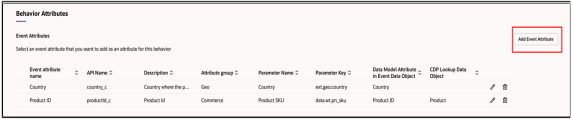
You add event attributes to capture relevant data points and appear in the table as follows immediately after being saved.
-
- Optionally, enable the Add Lookup Attribute checkbox to
enrich data from Fusion Unity Data Platform (UDP) objects.
Other attributes stored in UDP data objects can be added to the behavior. For example, if a customer identifier is collected on the occurrence of the behavior, the ID can be used to look up the customer’s first name or email address. These extra attributes are valuable for personalization.
- Select Save to add the event attribute and optional lookup attributes to the behavior.
- Select Submit when you're ready to create the
behavior.Note: The Submit button is enabled only after all required fields are completed.