Edit a Behavior
You can change an existing behavior configuration by selecting the behavior name from the Behaviors list page and select Edit. Then, based on your permissions, you'll see a screen similar to the following.
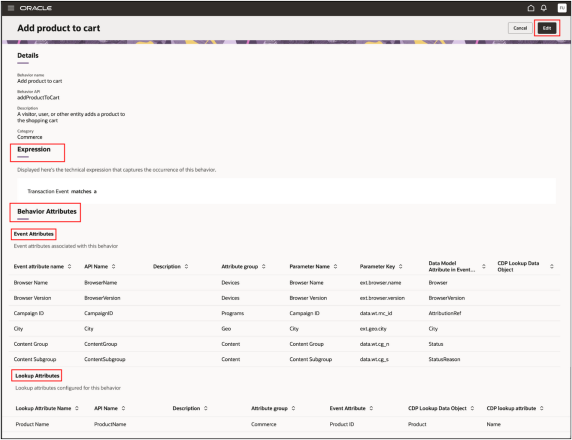
If the behavior is standard, then the UI might be read-only and won't allow updates. If it's a custom behavior and you've the necessary privileges, then you can select Update after making any changes.
From the Behavior Attributes section, the Event Attributes represent the data captured directly at the time of the event while the optional Lookup Attributes provide enriched data by referencing related Fusion Unity Data Platform data objects.
This table briefly describes the event attributes:
| Column Name | Description |
|---|---|
| Event attribute name | User-friendly name of the event attribute |
| API Name | Internal identifier |
| Description | More details about the event attribute, if available |
| Attribute group | Logical attribute grouping such as:
|
| Parameter Name | Name used for mapping. |
| Parameter Key | Key used in event payloads such as
ext.browser.name |
| Data Model Attribute in Event Data Object | Mapping to internal data model |
| CDP Lookup Data Object | Associated lookup object (if applicable) |
This table briefly describes the lookup attributes:
| Column Name | Description |
|---|---|
| Lookup attribute name | User-friendly name of the lookup event attribute |
| API Name | Internal identifier |
| Description | More details about the event attribute, if available |
| Attribute group | Logical lookup attribute grouping such as Commerce. |
| Event attribute | Source attribute used for lookup, such as Product ID. |
| CDP Data Object | Target object used for lookup, such as Product. |
| CDP Lookup Attribute | Attribute retrieved from the lookup object, such as Name |
Adding Lookup Attributes
When you add event attributes while creating a behavior you can optionally configure lookup attributes for data enrichment.
The Lookup Attributes section isn't visible by default. The section appears dynamically only after adding at least one event attribute and when the Add lookup attribute checkbox is enabled. You must also have selected a CDP Lookup Data Object object to have the Lookup Attribute section available for the behavior.
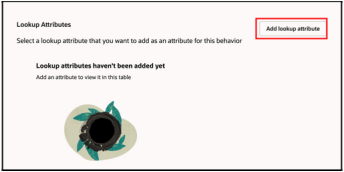
- Select Add lookup attribute.
- A configuration panel (similar to Event Attribute panel) will open.
- Define the lookup attribute details.