Create a Connection for Data Augmentation Scripts
As a functional administrator, create a connection to create a data source to the data warehouse.
- In Oracle NetSuite Analytics Warehouse Console, click Data Configuration under Application Administration.
- On the Data Configuration page, click Manage Connections under Configurations.
- On the Manage Connections page, click Create and then click Connection.
- In Create Connection:
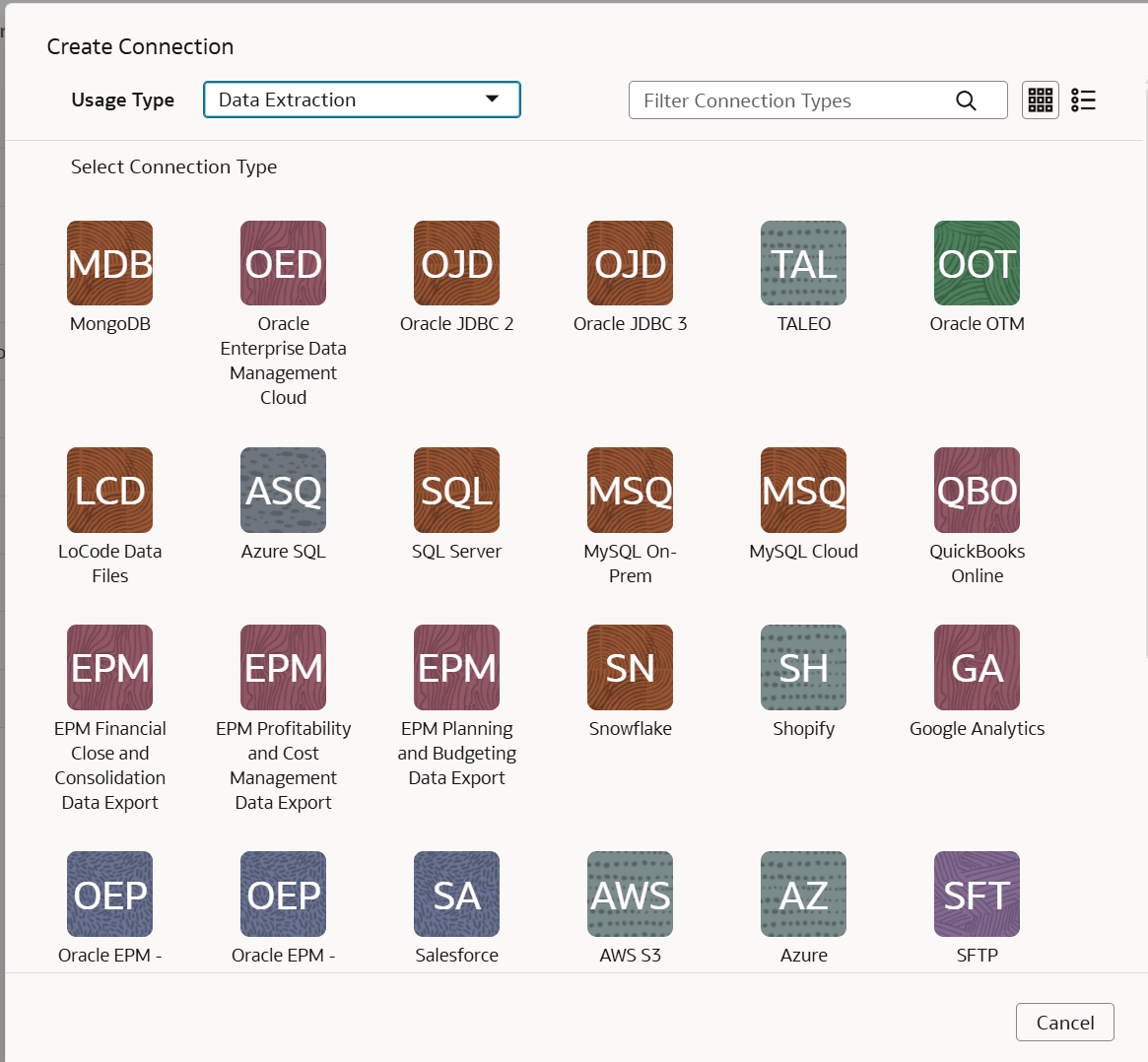
- For Usage Type, select Data Extraction.
- For Select Connection Type, select LoCode Data Files.These are your sample Data Augmentation data files to help you get started. You can select a different connection to extract data for the data warehouse.
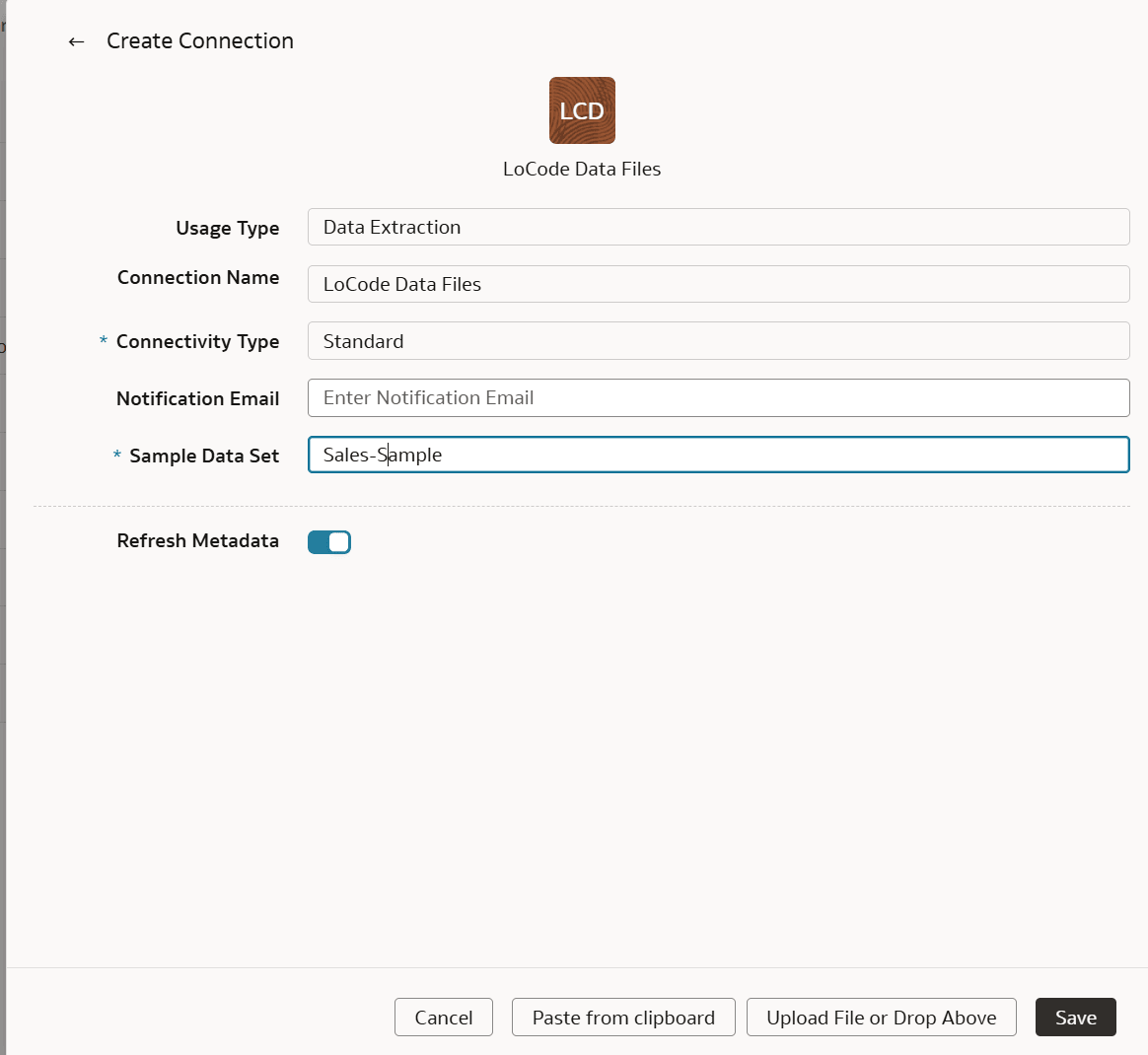
- In Create Connection:
- (Optional) Enter a Notification Email to receive notifications.
- Enter a Sample Data Set. Example:
Sales-Sample.The source data files provide sample data sets, such as Sales, Customers, that you can use for Data Augmentation Scripts (DAS). - Enable Refresh Metadata to ensure that the metadata is refreshed when you save the connection.You can later refresh the metadata from the Actions menu on the Manage Connections page, if required.
Note:
You can’t create augmentations for the Data Augmentation Scripts (DAS) application unless you perform a metadata extract. - Click Save.
After the connection is created, you can view the source data files under Connections on the Manage Connections page.After your connection is created, you can create a custom data pipeline with Data Augmentation Scripts (DAS). See Create a Data Augmentation Scripts Application.