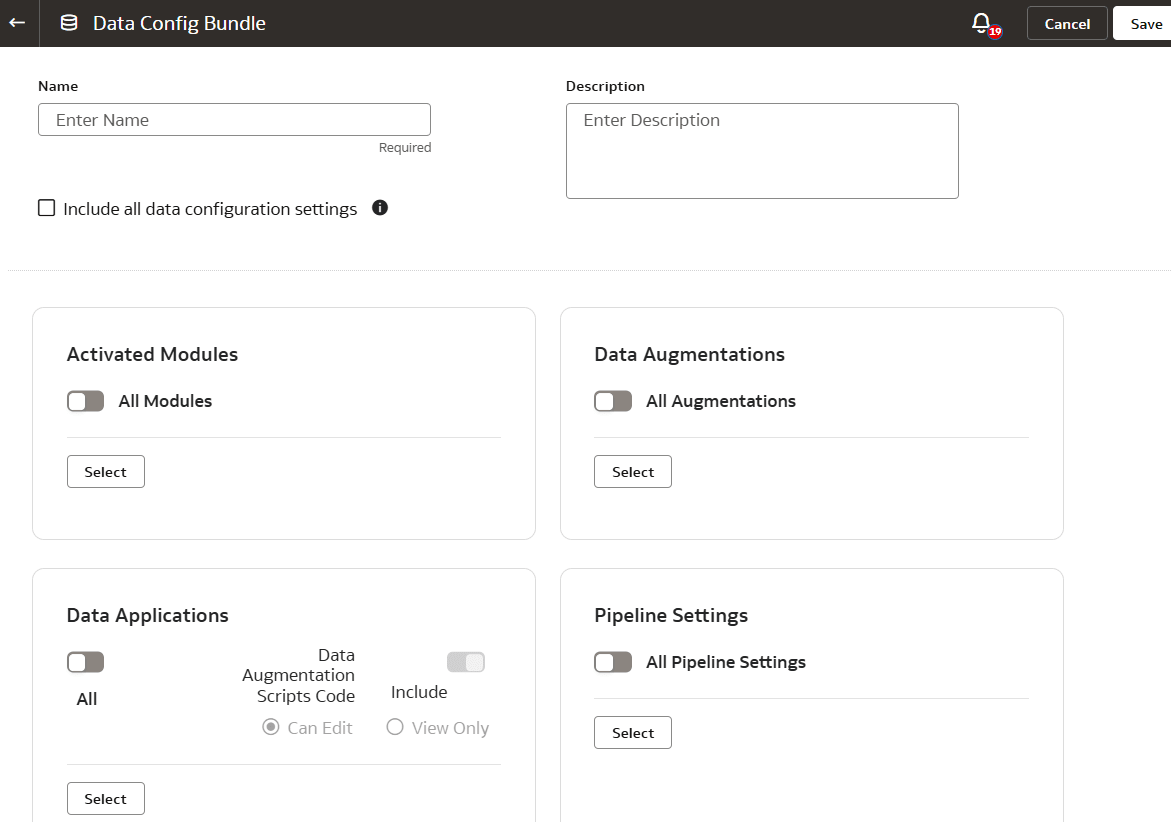
Create a Data Config Bundle
Create a snapshot of your application artifacts to save their current state. You can view the bundles that you created on the Bundles page.
- For a data configuration bundle, select the Include all data configuration settings check box, or select the applicable modules, augmentations, data applications, and pipeline settings using the corresponding toggles and Select buttons.
Note:
The Include all data configuration settings selects only the deployed data applications, the activated data augmentations, and the activated functional areas. After activating the data augmentation and functional area (Activation Completed status), you may experience a slight delay in viewing the data augmentations and functional areas with Activation Completed status on the data configuration bundle page.If you've enabled the Data Share capability, you can select the Data Share configuration in the Data Config bundle under Pipeline Settings. When you deploy a bundle with data share configuration, the deploy process updates the data share definition with the datasets from the bundle and keeps them in a saved state which is in “Not Shared” status. You must explicitly perform the Share action to share these datasets with the relevant sinks. If the data share target has some definition such as D1(with connection C1), D2(with connection C2) and if the bundle brings in definitions D1(with connection C2), D2(with connection C3), D3(with connection C1), D4(with connection C1), then the system adds new datasets, D3(with connection C1) and D4(with connection C1) while retaining the existing definitions in the target environment.Note:
When deploying bundles that have Data Share configurations, ensure that the data share connections in the target environment have the same “Connection Code” to avoid bundle deployment failure.If you've created and deployed Data Augmentation Scripts data application, you can select the Exclude LoCode Configuration check box to not include this configuration in the Data Config bundle.