Create a Semantic Model Bundle
Create a snapshot of your semantic models to save their current state.
- Sign in to your service.
- In Oracle NetSuite Analytics Warehouse Console, click Bundles under Application Administration.
- On the Bundles page, click Create.
- In Create Bundles, select Semantic Model Bundle.
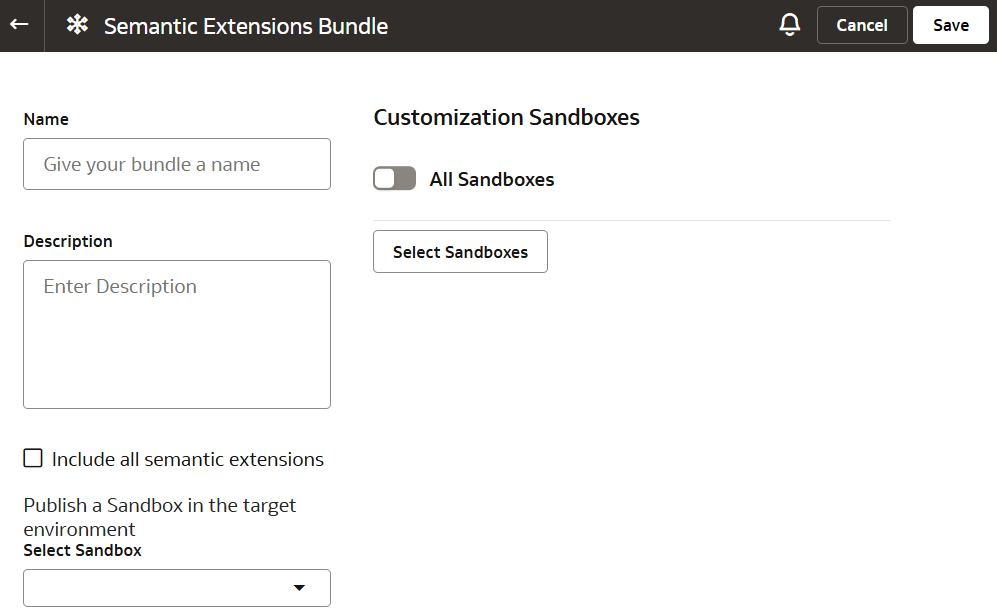
- Enter a name and description for your bundle.
- Depending on the type of bundle, select the applicable option.
- For a Sandbox Semantic Extensions Bundle, you can select:
- Include all semantic extensions: Select Include all semantic extensions to deploy and publish all semantic model components. Note that if you select Include All Semantic Extensions or All Sandboxes, or any custom sandbox, you must also select a specific sandbox for publishing.
- Customization sandboxes: Use the All Sandboxes toggle to select all or specific sandboxes for deployment to non-Production instances. Selecting any custom sandbox automatically includes the main sandbox.
- Sandbox to publish: Use the drop-down to choose the specific sandbox to publish.
Selection Rules:
- Selecting a customization Sandbox automatically includes the Main Sandbox for deployment.
- To make a sandbox available for publishing, you must first apply changes to the sandbox.
- Any sandboxes selected to be published will also be deployed.
- If you select Include All Semantic Extensions or select a customization Sandbox, you must also specify a Sandbox to be published.
- Unchecking All Sandboxes will retain the selection of Publish a Sandbox that was previously chosen.
- For a Branch Semantic Extensions Bundle, you can select:
- Include all semantic extensions: Select Include all semantic extensions to deploy and publish all semantic model components. Note that if you select Include All Semantic Extensions or All Branches, or any custom branch, you must also select a specific branch for publishing.
- Main branch tags: Use the All Tags toggle to select all or specific tags to deploy.
- Customization branches: Use the All Branches toggle to select all or specific branches for deployment to non-Production instances. Selecting any custom branch automatically includes the main branch.
- Tag or branch selection: Use the drop-down to choose the specific tag or branch to publish.
- If you have tagged a step in your branch, you must select the applicable branch or tag in the Publish a branch or tag in the target environment drop-down or select your applicable tags and branches. See Tag the Main Branch's Steps.
- For a Sandbox Semantic Extensions Bundle, you can select:
- Click Save.