Set up Netsuite Account Analysis
Set up the Netsuite Account Analysis data application to create the NetSuite Account Analysis or Netsuite Account Analysis Insights subject area or both and later build the account analysis reports in Oracle NetSuite Analytics Warehouse.
After selecting and saving the applicable attributes for account analysis, you must publish the account analysis to activate it. If you're an existing user of Netsuite Account Analysis, the system creates two subject areas, namely Netsuite Account Analysis and Netsuite Account Analysis Insights. If you're a new user, the system creates the Netsuite Account Analysis Insights subject area. Recommendation for the existing users is to start using the Netsuite Account Analysis Insights subject area because the Netsuite Account Analysis subject area is planned for deprecation in a future release.
NetSuite Account Analysis is built on top of existing transaction functional areas, hence, you must activate all the required base functional areas needed for performing account analysis-based reporting. See Prerequisites for Setting up Netsuite Account Analysis.
- Certain columns are mandatory for the account analysis report, hence these columns are selected by default and you can't deselect them.
- Certain columns are recommended and selected by default but you can deselect them based on your requirements for the account analysis reports.
- Certain columns are optional and you can select them based on your requirements for the account analysis reports.
- Certain columns are custom attributes and custom transactions-related. They're available for selection if you've completed the prerequisite task. See Prerequisites for Setting up Netsuite Account Analysis. After completing the prerequisite task, you must select the Include custom transaction applicable for Account Analysis check box to have the columns from custom transactions available for selection.
After creating and publishing the custom account analysis subject area, you can create the account analysis reports based on your business requirements. If you change any of the underlying objects specific to the prebuilt base functional areas listed previously or the Custom Attribute Mapper (CAM) extension, you must republish the NetSuite Account Analysis data application.
- On the Netsuite Account Analysis page, select fields from the NetSuite transaction that you want to include for analysis and then click Save and Exit.
Note:
In addition to these fields, all standard dimensions like Customer and Item, are included. You can change these later as well.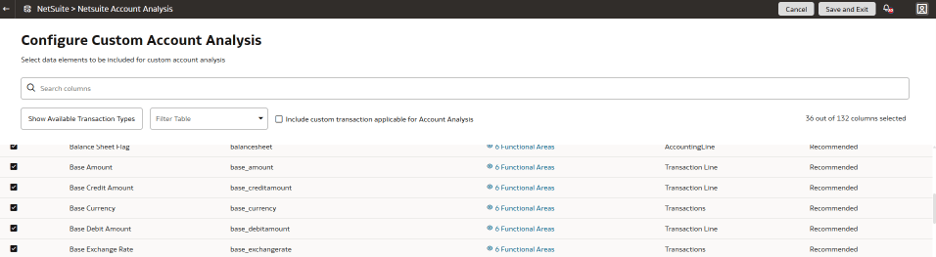
- On the Data Applications page, click Actions for the Netsuite Account Analysis data application that you created, and then click Publish to deploy the Netsuite Account Analysis data application with the selected attributes.

- Monitor the status on the Request History page under Activity History on the Data Configuration page. It will take some time to run.

- In Search, enter “Account Analysis”.
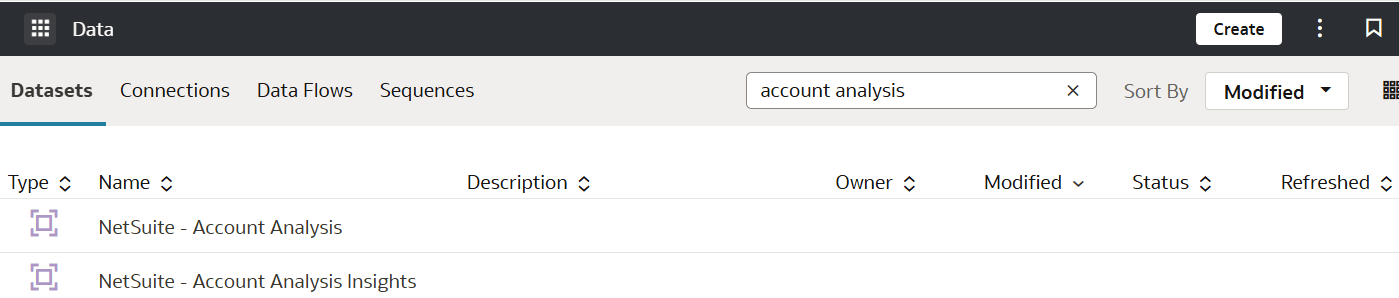
You see NetSuite – Account Analysis Insights and NetSuite – Account Analysis. You must use "NetSuite – Account Analysis Insights" and not "NetSuite – Account Analysis”. NetSuite – Account Analysis is an older version that is planned for deprecation in a future release.
- Edit
- Deactivate
- Refresh Data
- Reload Data
- Undeploy
- Delete