Configuring and Generating the File Ready Report - California
To use the File Ready Report - California, you must configure the report. The consolidated tax-relevant transaction information is generated in the report summary.
To configure and generate the File Ready Report - California:
-
Go to Reports > Tax > US Sales Tax Reports.
-
On the US Sales Tax Reports page, from the Reports list, select File Ready Report - California.
Note:The fields in the report are not editable.
-
Click Next.
-
On the Country Tax Reports page, do the following:
-
From the Subsidiary list, select the required subsidiary.
-
From the Nexus list, select the required nexus.
-
From the Report Name list, select File Ready Report - California.
Note:If you don't see File Ready Report - California in the Report Names list, check the country for the selected subsidiary or nexus. This report is only available when the subsidiary or nexus's country is set to United States. For more information, see Prerequisites.
-
From the Start Period list, select the start period for the report.
-
From the End Period list, select the end period for the report.
-
-
Click Generate.
-
On the Country Tax Report page, click View to open the generated report.
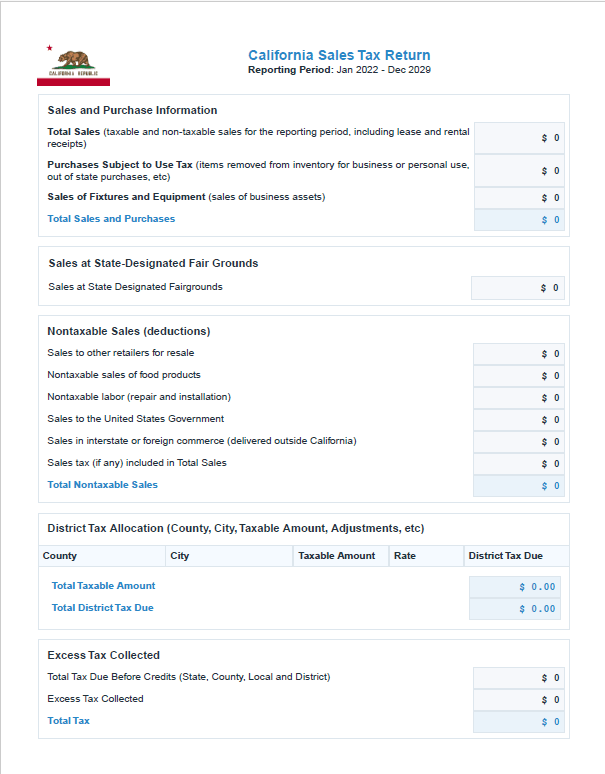
The generated report summary opens. You can download the report in PDF file format from. Click an amount to view the drill down of the calculations.
Following is a sample report summary of the File Ready Report - California