Running the SuiteTax Compatibility Check
Use the SuiteTax Compatibility Check feature to identify installed bundles, SuiteApps, and your own customizations that may be affected when you migrate from Legacy Tax to SuiteTax. The check is read-only: it reports potential compatibility issues without changing your account configuration.
Before you Begin
-
Use the Administrator role. Only Administrators can access and run the check.
-
Run the check before enabling SuiteTax to establish a baseline, then run it again after remediation to verify your work.
-
Plan to validate findings in a sandbox or user acceptance testing environment before enabling SuiteTax in production.
This check is available for all OneWorld Legacy Tax accounts. It isn't available after SuiteTax is enabled. The check doesn't evaluate every account area, such as custom forms, integrations, CSV import definitions, SuiteAnalytics Workbooks, saved reports, e-commerce customizations, or role and permission configuration.
Run and review the compatibility check
-
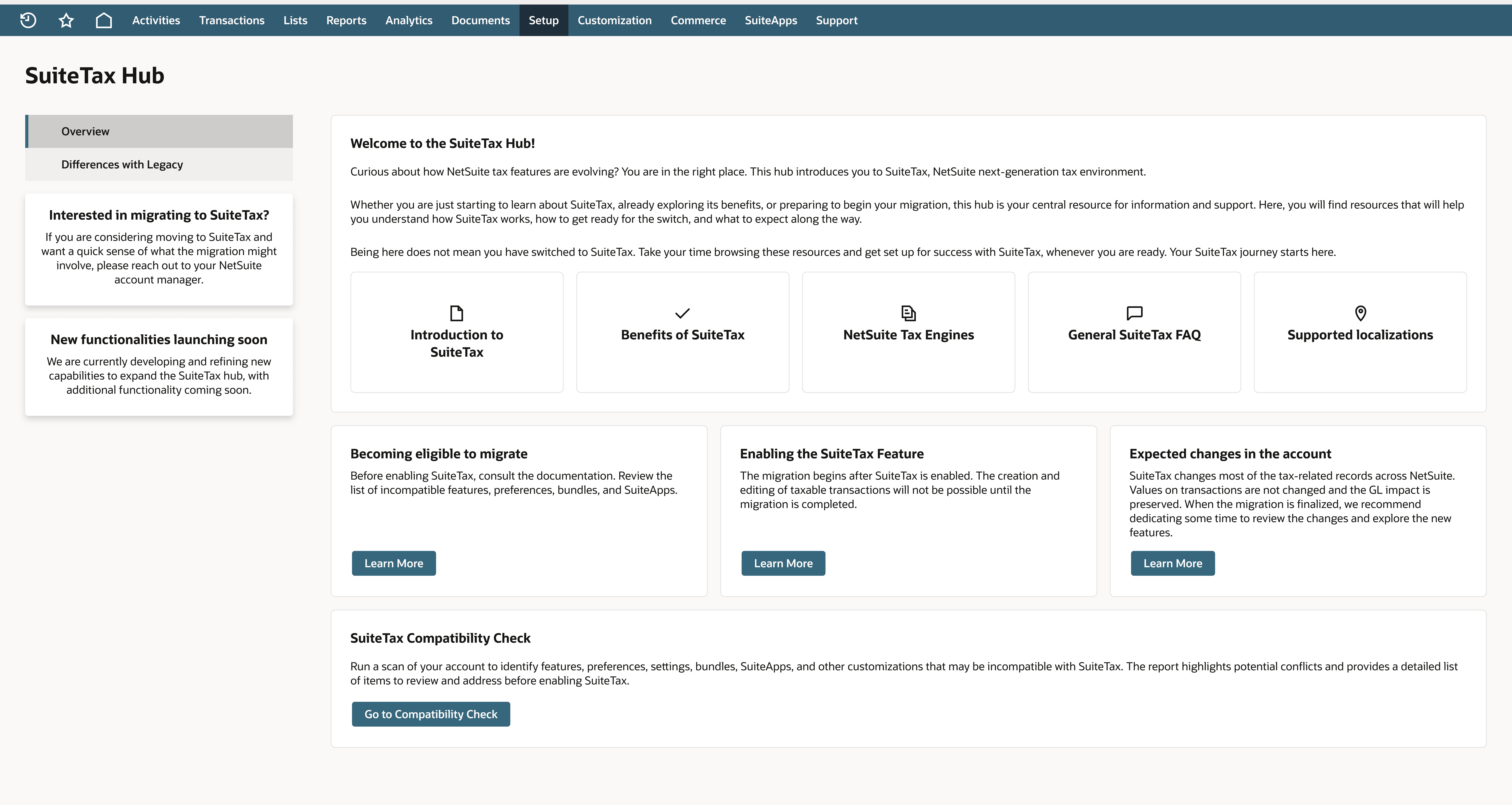
Open SuiteTax Compatibility Check. Using the Administrator role, go to Setup > Accounting > SuiteTax Hub. Then, go to the Overview page and on the SuiteTax Compatibility Check tile, select Go to Compatibility Check.
-
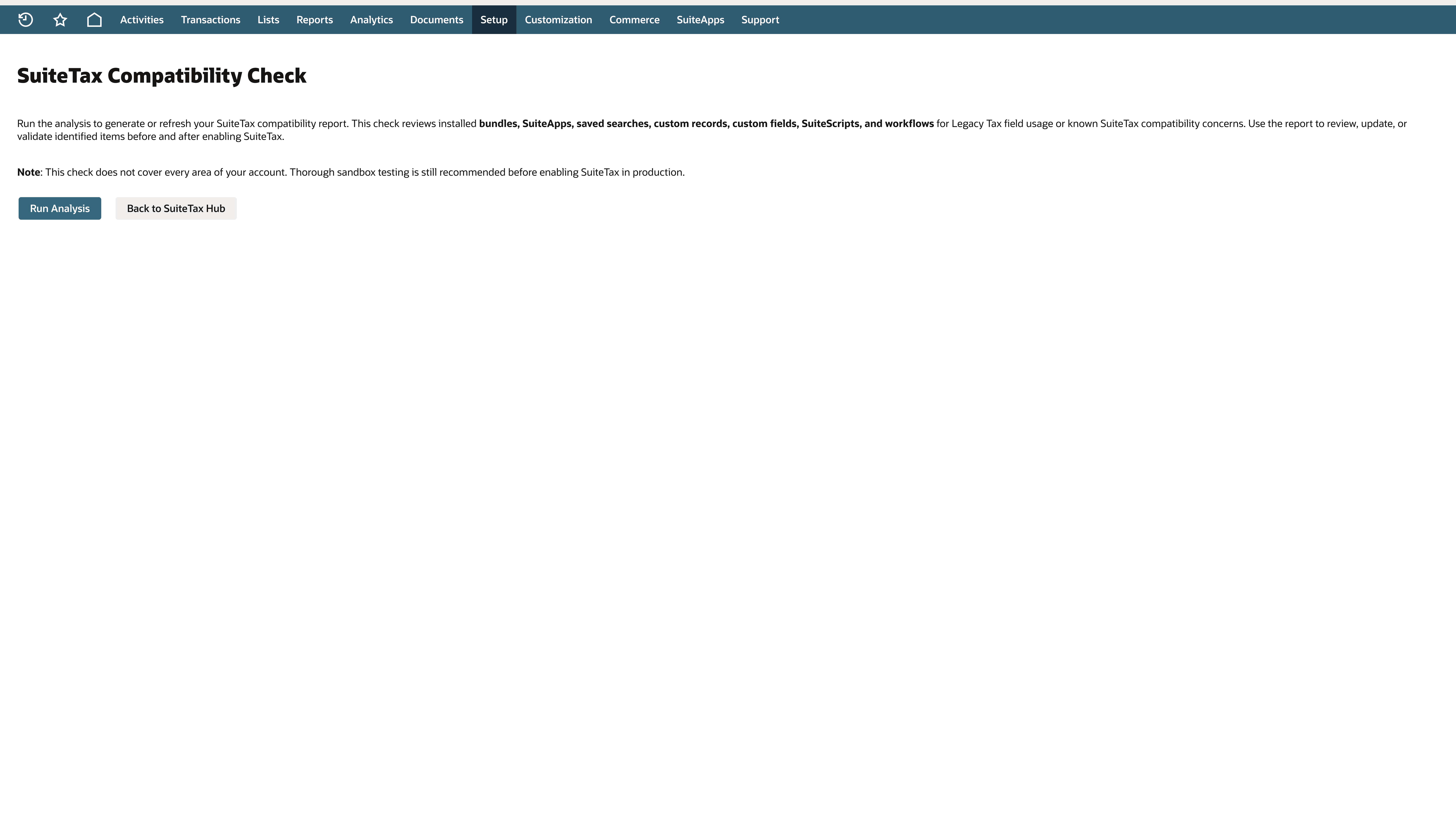
Start the analysis.
-
Click Run Analysis.
-
If a compatibility report already exists, you can first review the existing report, and then click Confirm to start a new analysis. Click Cancel if you don't want to run a new analysis.
-
Wait for the analysis to finish. Keep the page open or navigate away as needed. The account-wide analysis continues in the background.
Note:If another administrator has already started an analysis, you can't start a new one until the current analysis is completed. Only one analysis can run per account. Run Analysis is disabled while the shared analysis is in progress.
Note:While the analysis runs, you can review the current report if one is displayed. The prior report remains available and doesn't refresh with partial results. It is replaced only after the new analysis is completed.
-
-
Review Bundles & SuiteApps. After the analysis completes, review the Bundles & SuiteApps tab first. Use the status summary cards to focus on the highest-risk solutions.
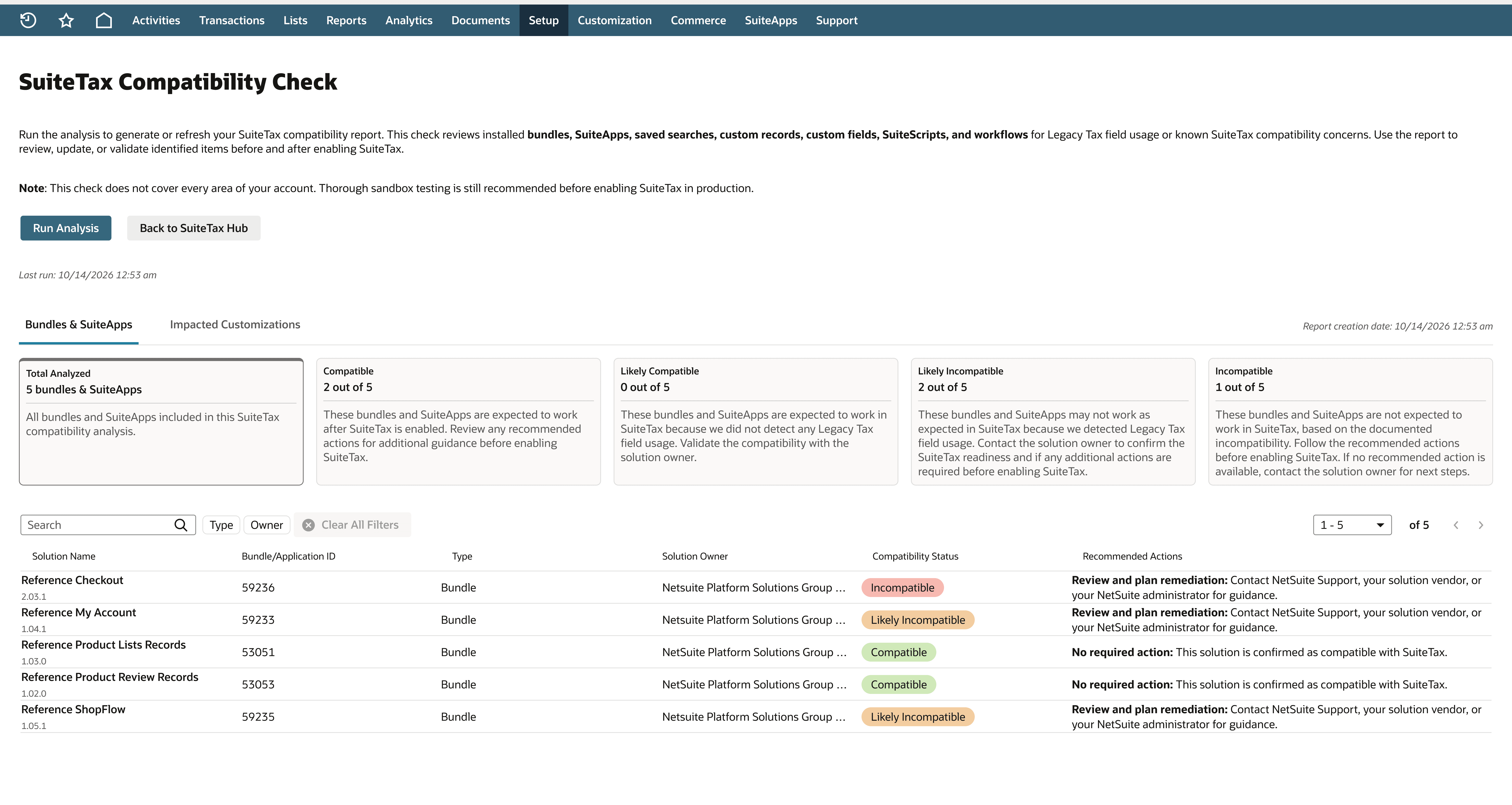
Compatibility Status
Recommended Actions
Incompatible
Treat the solution as not expected to work with SuiteTax. Follow Recommended Actions. If none is provided, contact the solution owner before production migration.
Note:A solution owner can be NetSuite, a partner, or it can be your own solution. If NetSuite is the owner, contact NetSuite customer support. If it's a partner, contact the partner who owns the solution. If it's your own solution, contact your account administrator.
Likely Incompatible
Treat the solution as at risk because Legacy Tax field usage was detected. Contact the solution owner and validate or remediate before production migration.
Likely Compatible
Don't treat this as confirmation. No Legacy Tax field usage was detected and no documented compatibility result was found. Confirm readiness with the solution owner and test it.
Compatible
Review Recommended Actions and include the solution in normal migration validation.
-
Click a status summary card to filter the table to that status. Click Total Analyzed to clear the status filter.
-
Use Search, Type, Owner, and Clear All Filters to narrow the table.
-
Sort the table columns and use pagination to review all matching rows.
-
Read Recommended Actions for each affected solution and document the owner, required change, and validation plan.
Note:Prioritize 'Incompatible' and 'Likely Incompatible' findings, and validate all changes in a sandbox or user acceptance testing environment before enabling SuiteTax in production.
-
-
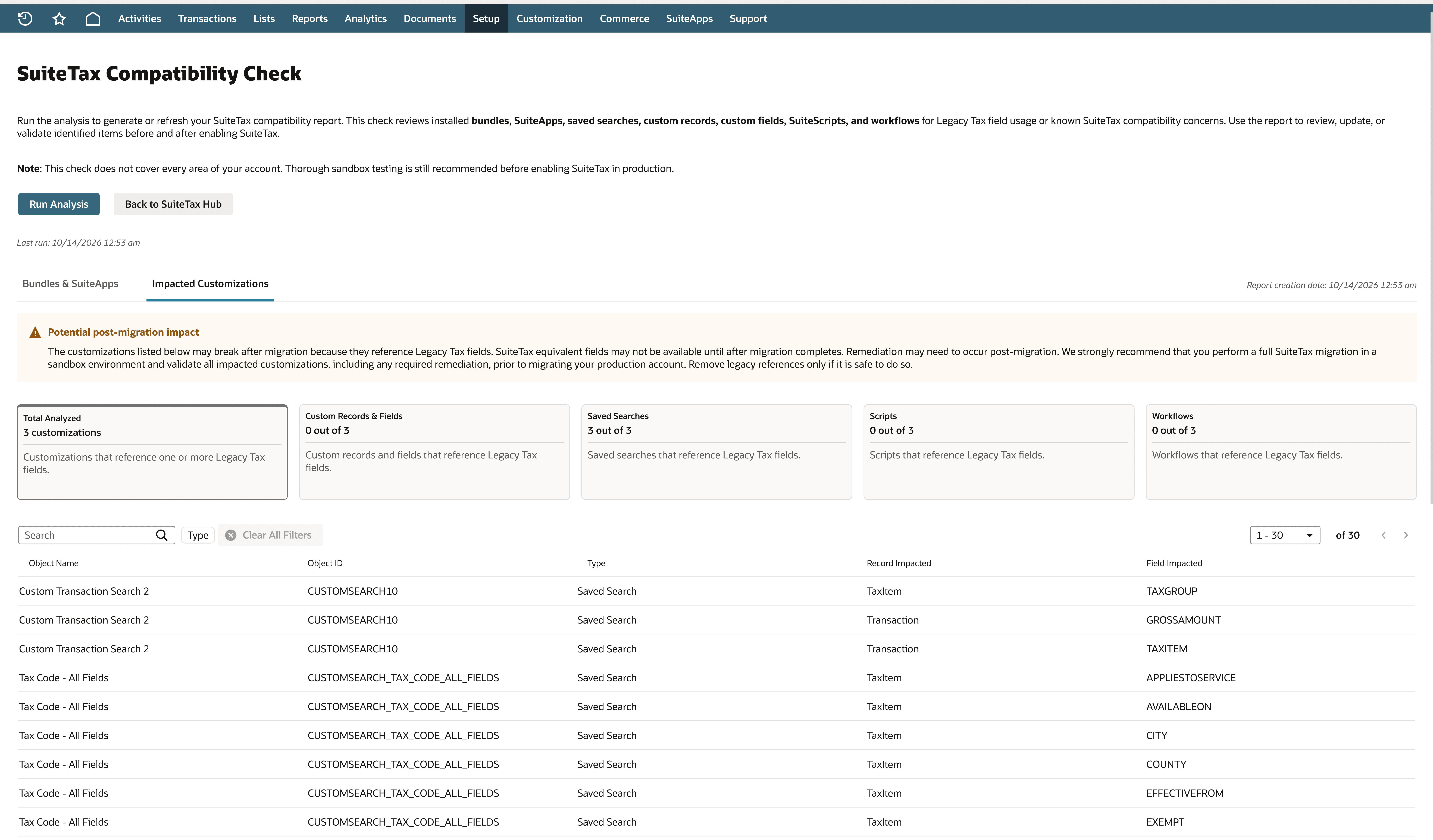
Review Impacted Customizations. Click the Impacted Customizations tab to review your own, stand-alone customizations with detected Legacy Tax field references. The tab can include Custom Records & Fields, Saved Searches, Scripts, and Workflows.
-
Click a type summary card to filter the table. Click Total Analyzed to show all results. Use Search, Type, and Clear All Filters to narrow them.
-
Enter text in Search to locate a specific customization.
-
Review information about the 'Record Impacted' and 'Field Impacted' entries which is available for Saved Searches.
Note:Don't remove Legacy Tax references in your production account until you confirm the change is safe. SuiteTax equivalent fields may not be available until after the migration. Test the changes in a sandbox account and perform user acceptance testing to identify if any remediation is needed after the migration.
-
-
Interpret report timing and exceptions.
-
Check 'Last run' to see when the most recent analysis execution completes. It can represent a successful, empty-findings, or failed execution.
-
Check 'Report creation date' to see when the report currently displayed was generated. This date can be older than 'Last run' if the latest analysis failed.
-
If the analysis finds no applicable data for a tab, treat the empty result as a completed result for that dataset, not a failure.
-
If the analysis fails and a prior report exists, continue using the prior report shown on the page, then click Run Analysis to retry. A failed run doesn't clear the prior report.
-