getTable()
The getTable() function (client-side and server-side) retrieves any product table type: static, CSV, dynamic, and script-generated tables. It can also create a script-generated table. For more information about product tables, see Storing Answer Options in Tables.
Syntax
Use this syntax for the getTable() function:
let productTable = getTable('TABLE_CODE', byName, create);
Parameters
The table code is required.
The getTable() function accepts the following parameters:
-
TABLE_CODE(string) - Specifies the code of the table. You can find the code in the Code field on the table record. -
byName- Iftrue, you can specify the table name instead of the table code as the first parameter. This parameter isfalseby default. -
create- Iftrue,getTable()creates a script-generated table. When creating the table, use the table code as the first parameter. This parameter isfalseby default.
Return Value
The getTable() function returns a table object that provides several methods. You can use these methods to retrieve, update, and import table data, as well as load content from the database.
Table Object Methods
You can retrieve table data using the methods attached to the table object. The following table outlines the methods for the table object and their respective purpose.
|
Method |
Description |
|---|---|
|
|
Retrieves the entire table data as an array of objects. Each object represents a row. |
|
|
Retrieves data for a specific row as an object. Row numbering starts from 1. |
|
|
Retrieves the value from a specific cell, given the row number and column name. |
|
|
Sets or replaces the entire table data using an array of objects. |
|
|
Sets a specific row with the provided data object (column-value pairs). |
|
|
Sets a specific cell in the table, given the row number, column name, and new value. |
|
|
Imports data from an object into a two-column table using key-value mappings. The
It's useful when you want to create a table using data retrieved by the |
|
Note:
This method isn't available for script-generated tables. Loads table content from the database. This method returns a promise that resolves to an object containing the table content. If the Preload static and CSV tables for actions box isn't checked on the product record, use this method to get the content of a static or a CSV table. For dynamic tables, the This method accepts an object as a parameter. The object includes the following optional properties:
After the loading completes, you can retrieve the loaded table data using the |
Examples
The following examples show how to use the getTable() function.
Retrieving Data for a Specific Row
If you only need data from a specific row, you can pass the row number to the get method. This example retrieves the values for the first row.
              let productTable = getTable('ACCESSORIES_TABLE');
let rowData = productTable.get(1);
Retrieving Data From a Specific Cell
To access a single cell, specify both the row number and the column name. This example retrieves the value found in the cell in the third row under the Name column.
              let productTable = getTable('ACCESSORIES_TABLE');
let cellValue = productTable.get(3, 'Name');
Setting Data for the Entire Table
To replace all table data at the same time, pass an array of objects representing rows. In this example, all previous data is overwritten by this new list of row objects.
              let productTable = getTable('CLASS_TABLE');
productTable.set([{
        "ID": "1",
        "Class": "Hardware"
    },
    {
        "ID": "2",
        "Class": "Furniture"
    },
    {
        "ID": "3",
        "Class": "Office"
    }
]);
Setting a Single Row
To update a single row, pass the row number and an object with column values. This example sets 'accessory' to 'Lamp A1000' and 'quantity' to 32 in the first row.
              let productTable = getTable('ACCESSORIES_TABLE');
productTable.set(1, {accessory: 'Lamp A1000', quantity: 32});
Setting a Single Cell
To modify a single cell, specify the row number, column name, and the new value. This example sets the value for the first row under the quantity column to 30.
              let productTable = getTable('ACCESSORIES_TABLE');
productTable.set(1, 'quantity', 30);
Importing an Object as a Table
Suppose you have an object with a set of key-value pairs and you want each pair to become a row in your table. This example creates a table in which each pair from the original object becomes a row, with 'ID' and 'Class' columns.
              let productTable = getTable('CLASS_TABLE');
productTable.importObj({
    "1": "Hardware",
    "2": "Furniture",
    "3": "Racks",
    "4": "Accessories"
}, {
    key: 'ID',
    value: 'Class'
});
See the resulting table below:
              [
    {
        "ID": "1",
        "Class": "Hardware "
    },
    {
        "ID": "2",
        "Class": "Furniture "
    },
    {
        "ID": "3",
        "Class": "Racks "
    },
    {
        "ID": "4",
        "Class": "Accessories "
    }
]
Loading Table Data
This example uses the loadContent() method to retrieve rows that meet a particular condition. The function returns a promise that you can use for further processing after data loads.
              let productTable = getTable('CLASS_TABLE');
productTable.loadContent({
    filter: ['itemid', 'startswith', 'TAB']
}).done(function(data) {
    console.log('Data loaded', data);
});
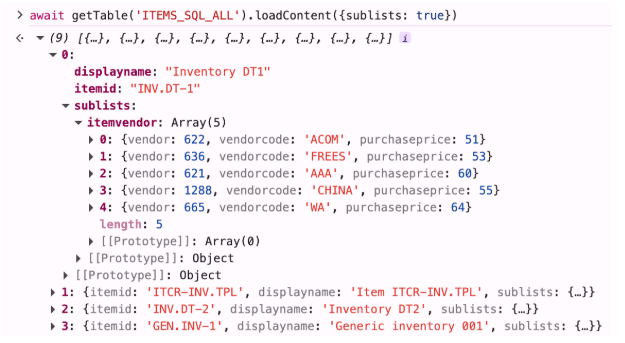
Organizing Table Data by Sublist
When loading dynamic tables using scripts, you can obtain data organized by sublist. To do this, you can set the sublists parameter to true for getTable().loadContent().
To improve table loading performance in new implementations, use this solution instead of getData() with the loadapi parameter set to true. See the syntax below:
              let producTable = await getTable('TABLE_CODE').loadContent({
    sublists: true
});
This is an example of the function output in the console: